
Tax and VAT settings
Configure national and regional sales tax rates, value-added tax brackets, exempt categories, and inclusive pricing rules.
Tax and VAT settings
Use the Tax and VAT settings screen to define statutory value-added tax (VAT), goods and services tax (GST), and sales tax brackets. Standardized tax rates ensure compliant invoice calculations across point of sale checkouts, online store orders, and vendor procurement bills.
When you use this
- Establish standard, reduced, or zero-rated tax rates conforming to your national revenue authority.
- Update percentage brackets when local sales tax legislation changes.
- Configure whether taxes are inclusive or exclusive on customer storefront prices.
- Deactivate obsolete tax brackets while retaining historic records on finalized accounting vouchers.
Screen layout
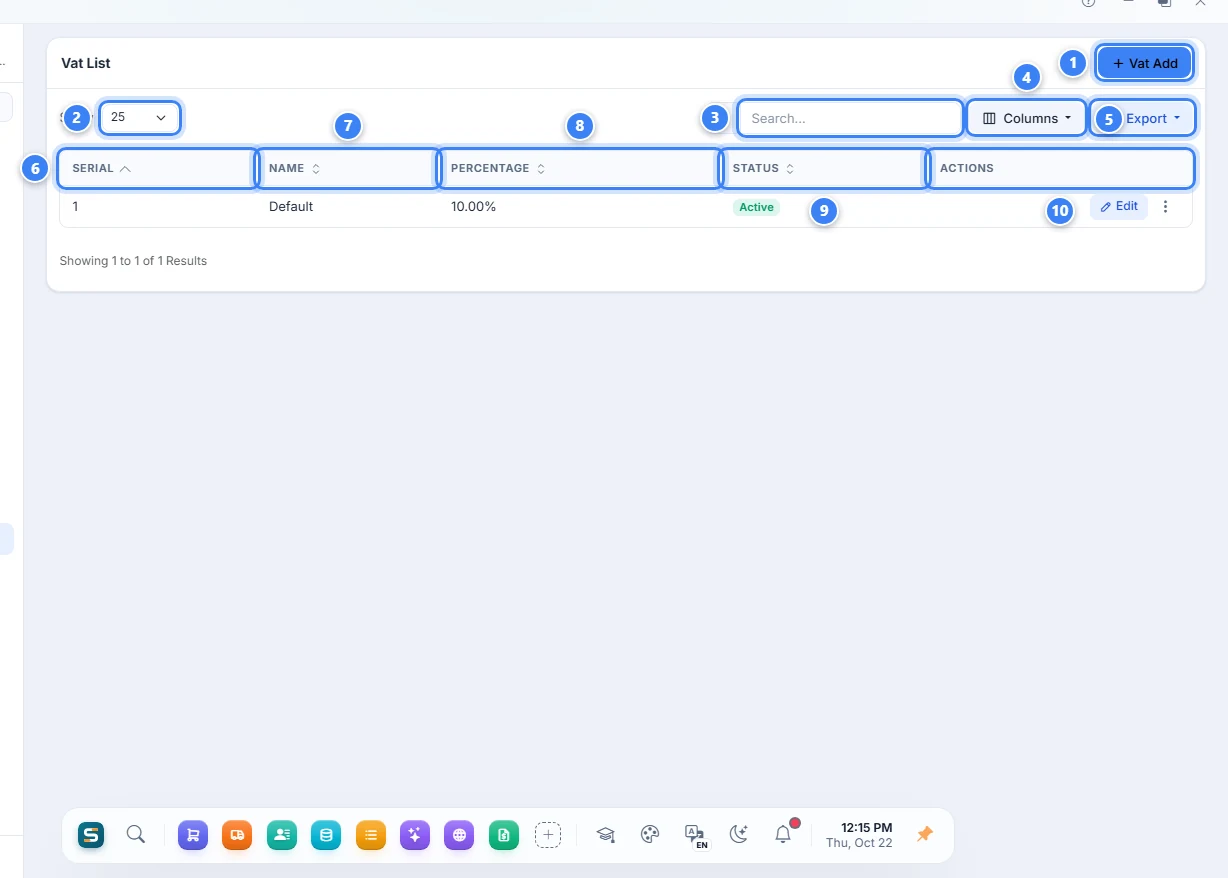 Tax and VAT settings list
- Vat Add — opens modal window to register a new tax rate.
- Rows per page — selects how many tax records appear on each page.
- Search filter — filters tax rates by name or percentage.
- Columns toggle — customizes which tax columns are visible in the table.
- Export button — downloads the tax and VAT rate list as an Excel spreadsheet or CSV.
- Serial column — system sequential indexing number.
- Name column — tax bracket or VAT rate label.
- Percentage column — tax rate percentage applied to commercial orders.
- Status column — active or inactive tax rate availability badge.
- Actions column — row action buttons to modify rates or delete.
Step-by-step: Adding a new tax or VAT rate
- Open Settings from your main navigation menu and select VAT settings.
- Click the Vat Add (1) button in the header toolbar.
- In the modal dialog, specify the tax bracket title in Name (7) (such as Standard VAT or Zero Rated).
- Enter the calculation percentage into Percentage (8) (for example,
15for 15% or24for 24%). - Choose whether the tax applies as inclusive or exclusive in the calculation type selector.
- Check whether this should be the system default tax rate on new products and orders.
- Click Save to register the rate. The new tax bracket is immediately available across sales and purchase forms.
Every field and control
Datatable controls and filters
- Vat Add (1): Launches the creation modal to configure a new tax percentage or exemption bracket.
- Rows per page (2): Customizes the number of rows displayed simultaneously (10, 25, 50, or 100).
- Search filter (3): Rapid text filter querying tax labels and numeric percentages.
- Columns toggle (4): Checkbox dropdown enabling you to customize which table attributes are visible.
- Export button (5): Downloads the tax rate catalog as a formatted Excel spreadsheet or CSV file.
Table columns and row actions
- Serial (6): Chronological record order assigned automatically upon rate creation.
- Name (7): Tax bracket title printed on sales invoices and purchase bills.
- Percentage (8): Effective percentage rate applied to product subtotal amounts.
- Status (9): Active green badge indicates the tax can be assigned to new items; red inactive badge restricts usage.
- Actions (10): Row action buttons including Edit (pencil icon) to modify percentages and default settings, and Delete (trash icon) to remove unused rates.
Common questions
How do inclusive and exclusive taxes differ during order calculation?
Exclusive taxes calculate tax on top of your item price (e.g., $100 price + 15% VAT = $115 invoice total). Inclusive taxes calculate tax as already contained within the advertised retail price.
Can I delete a tax rate that was used on previous invoices?
No. To preserve ledger fidelity and statutory audit trails, tax rates referenced by finalized invoices or bills cannot be deleted. You can set their status to Inactive instead.
Can different products have different tax rates on the same invoice?
Yes. You can assign default tax rates individually to each item in Products. During checkout, the invoice automatically totals tax amounts per rate group.
Related pages
- Products and barcodes — assign default tax and VAT rates to catalog items.
- Orders and sales — create sales invoices with automatic tax calculations.
- Financial reports — inspect VAT and sales tax liability reports.