
Invoice and receipt templates
Customize print layouts, branding headers, thermal POS formats, tax summaries, and customer sign-off blocks.
Invoice and receipt templates
Use the Invoice and receipt templates gallery to select, customize, and maintain printed document designs across commercial sales, receipts, delivery slips, and accounting vouchers. Changes applied to a template immediately update printed paperwork across desktop browsers and thermal point of sale printers.
When you use this
- Choose visual invoice themes matching your company branding and letterhead standards.
- Adjust font sizes, margins, color palettes, and header logos for printed commercial invoices.
- Configure thermal receipt slip layouts for 80mm and 58mm POS receipt printers.
- Revert custom template adjustments back to standard default layouts.
Screen layout
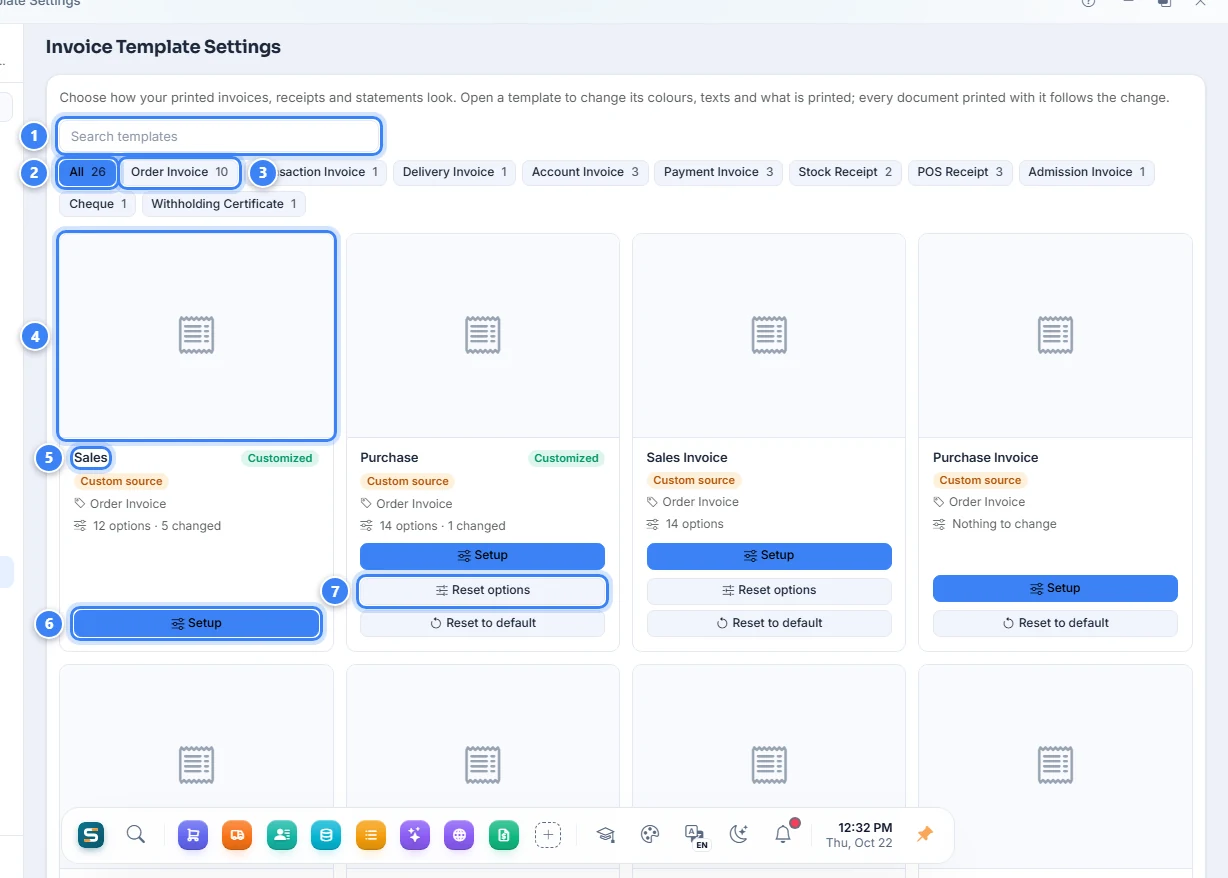 Invoice and receipt templates gallery
- Search templates — filters invoice and receipt templates by title.
- All templates filter — displays all available printable template layouts.
- Template type filters — filters templates by business document category.
- Template thumbnail preview — visual thumbnail showing the layout design.
- Template name — title and format of the document template.
- Setup button — opens modal to customize layout options, colors, and headers.
- Reset options — reverts customizations back to factory layout presets.
Step-by-step: Customizing an invoice print template
- Open Settings from your main navigation menu and select Invoice templates.
- Locate the desired print layout using Search templates (1) or Template type filters (3).
- Click the Setup (6) button beneath the template card.
- In the setup modal, adjust branding preferences such as your logo display, business contact information, and primary accent color.
- Toggle optional sections on or off, including customer tax numbers, payment QR codes, return terms, and signature lines.
- Click Save to apply the configuration. All subsequent print requests using this template immediately render with your updated styles.
Every field and control
Gallery toolbar and search
- Search templates (1): Text filter searching across template names, paper sizes, and document kinds.
- All templates filter (2): Reset button showing the complete collection of installed document templates with a total count badge.
- Template type filters (3): Category buttons grouping templates by functional role (such as Order Invoice, Delivery Invoice, POS Receipt, or Account Voucher).
Template cards and actions
- Template thumbnail preview (4): Scaled visual rendering demonstrating how printed documents format text and line items.
- Template name (5): Distinctive design name and version identifier of the printable layout.
- Setup button (6): Launches the interactive template editor to configure fields, typography, colors, and document headers.
- Reset options (7): Secondary action button reverting custom tweaks back to factory template defaults.
- Reset to default: Clears modified template options and restores original layout defaults if changes need to be discarded.
Common questions
Can I set different invoice templates for different retail outlets?
Yes. In Outlets, you can assign specific default invoice templates and receipt formats individually to each physical store location.
How do I configure paper size for thermal POS printers?
Thermal POS receipt layouts are pre-formatted for standard 80mm or 58mm roll widths. Select a layout under the POS Receipt category, click Setup, and set your desired receipt paper width and feed cut options.
What happens if I reset a template to default?
Resetting a template clears custom layout overrides, colors, and wording changes you entered in the setup dialog. Your historic sales and invoices remain untouched; future print operations simply use the baseline factory design.
Related pages
- Printed documents and receipts — technical reference for printed document layouts.
- Outlets and stores — assign invoice templates to physical business locations.
- Sales and orders — print invoices and customer delivery slips.