
Add or change an order
Create, edit, and configure order details across line items, attachments, advance terms, and custom parameters.
Add or change an order
Use this window to create a brand-new order or modify an existing transaction. The window organizes order entry into dedicated tabs for line items and pricing, document file attachments, advance scheduling and workflow options, and custom parameters.
Order window opens when you click New Order on the order list, or when you click Edit on an existing table row.
When you use this
- A customer places an order and you need to record products, agreed prices, discounts, and payment methods.
- You receive a supplier invoice and need to record incoming inventory lines and billing amounts.
- You need to update line item quantities, attach signed delivery slips, or record partial shipments.
- You review a draft transaction, submit it for manager approval, or authorize an approved record.
Before you start
- Ensure the relevant customer or supplier contact is created in your workspace.
- Make sure that the products you wish to sell or receive are added to your catalog.
- If you intend to take an immediate deposit or full payment, confirm the active payment accounts.
Open the order window
On the Orders list, click New Order in the action bar to create a fresh document. To modify an existing record, locate the document row in the table and click Edit in the row action menu.
Every field in the Basic tab
The Basic tab contains essential transaction data, product lines, and payment terms:
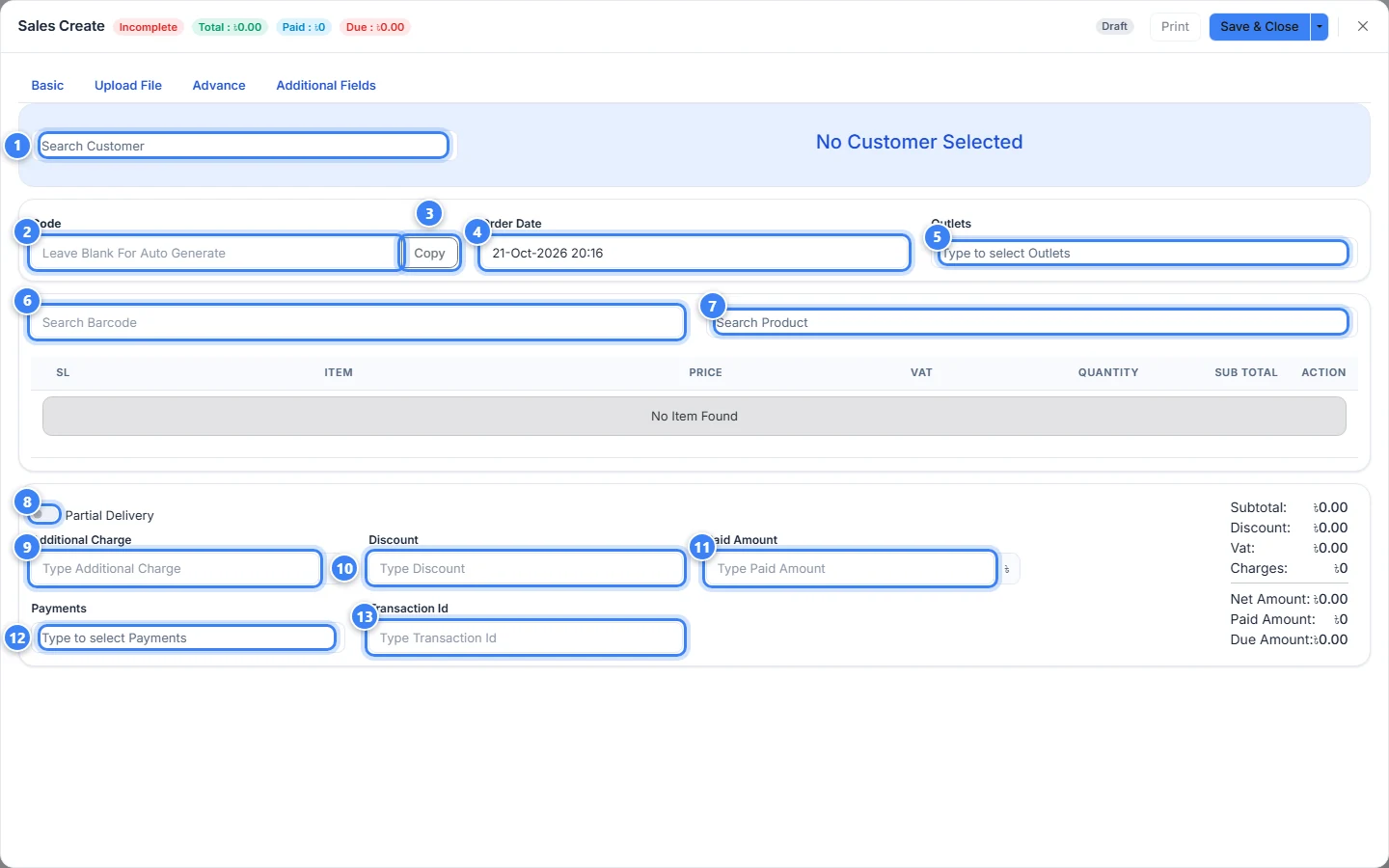 Order editing window - Basic tab
- Contact — select customer or supplier contact (
contact_id). - Code — document reference code.
- Copy code — copies the generated order code to clipboard.
- Order date — transaction date.
- Outlet — branch or warehouse location (
Outlets). - Search barcode — scan or type product barcode.
- Search product — search and add products (
search_product) to the order. - Partial delivery — allow splitting items across multiple shipments.
- Additional charge — shipping or service fee.
- Discount — order-level discount deduction.
- Paid amount — payment received at time of order.
- Payment method — cash, bank, or mobile account.
- Transaction details — payment transaction note (
Transaction Id).
You can also specify Additional Charge Details for shipping notes, and configure the Due Date when there is an unpaid balance.
Every field in the Upload File tab
Use this tab to attach supporting documents, scanned invoices, contracts, or delivery confirmations:
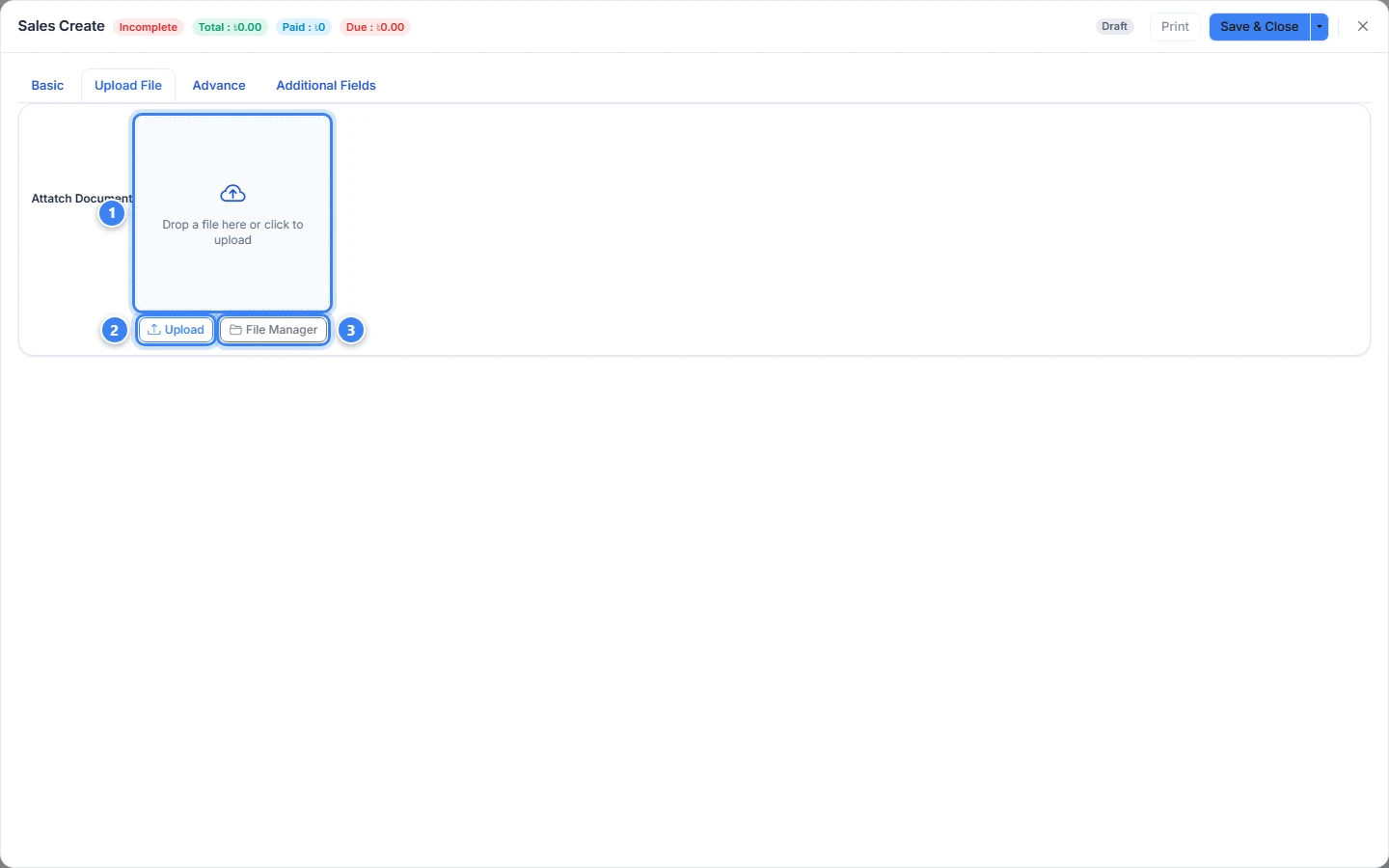 Order editing window - Upload File tab
- Dropzone — drag and drop files onto this dropzone.
- Upload — browse and upload files from your device.
- File Manager — choose existing files from the media library.
The Attatch Document section preserves copies of signed agreements or delivery notes alongside the transaction record.
Every field in the Advance tab
The Advance tab handles workflow states, reference codes, delivery dates, and communication notes:
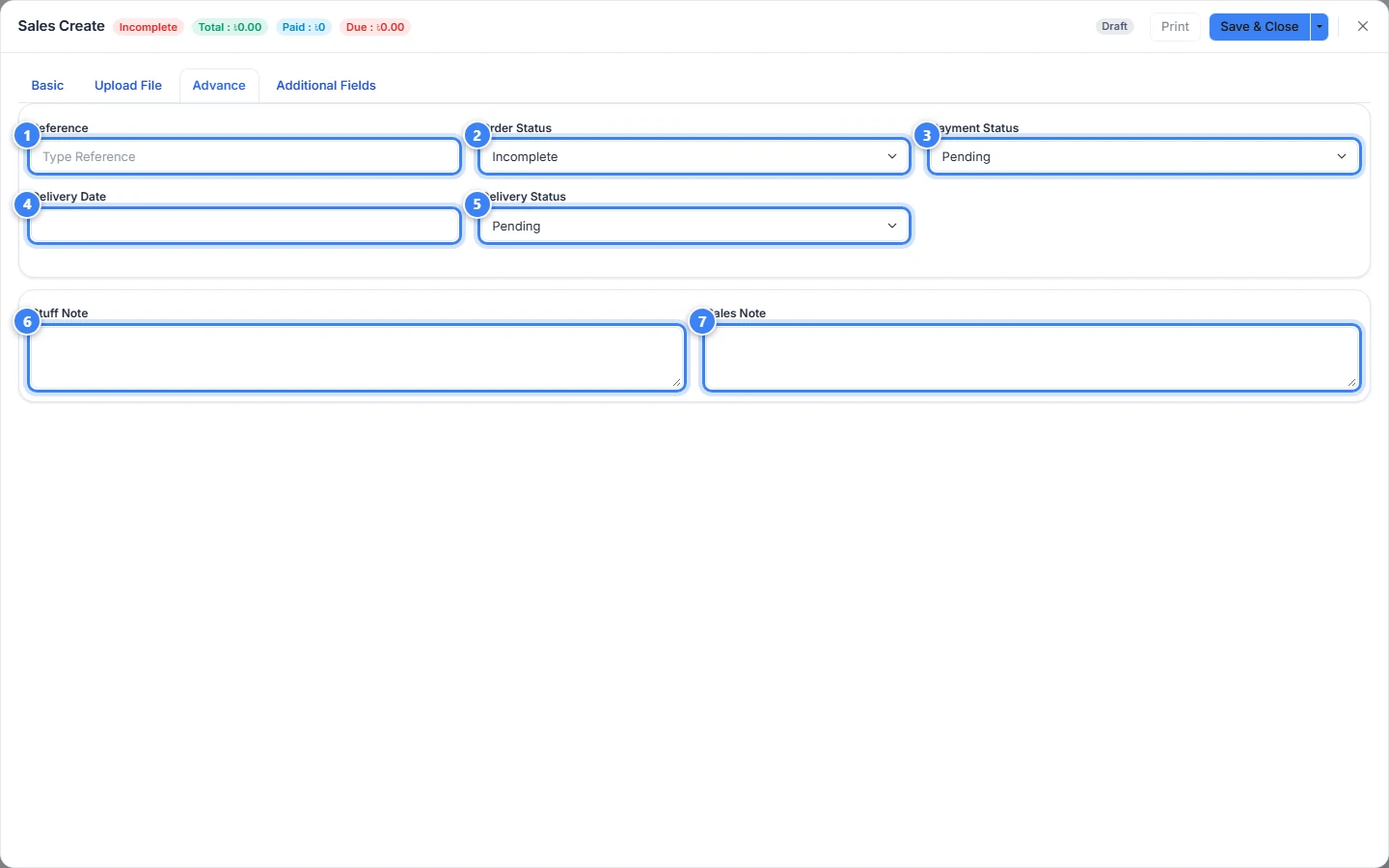 Order editing window - Advance tab
- Reference — external PO or invoice reference number.
- Order status — complete, incomplete, or placed.
- Payment status — paid, pending, or partial.
- Delivery date — scheduled dispatch or delivery date.
- Delivery status — delivered, pending, or partial.
- Internal note — private note for company staff only (
Stuff Note). - Customer note — note printed on customer receipt or invoice (
Sales Note).
Every field in the Additional Fields tab
Use this tab to complete custom business parameters defined by your organization:
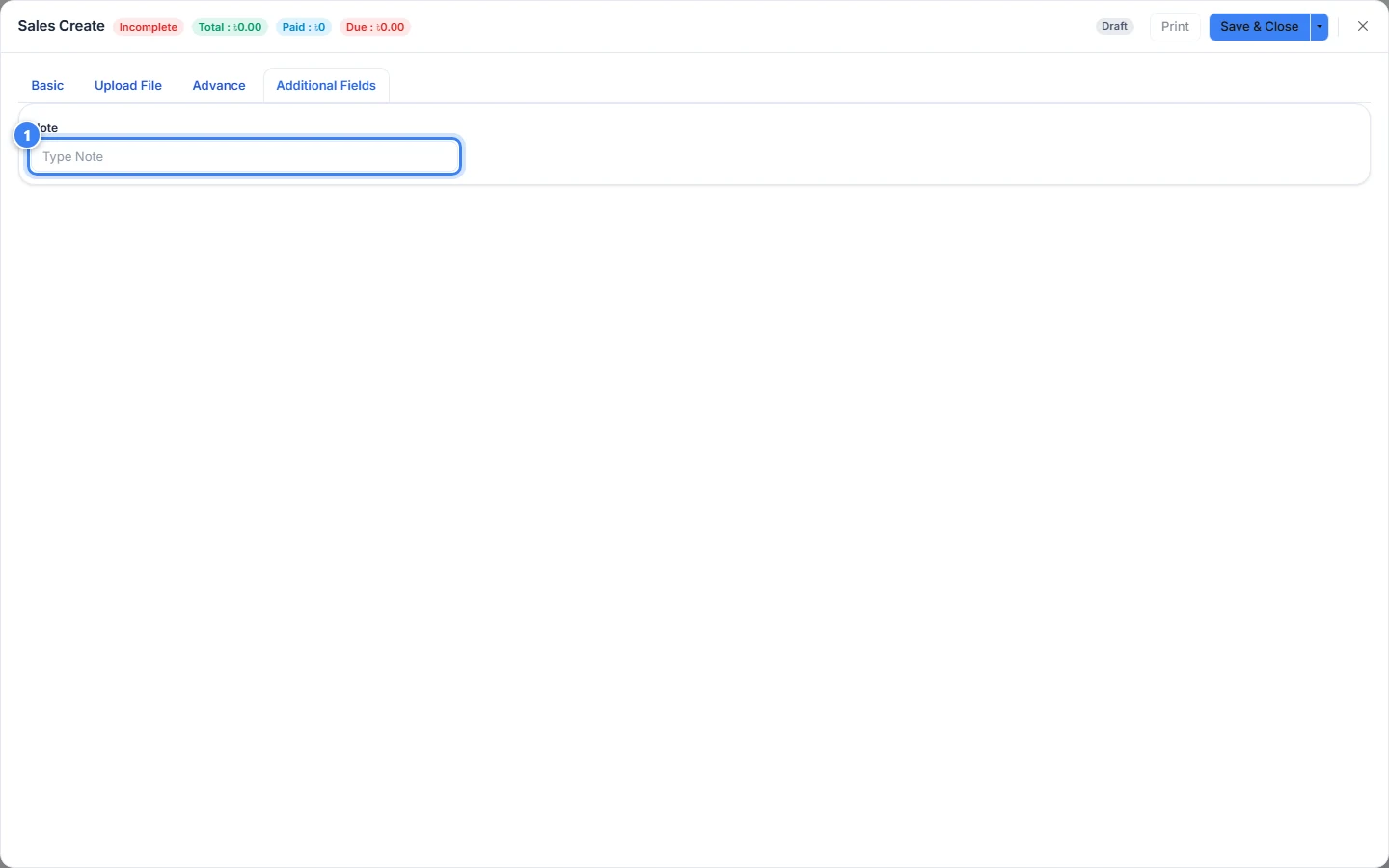 Order editing window - Additional Fields tab
- Custom parameter — user-defined additional fields and notes.
Window actions
The modal header and footer provide buttons to progress the transaction:
- Save: stores your current changes as a draft without advancing workflow stages.
- Submit: advances a draft record for managerial review and approval.
- Approve: authorizes the document, adjusting stock inventory and posting to financial ledgers.
- Reject: rejects a submitted record and prompts for an explanatory Reason.
- Withdraw: returns a submitted record to draft status so you can edit details.
- Cancel order: cancels an active order and records the Reason for cancelling.
- Print: generates a formatted invoice or receipt for customer distribution.
Real-life example
A sales clerk takes an order for ten office chairs. She opens the Order window, selects the corporate customer from the Contact dropdown, and uses Search product to add the chairs. She enters a 5% discount, records an initial deposit in Paid amount via Bank Transfer, notes the promised delivery date on the Advance tab, and clicks Save to confirm the booking.
Common questions
Can I save an order without taking any initial payment?
Yes. Leave the Paid amount field blank or set to 0. The transaction will be marked as Pending payment and the full balance remains due.
How do I attach a signed purchase agreement?
Open the Upload File tab, drag the PDF agreement onto the dropzone or click Upload to attach the file directly to the transaction record.
When does stock inventory decrease?
Stock inventory is officially updated when the record is submitted and approved according to your outlet inventory configuration.
Affiliate field
When your business runs the affiliate program, a sale or a quotation has the field Affiliate. Click More details to see it. The affiliate who brought this customer. They earn commission when the sale is completed.
- Only active affiliates are listed.
- Your choice wins over a coupon and an affiliate link.
- The affiliate cannot be the buyer: An affiliate cannot earn commission on their own order.
- A quotation turned into a sale keeps its affiliate. A return always takes the affiliate of the first sale.
See Affiliate on products, contacts and orders for more.
Related pages
- Orders list — browse, filter, and track all documents across your workspace.
- Payments list — monitor collections, advances, and payment reconciliations.
- Affiliate on products, contacts and orders