
Coupons
Create, browse, search, and manage promotional discount coupons and campaign codes for sales and storefront checkout.
Coupons
Use this screen to manage, search, and track promotional discount coupons across your outlets and storefront. Coupons let you offer percentage discounts or fixed monetary deductions when customers buy products. You can configure minimum cart requirements, usage caps, and validity dates. The table displays active and expired vouchers, shows redemption statistics, and provides action buttons to edit promotional parameters or disable codes.
When you use this
- You launch a seasonal sales campaign and issue promotional discount codes to customers.
- You configure minimum order spend thresholds to encourage larger customer purchases.
- You review coupon redemption numbers to check how many times customers have used a code.
- You deactivate or delete expired promotional offers.
Before you start
- You need permission to manage order coupons. If the menu is missing, ask your administrator.
- Configure your branch outlets if you want to restrict coupons to specific locations.
Open the coupons list
Click Order on your Sylloo desktop dock or app menu, then choose Coupons. The datatable displays all configured promotional coupons.
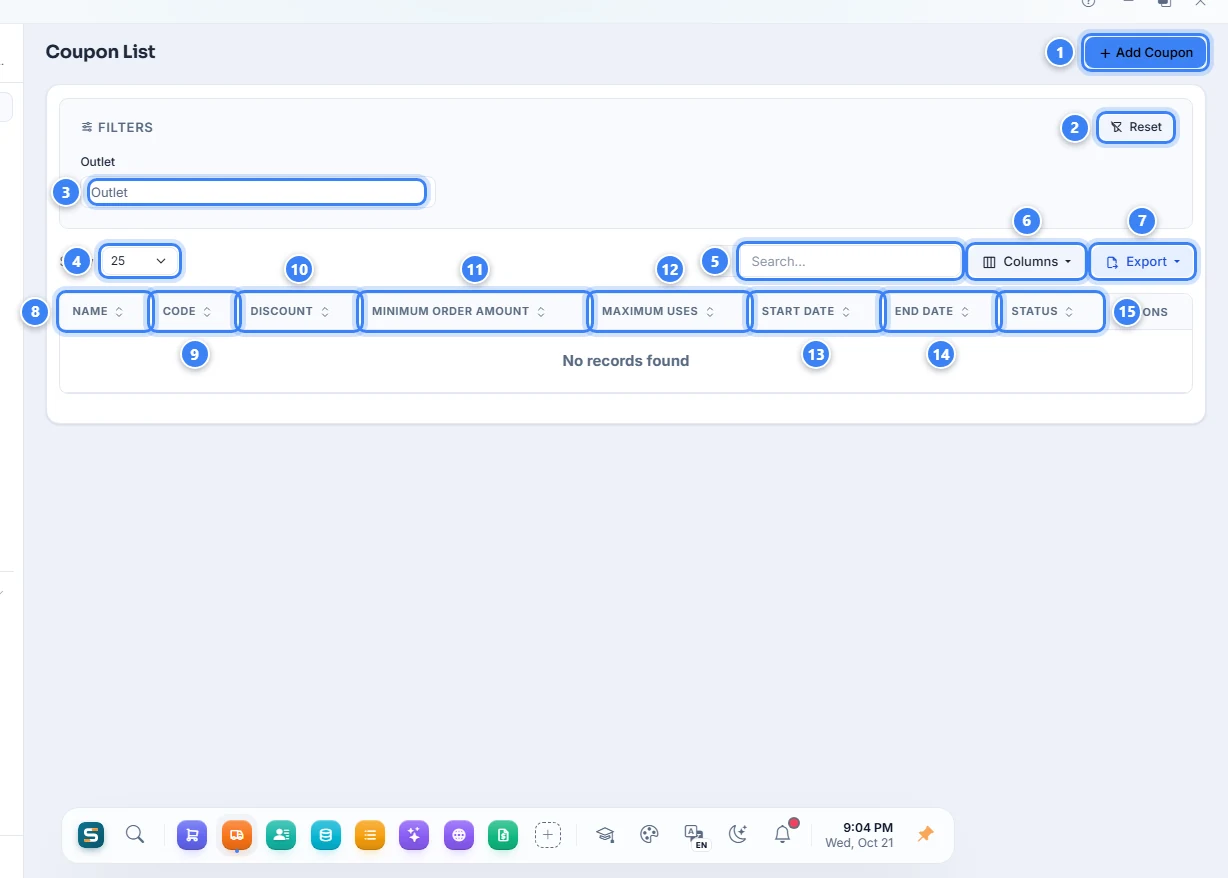 The coupons list
- Add Coupon — opens the form to create a new promotional discount coupon.
- Reset — clears all active filter and search options.
- Outlet filter — filter promotional coupons valid at a specific store outlet.
- Rows per page — choose how many coupons to display on one page.
- Search — search coupons by name or promo code.
- Columns — toggle visibility of datatable columns.
- Export — export coupon records to Excel or CSV.
- Name column — displays promotional campaign or coupon name.
- Code column — displays customer promo code entered at checkout.
- Discount column — shows discount rate or flat deduction value.
- Minimum order amount column — minimum cart spend required to apply this coupon.
- Maximum uses column — total redemption limit or available usage count.
- Start date column — date when the coupon becomes active.
- End date column — expiration date after which the coupon cannot be used.
- Status column — indicates whether the coupon is currently active or disabled.
Search and filter promotional coupons.
Use the controls above the table to locate specific campaign vouchers.
- Outlet: choose an outlet to view promotional codes restricted to that store branch.
- Search: type a campaign title or promo code into the search box. The table updates instantly.
- Reset: click this button to clear your active search and outlet filters.
- Rows per page: adjust the dropdown to display 10, 25, 50, or 100 rows per page.
Every field, column, and action explained.
Table columns
| Column | Type | Description |
|---|---|---|
| Name | Text | The internal campaign name or promotion title. |
| Code | Text | The unique alphanumeric promo code entered by customers during checkout. |
| Discount | Number / Currency | The discount percentage or flat deduction value deducted from the order. |
| Minimum order amount | Currency | The minimum order total required before this coupon can be applied. |
| Maximum uses | Number | Total number of times this coupon can be redeemed across all orders. |
| Start date | Date | Official date when the promotion becomes active. |
| End date | Date | Final expiration date after which the promo code is rejected. |
| Status | Badge | Operational state (Active or Inactive). |
| Actions | Action buttons | Action buttons to modify or delete the coupon. |
Row actions
Each row offers action buttons to maintain the promotional code:
- Edit (pencil icon): opens the coupon modal to update discount values, spend limits, or active dates.
- Delete (trash icon): deletes the promotional coupon from the system.
Action screens
Adding a promotional coupon
Click the Add Coupon button in the header toolbar to configure a new promotion:
- Click Add Coupon to open the configuration form.
- Enter the promotion name, unique checkout promo code, discount rate, and minimum spend.
- Select validity dates and optionally assign a specific outlet.
- Click Save to publish the coupon.
See Add or change a coupon for the full guide.
Common questions
What happens when a coupon reaches its maximum uses limit?
The checkout system automatically rejects the promo code once customer redemptions reach the maximum uses threshold.
Can I restrict a promotional code to a single outlet?
Yes. When configuring the coupon, select your desired branch in the Outlet field. Customers cannot redeem the coupon at other outlets.
Affiliate column
When your business runs the affiliate program, the list has the column Affiliate. It shows the affiliate a coupon belongs to, with their code, for example Ava Stone AVA10. It is empty for a normal coupon. To give a coupon to an affiliate, open it and choose the Affiliate in Add or change a coupon.
Related pages
- Add or change a coupon — Create or update discount rates and campaign rules.
- Orders — View and track customer sales orders and applied discounts.
- Affiliate on products, contacts and orders