
AI activity and audit trail
Inspect real-time tool calls, queries, data reads, and action executions performed by Octopus AI.
AI activity and audit trail
Use the AI activity and audit trail screen to inspect the transparent log of all background tools, data searches, file inspections, and action proposals. Every automated turn includes timestamp precision to give you complete accountability for security and administrative oversight.
When you use this
- Verify which team member initiated a specific automated action or prompt.
- Confirm whether a proposed batch data modification completed successfully or was rejected.
- Audit data access logs to ensure sensitive customer or financial records remain protected.
- Review error messages and tool responses when diagnosing an unexpected automated turn.
Screen layout
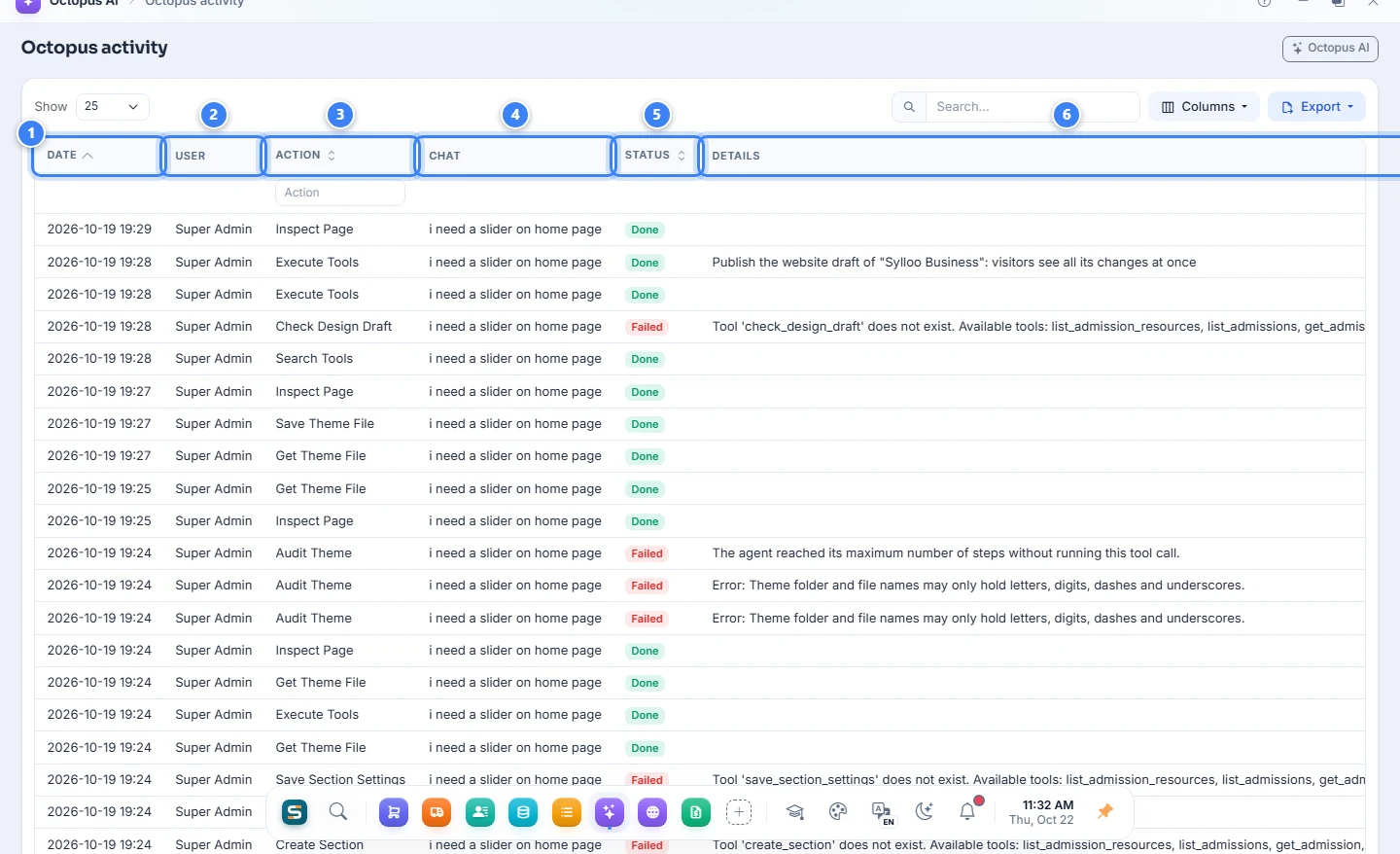 AI tool execution activity and audit trail
- Date column — timestamp when the AI tool execution occurred.
- User column — identifies the team member who initiated the prompt.
- Action column — displays the specific tool or inquiry executed by Octopus.
- Chat column — shows the conversation session topic and reference.
- Status column — indicates whether the operation succeeded, was rejected, or failed.
- Details column — presents summarized execution parameters and output.
Step-by-step: Reviewing automated AI actions
- Open Octopus AI from your navigation bar and click the Activity link in the header.
- Review the chronological list of recent tool executions in the audit table.
- Use the tool_text search filter under the Action heading to filter specific tools (such as spreadsheet parsing or invoice drafting).
- Inspect the User (2) column to see who authorized the request.
- Check the Status (5) badge to confirm if the operation succeeded, failed, or was declined during human approval.
- Click the linked Chat (4) title to jump directly into the original conversation context.
Every field and control
Audit columns and filters
- Date (1): The exact calendar date and timestamp when the tool ran. Click to sort chronologically.
- User (2): The name and identity of the employee whose session triggered the action.
- Action (3): The specific business operation, inquiry, or calculation performed by the AI agent.
- tool_text: The inline search filter beneath the Action heading allows you to filter specific operations by tool keyword.
- Chat (4): The conversation session title where the turn originated. Clicking the link opens the full discussion.
- Status (5): Color-coded execution status badge displaying whether the turn succeeded, failed, or was rejected by the user.
- Details (6): Key parameters, input arguments, and human-readable output summaries produced by the tool.
Common questions
Can staff delete or tamper with the AI activity log?
No. The audit trail provides an append-only security record. Regular staff and administrators cannot alter or clear historical logs.
Does the audit trail record user prompt text?
The audit table records the business tools, system queries, and outputs executed during the session. You can read the full conversation text by opening the linked chat discussion.
What causes a "Rejected" status badge?
A rejected status indicates that Octopus generated a proposed change plan, but a team member clicked Reject or requested modifications rather than authorizing immediate execution.
Related pages
- Octopus AI assistant — ask questions, create designs, and collaborate with your AI assistant.
- Users and roles — configure staff permissions and manage accounts.
- Plan and billing — monitor monthly AI token allowances and plan limits.