
SMS and email
Configure SMS gateways, connect email providers, send broadcasts, and review delivery history.
SMS and email
Use the SMS and email screen to connect text message gateways, configure email delivery accounts, broadcast marketing messages, and monitor communication history. You can manage multiple providers, customize templates, and verify connections with real-time test messages.
When you use this
- Connect an SMS provider (such as Twilio, Infobip, or local gateways) to send transaction text alerts.
- Set up an email delivery service using standard connection settings to send invoices and receipts.
- Compose manual broadcast campaigns targeting specific customer groups or individual contacts.
- Review sent message logs to confirm delivery status, recipient addresses, and transmission timestamps.
Screen layout.
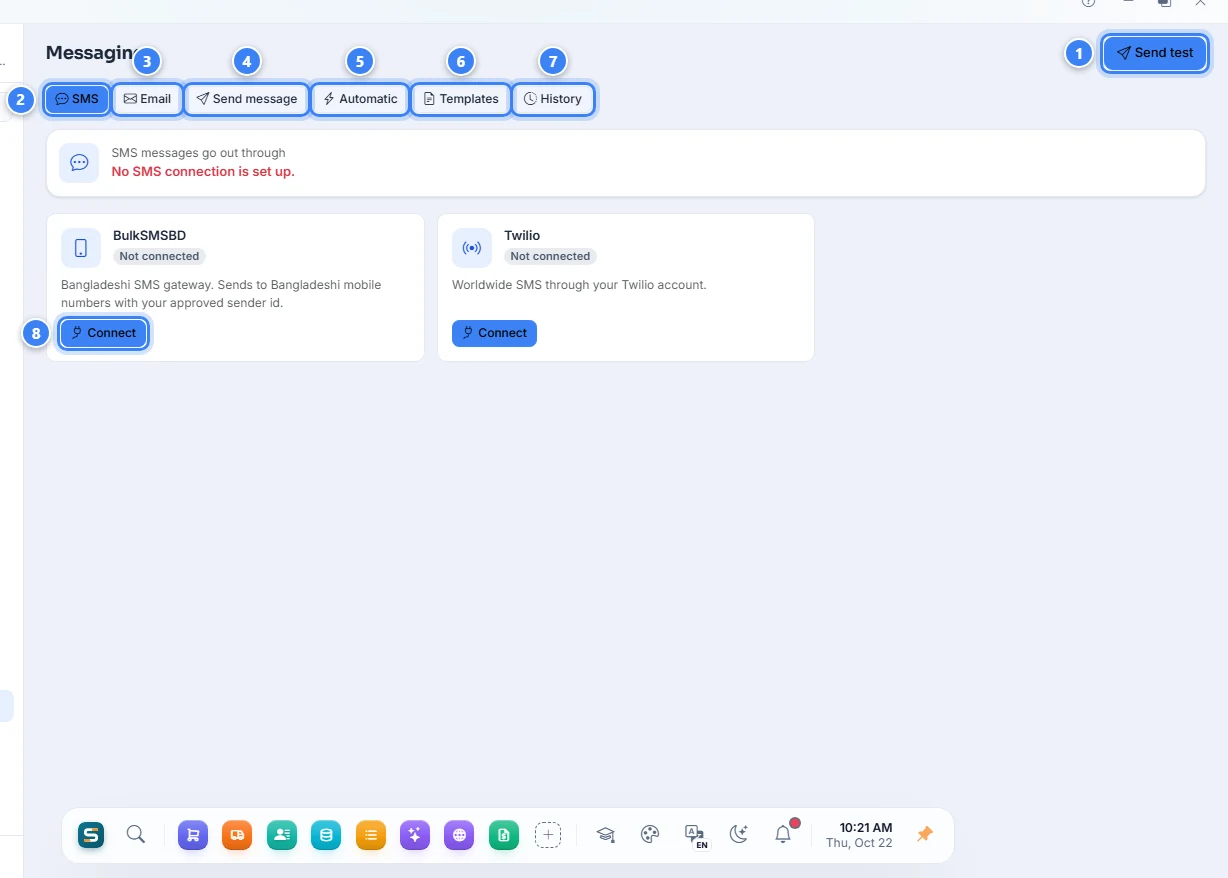 Messaging settings and channels
- Send test message — sends a sample message to verify gateway connectivity.
- SMS gateway tab — configures SMS provider credentials and balances.
- Email gateway tab — sets up email delivery servers and connection credentials.
- Send message tab — opens the compose tool to send manual SMS or email broadcasts.
- Automatic notifications tab — configures automated order and payment triggers.
- Templates tab — customizes message content and dynamic tags.
- History tab — logs all sent SMS and email messages with delivery status.
- Connect gateway — opens credentials configuration for the selected provider.
Step-by-step: Connecting an SMS or email provider.
- Go to Settings > Messaging from the main navigation menu.
- Select either the SMS (2) or Email (3) tab depending on the channel you want to set up.
- Locate your preferred delivery provider and click Connect (8) (or Edit if already configured).
- Enter the required connection keys (such as account secret, Sender ID, or mail host and password).
- Click Save to store your gateway configuration.
- Click Send test message (1) in the header to transmit a test message to your phone or inbox and confirm the gateway is functioning properly.
Every field and control.
Header actions.
- Send test message (1): Opens a testing dialog with a Test button. You can enter a destination phone number or email address to verify your delivery settings.
Gateway channel tabs.
- SMS gateway tab (2): Displays cards for all supported SMS gateways. Each provider card displays current status, connection switches, and balance counters.
- Email gateway tab (3): Lists available email transmission services including custom mail servers and cloud delivery platforms.
- Send message tab (4): Opens the broadcast composer.
- Automatic notifications tab (5): Opens event notification triggers (detailed in Automatic messages).
- Templates tab (6): Displays text and email templates with options to Edit template, Reset options, or Reset to default.
- History tab (7): Displays the transmission log table detailing sent messages, channels, recipient contacts, error notes, and delivery timestamps.
Provider cards.
- Connect gateway (8): Opens the credentials dialog to input secret keys, account tokens, sender names, and port configurations.
- Edit: Reopens provider settings to adjust credentials or sender headers.
- Test: Sends a quick ping through that specific provider card.
Message composer controls (Send message tab).
When you click the Send message (4) tab to broadcast communications, you can configure these options.
- Send to: Dropdown to select your recipient audience (
All contacts,Specific contacts, orContact group). - Chosen contacts: Search selector to pick individual customer or vendor contacts.
- A contact group: Search selector to broadcast to a predefined customer group.
- Template: Dropdown to select a pre-saved message draft.
- Message (SMS): Text area for typing SMS content with dynamic character and credit counters.
- Subject (Email): Email subject headline field.
- Message (Email): Rich-text editor to format HTML email newsletters and announcements.
- Send to :count contacts: Action button that queues and transmits the message to all selected recipients.
- eventSwitches.{{ $row['event']->value }}.{{ $channelKey }}: Checkbox switches on the automatic notifications list that enable or disable SMS and email delivery for individual business events.
Common questions
Can I connect multiple SMS providers at the same time?
Yes. You can configure multiple gateways and designate one as the default provider while keeping a secondary gateway as a backup option.
Where can I check if a message failed to deliver?
Open the History (7) tab. The table lists every outgoing SMS and email along with delivery statuses (Sent, Delivered, Failed) and detailed error explanations if transmission was rejected.
Related pages
- Automatic messages: Set up automated event notifications for orders, deliveries, and payment receipts.
- Contacts: Manage customer phone numbers, email addresses, and contact groups.
- Printed documents and receipts: Customize printable receipt headers and invoices.