
Employees
Manage staff profiles, employee records, contact information, photos, and employment status.
Employees
Use the Employees screen to keep track of your organization's workforce. You can maintain digital personnel records, store profile photos and contact details, organize staff by departmental groups, and record official employment status across all business locations.
When you use this
- Register newly hired staff members into your organization's human resources directory.
- Maintain accurate residential addresses, mobile numbers, and emergency contact details.
- Group employees by department or job role for structured team management.
- Update employment status or archive employee files when a worker leaves the company.
Screen layout
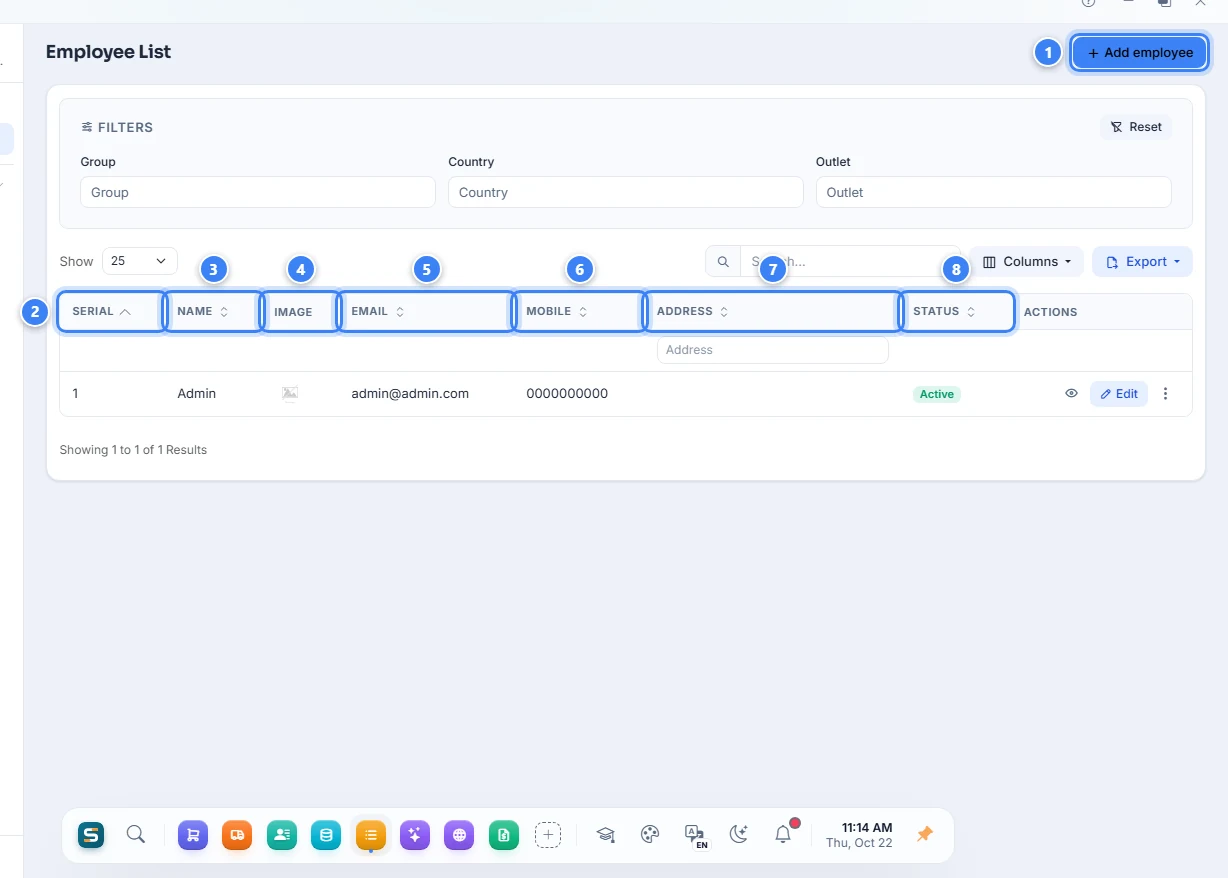 Company employees and staff roster
- Add employee button — opens the modal window to register a new employee.
- Serial column — displays the sequential serial number of the employee record.
- Name column — displays the full name of the employee.
- Image column — shows the employee profile avatar or ID photo.
- Email column — displays the staff email address for communication.
- Mobile column — shows the mobile phone contact number.
- Address column — presents the employee residential or office address.
- Status column — indicates whether the employee is actively employed or inactive.
Step-by-step: Registering a new employee
- Open Human Resources > Employees from your main navigation menu.
- Click Add employee (1) to launch the personnel registration window.
- Enter the worker's Name (3), primary Email (5), and Mobile (6) contact number.
- Upload an employee ID photo or avatar in the Image (4) field.
- Provide the residential street Address (7) and assign the staff member to a department group.
- Click Save to confirm. The employee record appears on the roster with an assigned Serial (2) number.
Every field and control
Toolbar buttons
- Add employee (1): Opens the registration dialog to enter biographical and contact details for a new hire.
Roster columns and filters
- Serial (2): Sequential numbering index generated for system employee records.
- Name (3): The full legal name of the employee. Click the column heading to sort alphabetically.
- Image (4): Thumbnail preview of the employee profile photograph or identification avatar.
- Email (5): Official work or personal email address used for administrative communications.
- Mobile (6): Direct phone or mobile number for operational contact and alert delivery.
- Address (7): Physical street address, district, or residential location of the staff member.
- Status (8): Employment badge indicating whether the worker is actively on duty or inactive.
- address: The inline search filter beneath the address heading allows you to filter staff living in a specific area.
Row actions
- Edit: Opens the employee profile editor to update contact details, department assignments, and personal notes.
- View: Displays a quick summary preview card of the employee file and background details.
- Delete: Archives or removes the staff profile from the active human resources roster.
Common questions
Does adding an employee automatically create a login account?
No. An employee profile stores personnel and contact records. To grant software access, create a matching team member account under Users and roles.
How do I categorize employees by department or job role?
You can create designated groups such as Sales, Warehouse, Kitchen, or Administration under Employee designations and groups and assign staff during registration.
Can I retrieve past employee records after they resign?
Yes. Rather than deleting the profile, change the employee status to inactive so their past attendance and payroll records remain intact.
Related pages
- Employee designations and groups — organize departments, ranks, and staff groups.
- User accounts and staff list — issue sign-in accounts and system permissions for your staff.
- Outlets — assign employees to store branches and retail locations.