
Client portal sign-in
Sign in to your customer portal account to review orders, track parcel deliveries, inspect account ledgers, and pay invoices.
Client portal sign-in
Use the Client portal sign-in screen to access your dedicated customer workspace. From this secure self-service portal, clients and buyers can track active orders, inspect payment history, print official statements, and settle outstanding balances online.
When you use this
- Sign in to your business client account using your registered email address or mobile number.
- Reset forgotten account passwords through verified email or SMS recovery links.
- Preserve your login credentials across sessions on trusted personal computers.
- Navigate to the registration page if you are a new customer opening an account.
Screen layout
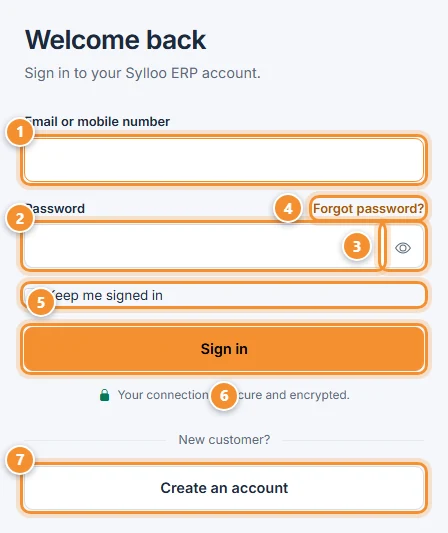 Client portal sign-in screen
- Email or mobile — customer email address or mobile phone number.
- Password — account password secret.
- Toggle password visibility — shows or hides entered password characters.
- Forgot password link — opens password reset request screen.
- Keep me signed in — saves session on this browser.
- Sign in button — authenticates and opens customer dashboard.
- Create an account button — opens customer self-registration form.
Step-by-step: Signing in to the customer portal
- Open your browser and navigate to your supplier's customer portal web address (
/client/login). - In Email or mobile (1), enter your registered customer email address or mobile phone number.
- Enter your private account password in Password (2).
- Click Toggle password visibility (3) if you wish to confirm the entered characters.
- If using a personal and private device, check Keep me signed in (5) to retain your active session.
- Click the Sign in button (6). Upon successful authentication, your customer dashboard opens immediately.
Every field and control
Authentication inputs
- Email or mobile (1): Primary customer credential accepted by the portal. You can enter either your primary email address or the mobile number associated with your contact profile.
- Password (2): Secret security passphrase protecting your customer account.
- Toggle password visibility (3): Eye icon button that toggles between masking bullets and plain visible text for quick validation.
- Forgot password link (4): Navigates to the automated password recovery screen to request a reset link if you cannot recall your credentials.
- Keep me signed in (5): Checkbox setting a persistent authentication cookie so you do not have to sign in on each browser visit.
- Sign in button (6): Submits your credentials to authenticate and redirects to your client dashboard.
- Create an account button (7): Secondary navigation button directing prospective new buyers to the customer self-registration form.
Common questions
Where does a customer obtain client portal login credentials?
When a merchant creates or updates your profile in Contacts, they can check Allow portal access under the user tab. The system immediately delivers your temporary password by email or SMS.
What should I do if my account gets locked after multiple failed sign-in attempts?
To safeguard customer data against unauthorized password guessing, the portal temporarily suspends logins after consecutive incorrect attempts. A countdown timer displays on screen indicating when you can retry.
Can customers change their sign-in password once logged in?
Yes. After signing in, navigate to Profile in the top navigation bar to update your personal details and set a new password.
Related pages
- Forgot portal password — request a password reset email or SMS code.
- Client dashboard — review account balances and recent order deliveries.
- Contacts and accounts — how merchants configure customer portal privileges.