
Voucher list
Track, filter, and review voucher transactions, payment amounts, and ledger posting status across all outlets.
Voucher list
The Voucher list screen displays all recorded single-entry transactions of this voucher type. Single-entry vouchers record money flowing directly into or out of your cash and bank accounts for a specific business purpose.
Money collected through this voucher increases your cash or bank balances. The system credits the matching revenue, customer receivable, or owner equity ledger accounts automatically.
Money disbursed through this voucher reduces your cash or bank balances. The system debits the matching expense, supplier payable, or withdrawal ledger accounts automatically.
This voucher records tax authority payments. Because it pays taxes that were already calculated, the transaction is excluded from periodic VAT and GST tax returns.
When you use this
-
Collecting customer sales revenue, debt settlements, or initial capital contributions into cash or bank accounts.
-
Disbursing funds to pay operational expenses, settle supplier purchase bills, or record owner cash withdrawals.
-
Reconciling store payments with physical cash registers or commercial bank accounts.
-
Printing physical voucher slips or exporting transaction records for audit reviews.
Screen layout
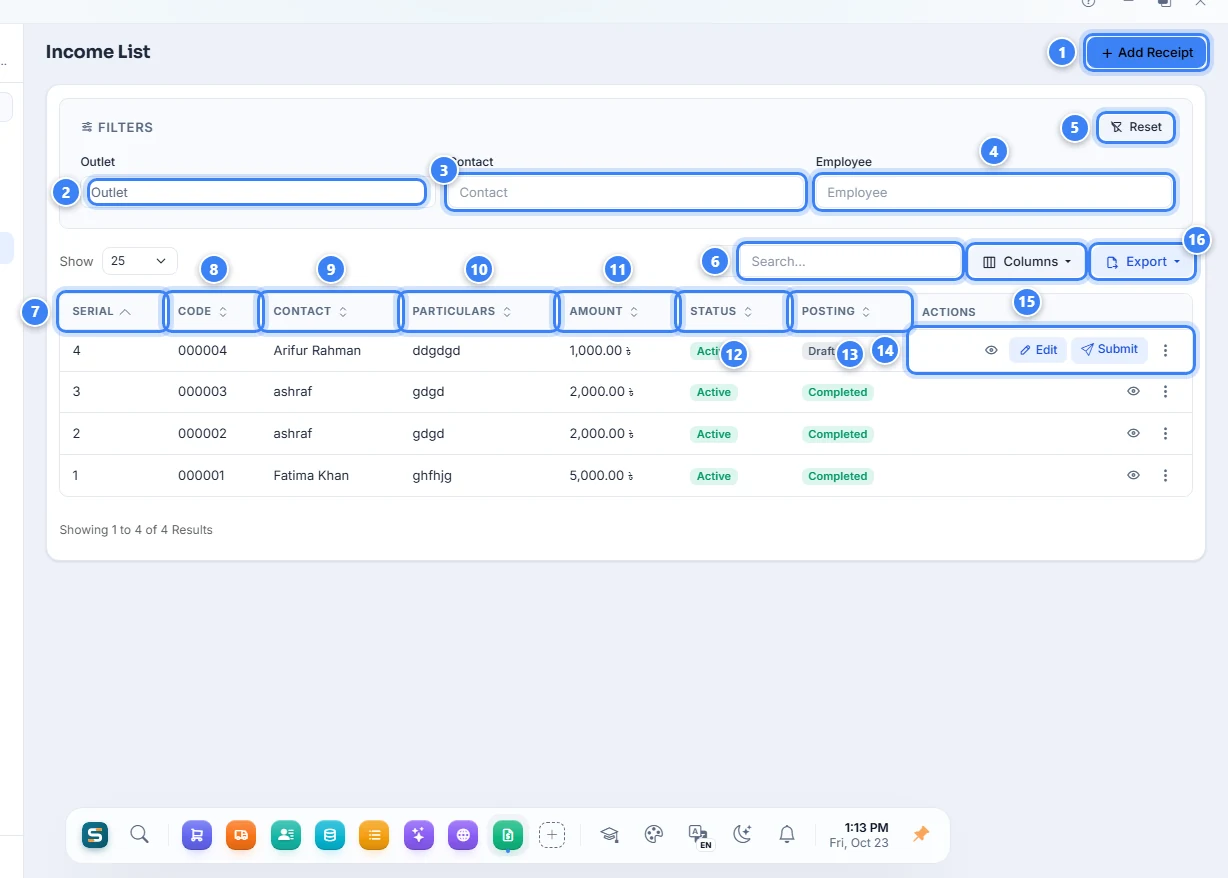 Voucher list
- Add Receipt button — opens the voucher form to record a new payment or collection transaction.
- Outlet filter — filters vouchers by originating store branch or outlet.
- Contact filter — filters vouchers by counterparty customer, vendor, or contact.
- Employee filter — filters vouchers by the staff member who entered the transaction.
- Reset filter button — clears all applied outlet, contact, and employee filters.
- Search field — live search across voucher particulars, codes, and serial numbers.
- Serial column — sequential numerical index assigned to the voucher.
- Code column — system voucher reference code identifier.
- Contact column — name of the customer, vendor, or counterparty contact.
- Particulars column — memo or description of the transaction purpose.
- Amount column — total monetary value received or disbursed in the voucher.
- Status column — general operational active or inactive status.
- Posting status column — shows whether the voucher is a draft, submitted, or posted to ledger.
- Row actions — view preview, print voucher, submit for approval, edit draft, or cancel entry.
- Columns customization button — shows or hides table columns.
- Export table button — exports filtered voucher records to Excel or CSV spreadsheet.
Step-by-step: Managing voucher records
Step 1: Filter and locate transactions
- Open the Voucher list from the Accounting navigation menu.
- Select an outlet in Outlet filter (2) to view branch-specific transactions.
- Type a name in Contact filter (3) or Employee filter (4) to narrow table rows.
- To reset all filters back to default, click Reset filter button (5).
Step 2: Record a new voucher
- Click Add Receipt button (1) in the header toolbar.
- The voucher creation window opens, pre-configured with the appropriate ledger accounts.
- Select the counterparty contact, choose the cash or bank account, enter the line amounts, and save the voucher.
Step 3: Inspect, print, and submit
-
Click View under Row actions (14) to inspect line allocations and accounting entries.
-
Click Print from the row menu to generate a printer-friendly voucher slip.
-
Click Submit on draft vouchers to send them to managers for approval.
Row actions and document screens
View voucher details
Click View under Row actions (14) to open the document preview modal. This window displays all accounting lines, counterparty details, and posting history. See Account receipt details and ledger postings for full inspection details.
Print voucher slip
Click Print under Row actions (14) to produce a printed payment or collection slip containing your store header, voucher number, date, particulars, and authorized signatures.
Submit and approve voucher
When voucher approval is active, newly created vouchers remain as drafts until authorized:
- Click Submit on a draft row to advance it into the review list.
- A designated manager opens the voucher and clicks Approve to post the transaction to the ledger, or Reject to return it for revisions.
Every field and control
Header toolbar and search
- Add Receipt — Action button (1). Available when you have creation permissions. Opens the voucher creation form.
- Search field — Search text box (6). Live text search that filters table records by voucher code, contact name, or particulars memo.
- Columns — Customization dropdown button (15). Allows showing or hiding individual table columns, such as the staff employee name.
- Export — Data export button (16). Exports the current view to Excel or CSV spreadsheet format.
Filter bar
- Outlet — Searchable dropdown (
outletId). Labeled Outlet filter (2) on screen. Filters vouchers to those originating from a selected store branch. - Contact — Text filter (
customerName). Labeled Contact filter (3) on screen. Filters vouchers by the counterparty contact name. - Employee — Text filter (
employeeName). Labeled Employee filter (4) on screen. Filters vouchers by the staff user who created or processed the transaction. - Reset — Button (5). Clears all filter fields and restores the default table list.
Table columns and row actions
- Serial — Data column (7). Sequential numerical index assigned automatically upon creation.
- Code — Data column (8). Formatted voucher reference code identifier.
- Contact — Data column (9). Name of the customer, vendor, or counterparty contact.
- Employee — Data column (
employee_name). Displays the staff member who logged the voucher (can be toggled via the Columns button). - Particulars — Data column (10). Descriptive memo or notes explaining the transaction purpose.
- Amount — Numerical currency column (11). Total monetary value received or disbursed in the voucher.
- Status — Badge column (12). Displays the operational active or inactive status.
- Posting — Badge column (13). Indicates the ledger posting stage: Draft, Submitted, or Posted.
- View — Row action button (
view). Opens the document preview modal to inspect detailed accounting lines. - Print — Row action menu option (
print). Generates a formatted printable voucher slip.
Examples
Example: Customer collection
Suppose a wholesale customer pays $1,500 towards their balance:
- Click Add Receipt.
- Select the customer name and choose your commercial checking account.
- In line 1, enter $1,500 under accounts receivable.
- Save the voucher. Your bank account increases by $1,500 and the customer receivable balance decreases by $1,500.
Example: Supplier payment
Suppose your business pays $800 for monthly store utilities:
- Click Add Receipt.
- Select the utility provider and choose your main cash register.
- In line 1, enter $800 under the utility expense account.
- Save the voucher. Your cash balance decreases by $800 and operating expenses increase by $800.
Common questions
What is a single-entry voucher?
A single-entry voucher simplifies bookkeeping by handling the cash or bank side automatically. You select the cash or bank account once in the header, and every entered line balances against that account.
How does a draft voucher become posted?
When saved without approval rules, vouchers post directly to the ledger. If approval is required, the voucher is saved as a Draft, submitted for review, and posts only after manager approval.
Can I cancel a posted voucher?
Yes, authorized accounting managers can cancel a posted voucher. Canceling generates automatic reversal entries in the ledger to restore balances and preserve audit compliance.
Related pages
- Add or edit voucher — Step-by-step guide to filling and saving the voucher entry form.
- Voucher list — Multi-line double-entry journal vouchers for complex accounting adjustments.
- Voucher list — Transferring funds between cash registers and bank accounts.
- Voucher list — Credit notes, debit notes, write-offs, and counterparty refunds.