
Visual website theme builder
Customize storefront layouts with live previews, section drag-and-drop arrangements, device previews, and publishing controls.
Visual website theme builder
The Visual website theme builder is an interactive live editor where you can customize your storefront design. You can rearrange page sections, add new banner widgets, configure branding colors, review mobile layouts, test draft changes, and publish updates directly to your live website.
When you use this
- Designing and reordering storefront sections on your homepage, product catalog, and content pages.
- Adding new content blocks such as slideshows, hero greetings, service grids, testimonials, or promotional banners.
- Customizing global brand assets including store logos, brand colors, font pairings, and color schemes.
- Testing responsive layouts across desktop, tablet, and mobile device viewports before publishing.
Before you start
- You need an active user account with permission to access the website builder.
- Ensure you have selected the theme you wish to customize in the themes gallery.
- Access the builder by clicking the green Open builder button on any installed theme card in the Themes gallery.
Navigate to the theme builder
- Go to Website in the desktop sidebar and select Themes.
- Locate the theme you wish to edit and click the Open builder button.
- The visual builder interface loads with the left sidebar outline and a live interactive preview of your storefront.
Customize layout and sections
- Use the Page selector dropdown (2) to switch between pages (such as Home, Cart, or custom pages).
- On the Sections tab in the sidebar outline (6), click Add section to insert a new widget block.
- Use the arrow buttons on any section row to move it up or down in the page order.
- Click on any section name to open its detailed settings panel and customize headings, images, and links.
- Use the Device viewport toggles (4) to preview how the design looks on desktop, tablet, and mobile screens.
Publish changes to the live site
- As you edit, changes are automatically saved to your theme draft.
- Review the top right toolbar (7) to see your draft status.
- Click Preview link to open a full-screen customer preview in a new tab.
- When satisfied with your design, click Publish to deploy the updates to your public storefront.
Every field on this screen
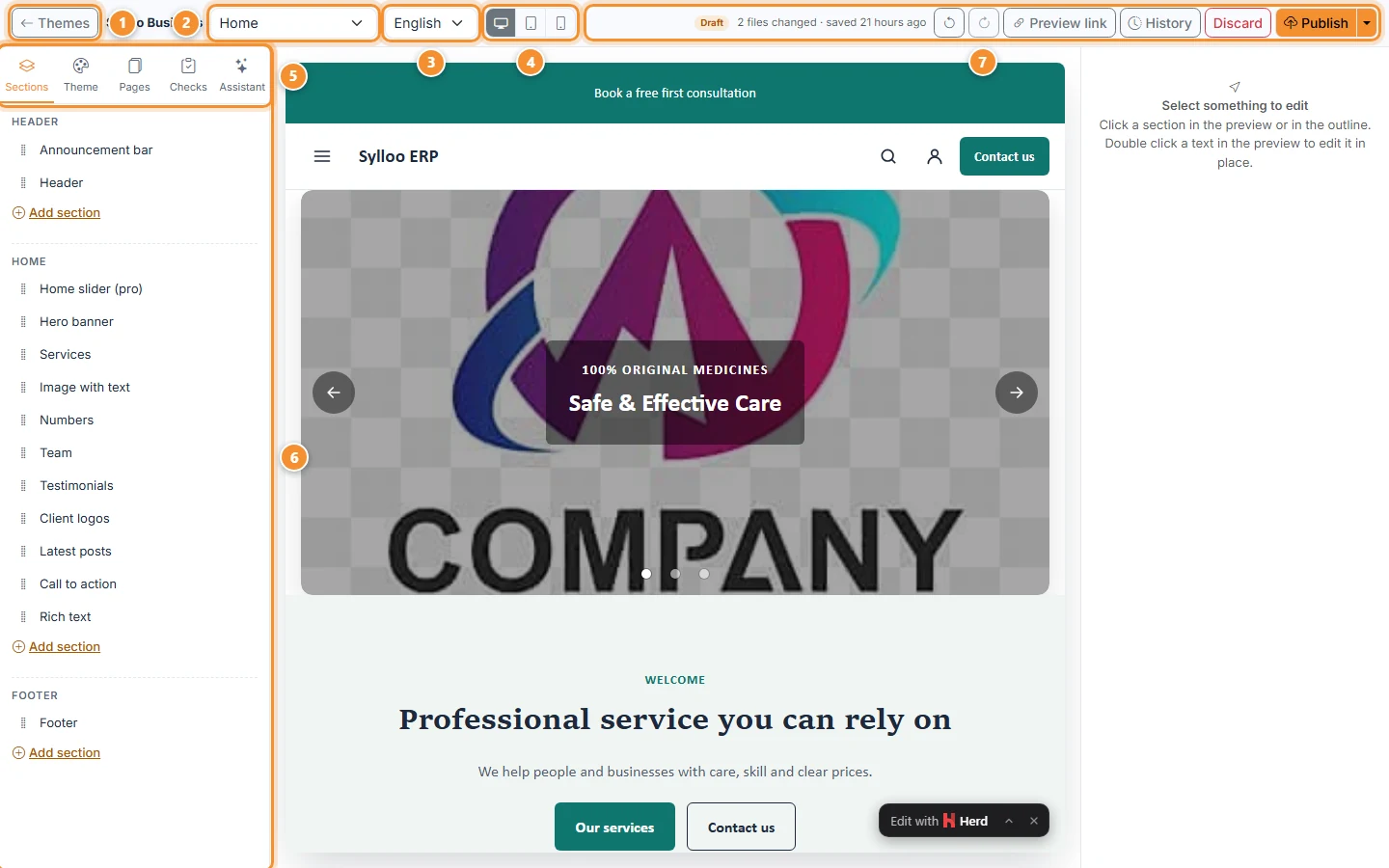 Visual website theme builder interface
- Back to themes link — Navigates back to the main themes gallery grid.
- Page selector dropdown — Switches the active preview between storefront pages (such as Home, Product, or Cart).
- Language selector dropdown — Selects the active language locale for editing multilingual text and reviewing localized previews.
- Device viewport toggles — Adjusts the central preview canvas between desktop, tablet, and mobile dimensions.
- Builder sidebar tabs — Switches the left sidebar panel between Sections, Theme, Pages, Checks, and Assistant modes.
- Sections outline panel — Displays the hierarchical tree of layout blocks, including header, page sections, and footer groups.
- Publish and version history bar — Provides draft status indicators, undo/redo tools, preview links, version history, and the live publish button.
Builder sidebar panels
| Tab | Purpose |
|---|---|
| Sections | Outline of all building blocks on the active page. Add, move, hide, or select sections to edit options. |
| Theme | Global design settings including brand logo, primary colors, font pairings, and color schemes. |
| Pages | Manage storefront pages, create new custom pages, and set page SEO titles and meta descriptions. |
| Checks | Automated validation audit verifying that all links, image references, and schema fields are valid. |
| Assistant | Natural language AI design copilot to request layout adjustments and copy updates. |
Top toolbar controls
| Control | Description |
|---|---|
| Undo / Redo | Reverts or reapplies recent draft edits without losing your work. |
| Preview link | Generates a secure temporary link to preview draft changes outside the builder. |
| History | Opens the publish history modal to inspect previous deployments and restore older versions. |
| Discard | Reverts unpublished draft changes back to the currently live website version. |
| Publish | Deploys all draft edits to the live storefront visible to customers. |
Examples
Example: Adding a testimonial review block to your homepage
Suppose you want to highlight customer reviews on your store's front page:
- Open the visual builder for your active theme on the
Homepage. - On the Sections tab, scroll to the bottom of the template block list and click Add section.
- Select Testimonials from the section library picker.
- The new testimonial block appears on your live canvas immediately.
- Click on the testimonial block in the outline to fill in customer quotes, author names, and star ratings.
- Click Publish to push the new review section live.
Example: Testing mobile responsive view
Suppose you want to make sure your banner headline fits cleanly on smartphone screens:
- In the top toolbar, click the smartphone icon in the Device viewport toggles (4).
- The preview canvas resizes to mobile phone dimensions.
- Inspect text wrapping, navigation menu collapsing, and button placement.
- Click the desktop icon to return to standard widescreen view.
Common questions
Do changes made in the visual builder immediately affect public visitors?
No. All edits are saved safely in an isolated draft state. Your live website remains unchanged until you click the green Publish button.
Can I undo accidental changes?
Yes. Use the Undo button in the top toolbar or press Ctrl+Z (Cmd+Z on Mac) to step backward through recent adjustments.
Can I restore an older version of my theme after publishing?
Yes. Click the History button in the publish bar to view previous releases and restore any past version with a single click.
Related pages
- Website themes and templates grid — Gallery of installed storefront themes and activation options.
- Configure section settings — Detailed reference for text, media, and layout options within individual sections.
- Template publish history — Review past publish records and revert changes.