
Warehouses
Define multiple physical storage locations, regional depots, central distribution hubs, and branch warehouses.
Warehouses
Use the Warehouses screen to register, organize, and monitor physical inventory storage locations. Setting up distinct warehouses enables multi-location stock tracking, inter-depot transfers, localized reorder points, and accurate regional inventory valuation.
When you use this
- Establish a new storage depot, retail backroom, or central distribution center.
- Update contact details, manager emails, or street addresses for an existing storage facility.
- Deactivate a retired stockroom while preserving historical stock movements and order receipts.
- Segregate inventory balances across geographic regions or distinct commercial facilities.
Screen layout
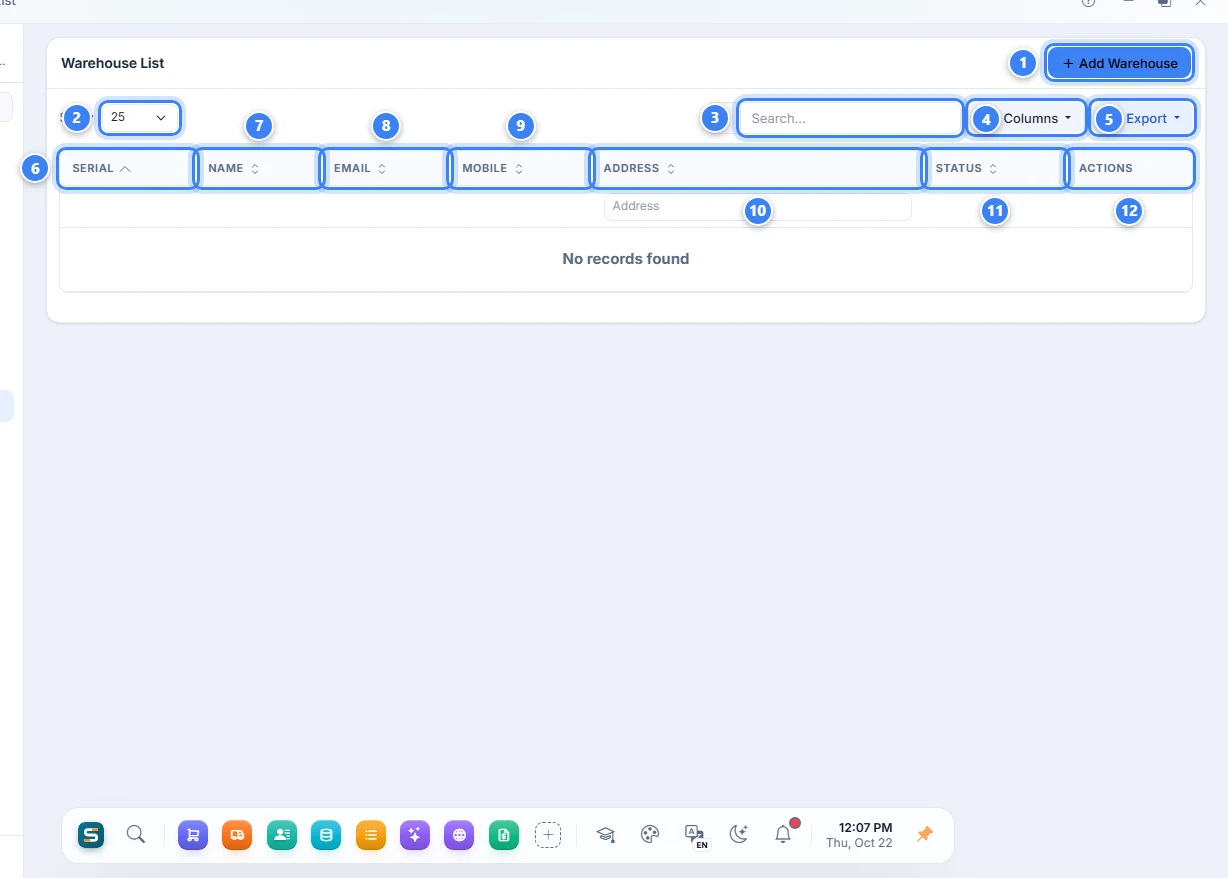 Warehouses management list
- Add Warehouse — opens the modal window to create a new storage warehouse.
- Rows per page — selects the number of warehouse records displayed on each page.
- Search filter — filters warehouses by name, contact, or address keyword.
- Columns toggle — customizes which data columns are visible in the table.
- Export button — downloads the warehouse list as an Excel spreadsheet or CSV.
- Serial column — system sequential indexing number.
- Name column — warehouse depot name.
- Email column — warehouse manager or depot notification email address.
- Mobile column — primary telephone contact number for the facility.
- Address column — physical street address of the storage building.
- Status column — active or inactive operational status indicator.
- Actions column — row action buttons to edit or delete warehouse records.
Step-by-step: Adding a new warehouse
- Open Settings from your navigation bar and select Warehouses.
- Click the Add Warehouse (1) button in the header toolbar.
- In the modal dialog under the Basic tab, enter the facility's identification title into Name (7).
- Choose the active operational state in Status (11) and check whether this is your organization's default storage site.
- Switch to the Advance tab to provide telephone, email, and street address coordinates.
- Click Save to create the storage facility. The new depot appears immediately in your warehouse table.
Every field and control
Datatable controls and filters
- Add Warehouse (1): Launches the creation window to configure a new storage facility.
- Rows per page (2): Configures the table page size to display 10, 25, 50, or 100 rows.
- Search filter (3): Rapid text filter querying depot names, contact numbers, and location addresses.
- Columns toggle (4): Checkbox dropdown enabling you to customize which table attributes are displayed.
- Export button (5): Downloads the complete warehouse register as a formatted Excel spreadsheet or CSV file.
Table columns and row actions
- Serial (6): Chronological record order assigned automatically upon record creation.
- Name (7): Primary identification label used on purchase bills, delivery challans, and stock transfers.
- Email (8): Direct notification email inbox for shipping confirmations and inventory alerts.
- Mobile (9): Facility manager or receiving dock mobile phone number.
- Address (10): Full physical address where freight and carrier deliveries arrive.
- Status (11): Green active badge indicates the warehouse can receive and dispatch stock. Red inactive badge prevents new transactions.
- Actions (12): Row controls including Edit (ti ti-pencil) to modify facility details and Delete (ti ti-trash) to remove obsolete depots without active stock.
Common questions
Can I delete a warehouse that currently holds inventory?
No. To preserve ledger fidelity and audit trails, warehouses with active inventory balances or historic stock movements cannot be deleted. You can mark them as Inactive instead.
What happens when a warehouse is marked as the default?
When creating purchase receipts, opening stock entries, or sales shipments without specifying an outlet, the system automatically assigns the default warehouse.
Can different staff members be restricted to specific warehouses?
Yes. You can configure warehouse access restrictions within employee roles in Users and roles.
Related pages
- Stock receipts and transfers — record inter-warehouse transfers and stock movements.
- Outlets — manage sales branches and retail store locations.
- Inventory and stock reports — review stock quantities and valuation across all warehouses.