
Shipping methods
Configure commercial delivery options, courier services, flat rate or dynamic delivery charges, and fulfillment status rules.
Shipping methods
Use the Shipping methods screen to define delivery options, courier integrations, and parcel dispatch rules for sales orders and online storefront checkouts. You can configure standardized transport rates, delivery zones, and customer dispatch options.
When you use this
- Add delivery options such as Standard Courier, Express Delivery, In-store Pickup, or Freight Cargo.
- Establish standard flat-rate delivery charges or percentage-based shipping calculations.
- Update shipping prices when third-party logistics and courier rates change.
- Deactivate temporary or seasonal shipping methods without affecting past order dispatches.
Screen layout
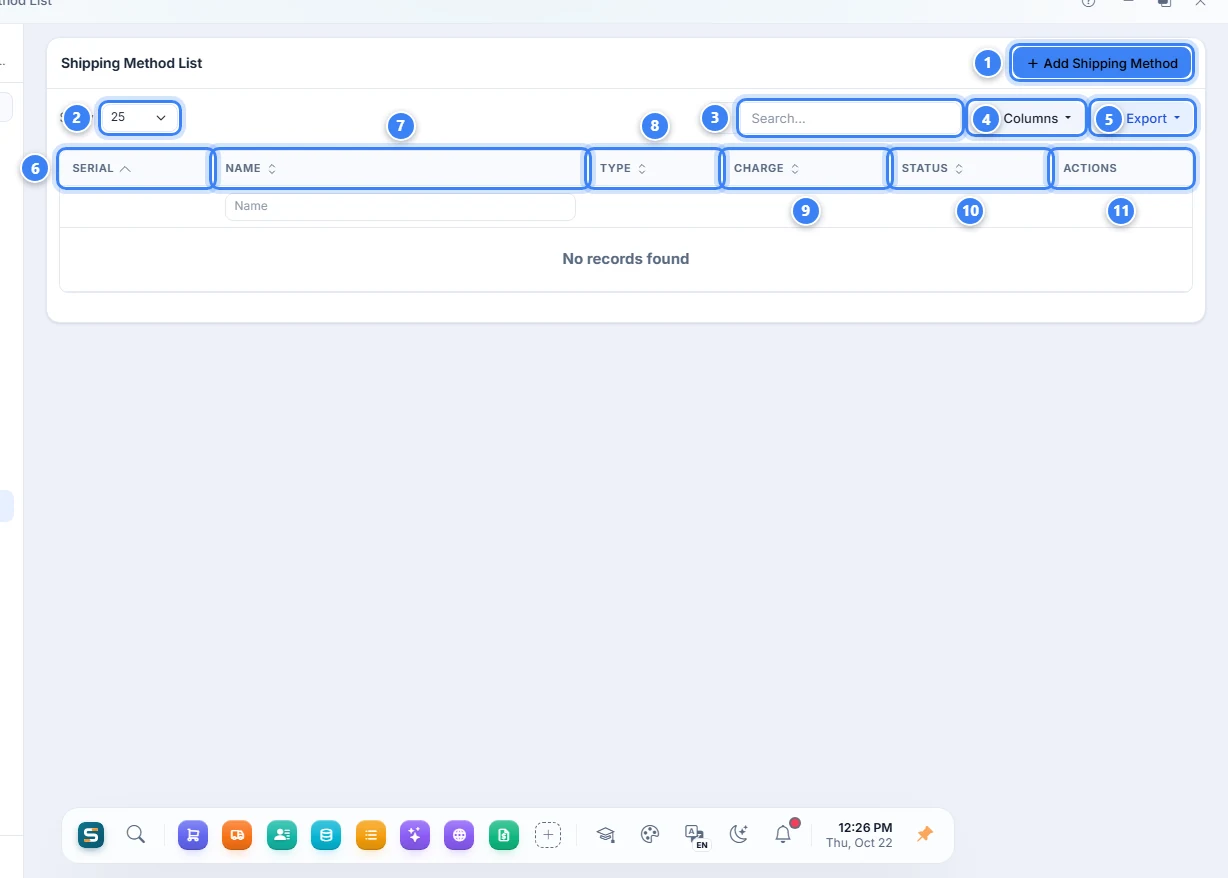 Shipping methods settings list
- Add Shipping Method — opens modal window to register a new shipping method.
- Rows per page — selects how many shipping method records appear on each page.
- Search filter — filters shipping methods by name.
- Columns toggle — customizes which columns are visible in the table.
- Export button — downloads the shipping method list as an Excel spreadsheet or CSV.
- Serial column — system sequential indexing number.
- Name column — shipping carrier or delivery method title.
- Type column — shipping calculation classification.
- Charge column — default delivery surcharge or freight fee.
- Status column — active or inactive shipping method badge.
- Actions column — row action buttons to modify methods or delete.
Step-by-step: Adding a new shipping method
- Open Settings from your main navigation menu and select Shipping methods.
- Click the Add Shipping Method (1) button in the header card.
- In the modal dialog, specify the carrier or delivery title in Name (7) (for example, Courier Express or City Dispatch).
- Choose the rate structure from the Type (8) dropdown (such as Flat Rate, Free Shipping, or Distance Based).
- Specify the baseline delivery fee in Charge (9) (e.g.,
60or120). - Optionally upload a courier brand emblem or carrier logo for storefront checkout displays.
- Click Save to register the delivery option. The new method is immediately selectable during sales order creation and customer checkout.
Every field and control
Datatable controls and filters
- Add Shipping Method (1): Launches the creation modal to configure a new transport and delivery provider.
- Rows per page (2): Customizes the number of rows displayed simultaneously (10, 25, 50, or 100).
- Search filter (3): Rapid text filter querying shipping method titles and courier names.
- Columns toggle (4): Checkbox dropdown enabling you to customize which table attributes are visible.
- Export button (5): Downloads the shipping method catalog as a formatted Excel spreadsheet or CSV file.
Table columns and row actions
- Serial (6): Chronological record order assigned automatically upon shipping method creation.
- Name (7): Delivery method or courier company title printed on dispatch labels and packing slips.
- Type (8): Calculation model governing the shipping cost computation.
- Charge (9): Standard delivery fee formatted in your business currency.
- Status (10): Active green badge indicates the method can be chosen on new orders; red inactive badge restricts selection.
- Actions (11): Row action buttons including Edit (pencil icon) to modify rates and logos, and Delete (trash icon) to remove unused delivery methods.
Common questions
Can cashiers override shipping charges on individual sales orders?
Yes. When creating an order in Orders, selecting a shipping method populates the default Charge, but authorized staff can adjust the shipping fee directly on the order edit form.
How do free delivery thresholds interact with shipping methods?
You can configure a shipping method with Type set to Free Shipping, or configure promotional coupons in Coupons to waive shipping charges when a specified minimum order value is reached.
Can I delete a shipping method that was used on historic deliveries?
No. Shipping methods referenced by fulfilled orders, deliveries, or dispatch logs cannot be deleted to protect historical record accuracy. You can set their status to Inactive instead.
Related pages
- Orders and sales — create sales orders and assign shipping methods.
- Store and SEO settings — configure online storefront delivery policies.
- Coupons and promotions — create discount coupons that apply free shipping.