
Payment gateways
Configure online payment gateways, digital wallets, automated checkout webhooks, and merchant test credentials.
Payment gateways
Use the Payment gateways screen to link and manage online merchant providers, digital payment aggregators, and credit card checkout services. Automated payment gateways enable customers to pay for online store orders and digital invoices in real time.
When you use this
- Connect payment providers such as Stripe, PayPal, bKash, SSLCommerz, or regional gateways.
- Review and test gateway credentials and sandbox accounts prior to launching live checkouts.
- Set the primary default gateway for automated customer payments.
- Review automated transaction attempts, webhooks, and settlement logs.
Screen layout
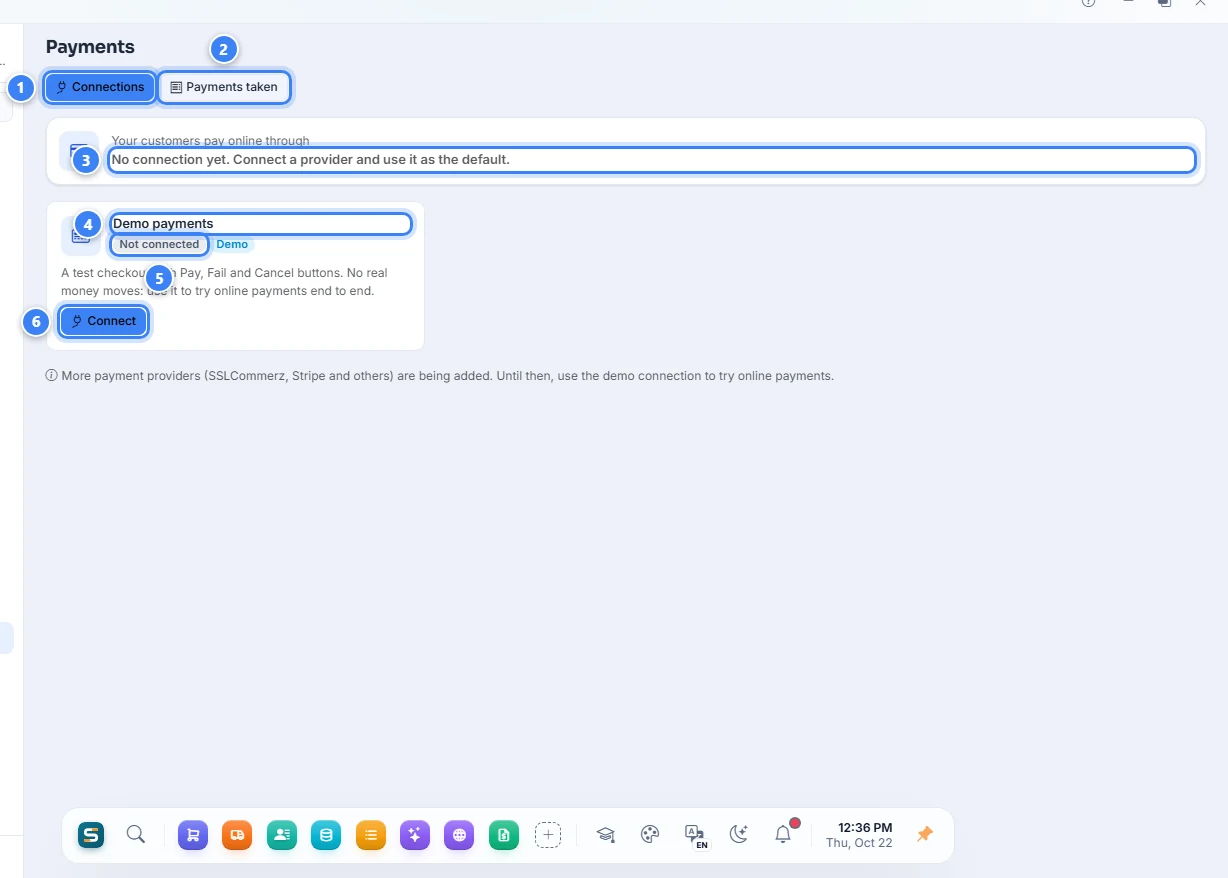 Payment gateways and providers list
- Connections tab — displays configured and available payment gateway providers.
- Payment attempts tab — displays log of transactions and customer checkout payments.
- Active default gateway — primary payment gateway actively processing customer checkout payments.
- Provider name — payment gateway or digital wallet service name.
- Provider status badge — connection and readiness state badge.
- Edit or Connect button — launches modal to configure merchant credentials and gateway connection keys.
Step-by-step: Connecting an online payment gateway
- Open Settings from your main navigation menu and select Payment gateways.
- Locate the desired payment provider under the Connections (1) tab.
- Click the Connect (6) (or Edit) button on the provider card.
- In the configuration modal, specify your merchant credentials, including Merchant ID, secret key, and authorization tokens.
- Select whether the gateway runs in Sandbox (test mode) or Live production mode.
- Check whether to designate this provider as your business's default checkout gateway.
- Click Save to store credentials, then use the Test button to verify network and authentication connectivity.
Every field and control
Navigation tabs
- Connections tab (1): Catalog of supported payment gateway connectors, current active status, and connection controls.
- Payment attempts tab (2): Searchable transaction ledger recording every checkout payment attempt, reference ID, gateway response code, and customer settlement status.
Provider cards and controls
- Active default gateway (3): Prominently indicates the current default provider handling incoming storefront checkouts.
- Provider name (4): Gateway provider title and brand emblem.
- Provider status badge (5): Color-coded indicator:
- Not Connected (grey): Gateway requires credentials.
- Active (green): Credentials verified and ready to accept live transactions.
- Inactive (amber): Credentials saved but provider is disabled.
- Default (blue): Selected as primary checkout processor.
- Demo / Sandbox (cyan): Operating in safe test simulation mode.
- Edit or Connect button (6): Launches the setup modal to enter merchant identifiers, public keys, and webhook signing secrets.
- Test: Dispatches a ping request verifying that your saved credentials successfully authenticate with the provider's server.
- Delete / Remove: Clears saved credentials for this provider and returns its state to Not Connected.
Common questions
How do test credentials work in Practice mode?
In Practice environments, payment gateways operate in simulated demo mode. No live credit cards or mobile banking accounts are charged, allowing your team to complete checkout rehearsals safely.
Can multiple payment gateways be active simultaneously?
Yes. You can connect multiple providers (for example, a credit card gateway and a mobile money provider). Customers are presented with your available active options during checkout.
Where can I check why a customer's online payment failed?
Switch to the Payment attempts (2) tab. The datatable lists every transaction attempt along with provider error messages, declined card notices, and timeout details.
Related pages
- Payment methods — configure payment options presented at checkout.
- Store and SEO settings — manage online storefront checkout preferences.
- Sales and orders — review sales orders paid via online gateways.