
Languages
Install, activate, and manage multilingual application interfaces, customer storefront translations, and default locales.
Languages
Use the Languages screen to configure the linguistic locales available across your administrative back office and online storefront. Adding and managing languages allows multi-region teams to operate in their native language while providing international customers with localized buying experiences.
When you use this
- Install a new language (such as English, Bangla, or Finnish) to support expanding regional teams.
- Set your company's primary default language for newly created team member accounts.
- Hide a language temporarily from customer storefronts while translation files are being customized.
- Enable or disable specific language pickers in the administrative header navigation bar.
Screen layout
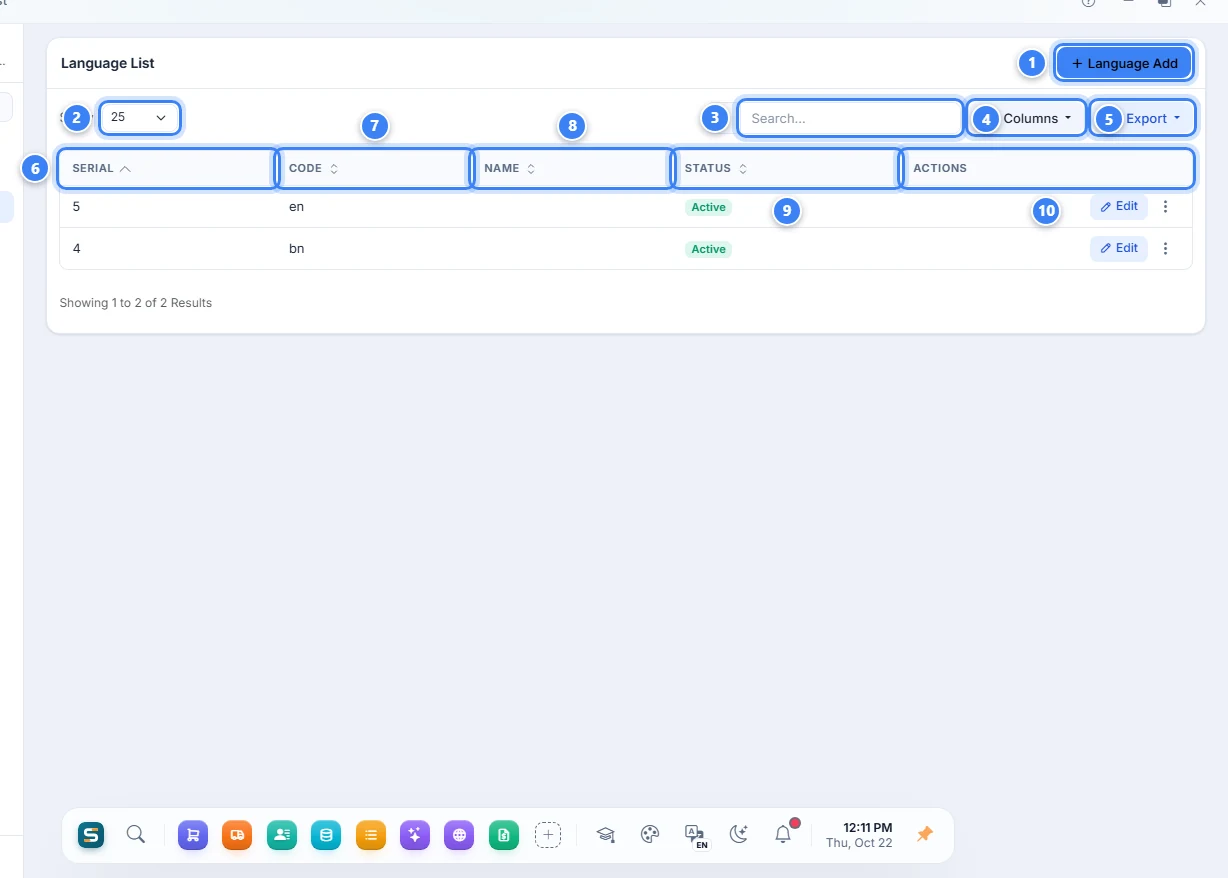 Languages management list
- Language Add — opens modal window to install a new interface language.
- Rows per page — selects how many language records appear on each page.
- Search filter — filters languages by name or code keyword.
- Columns toggle — customizes which language columns are visible in the table.
- Export button — downloads the language list as an Excel spreadsheet or CSV.
- Serial column — system sequential indexing number.
- Code column — two-letter ISO language locale code.
- Name column — human-readable language title.
- Status column — active or inactive language availability badge.
- Actions column — row action buttons to edit default preferences or delete.
Step-by-step: Adding a new language
- Open Settings from your main navigation menu and select Languages.
- Click the Language Add (1) button in the header toolbar.
- In the modal dialog, choose your desired locale from the language selection dropdown.
- Check whether this should be the system default language.
- Set visibility switches to control whether the language appears on the customer storefront or administrative portal.
- Click Save to activate the language. The new locale appears immediately in your language table and navigation pickers.
Every field and control
Datatable controls and filters
- Language Add (1): Opens the modal window to activate and configure a new system locale.
- Rows per page (2): Customizes the number of rows displayed simultaneously (10, 25, 50, or 100).
- Search filter (3): Rapid text filter querying language titles and ISO codes.
- Columns toggle (4): Checkbox dropdown enabling you to customize which table attributes are visible.
- Export button (5): Downloads the complete language catalog as a formatted Excel spreadsheet or CSV file.
Table columns and row actions
- Serial (6): Automatic sequential record index.
- Code (7): Standardized two-letter ISO 639-1 language abbreviation (such as
en,bn, orfi). - Name (8): Full localized title of the language displayed to end users in language switchers.
- Status (9): Color-coded status badge showing whether the language is active (green) or disabled (red).
- Actions (10): Action buttons including Edit (pencil icon) to adjust default status and visibility switches, and Delete (trash icon) to remove non-default languages.
Common questions
Can I delete the primary default system language?
No. To ensure administrative menus, receipt templates, and error messages remain legible, the active default language cannot be deleted or disabled.
What happens when a user signs in without a saved language preference?
When an employee signs in for the first time, the system loads the default language configured on this screen. Users can then personalize their individual preference in My account.
Can I provide invoice terms in multiple languages?
Yes. You can customize localized document templates, email notices, and receipt footers for each installed language in Invoice and receipt templates.
Related pages
- System and business settings — choose default base currency and primary business details.
- My account and devices — personalize your individual profile display language.
- Store and SEO settings — configure storefront title tags and multilingual meta descriptions.