
Order list
Browse, search, filter, and track customer and supplier order records across all outlets and workflow stages.
Order list
Use this screen to manage, search, and track every order document in your business. Depending on the kind of order configured, this table manages customer sales orders, supplier purchase invoices, customer sales returns, supplier purchase returns, or non-binding customer price quotations. You can filter records by outlet, date range, or workflow status. You can inspect payable totals and balances, and open action windows to record payments, manage shipping dispatches, duplicate transactions, or print vouchers.
When you use this
- You want to find an existing transaction by code or contact name.
- You review outstanding balances to collect customer dues or settle supplier bills.
- You monitor order fulfillment to dispatch pending shipments.
- You filter transactions by branch outlet during daily reconciliation.
Before you start
- You need permission to view this order screen. If the menu is missing, ask your administrator.
- Ensure that outlets, products, and contact records are set up in your system.
Open the order list
Click Order on your Sylloo desktop dock or app menu, then select the relevant order menu. The datatable displays your transactions.
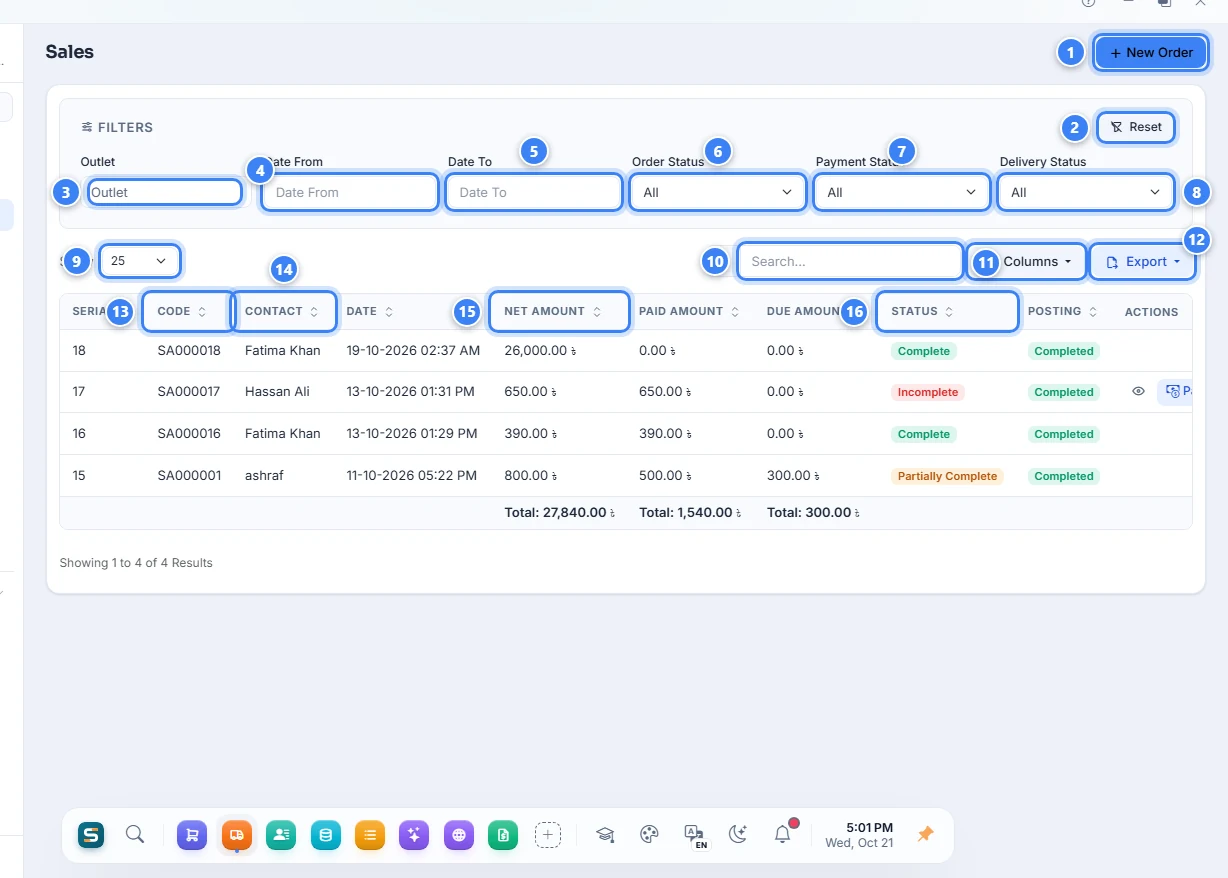 The order list
- New Order — opens the window to create a new order.
- Reset — clears all filter and search selections.
- Outlet filter — filter records by outlet or branch location.
- Date From filter — filter records starting from this date.
- Date To filter — filter records up to this date.
- Order status filter — filter by order workflow status.
- Payment status filter — filter by payment status.
- Delivery status filter — filter by delivery status.
- Rows per page — choose how many records to display on one page.
- Search — search records by invoice code or contact name.
- Columns — toggle visibility of table columns.
- Export — export records to Excel or CSV.
- Code column — displays unique document reference number.
- Contact column — shows customer or supplier name.
- Net amount column — displays final payable total including tax and discount.
- Status column — indicates document progress.
Search and filter order records.
Use the filter bar at the top of the table to locate specific records.
-
Outlet: choose an outlet to view only records created at that specific branch location.
-
Date From and Date To: set an interval to examine transactions within a billing cycle.
-
Order Status: filter records by workflow stage such as draft, placed, completed, or cancelled.
-
Payment Status: filter transactions that are fully paid, pending payment, or partially paid.
-
Delivery Status: view records that are delivered, pending delivery, or partially shipped.
-
Search: type a code or contact name. The list updates instantly.
-
Reset: clears all active filters and restores the default view.
Every field, column, and filter explained
Table columns
| Column | Type | Description |
|---|---|---|
| Serial | Number | Row sequence number in the current view. |
| Code | Text / Link | Unique reference code for the order. |
| Contact | Text | Customer or supplier associated with the transaction. |
| Date | Date | Official document date when the transaction occurred. |
| Delivery Date | Date | Scheduled delivery or dispatch date. | | Subtotal | Currency | Total price of all quoted products before tax and discounts. | | Vat Amount | Currency | Calculated value-added tax or sales tax. | | Discount Amount | Currency | Document deduction or promotional discount. | | Net Amount | Currency | Final payable total after tax and discount. | | Paid Amount | Currency | Total sum collected or paid toward this document. | | Due Amount | Currency | Remaining unpaid balance. | | Status | Badge | Current operational state (Draft, Placed, Completed, or Cancelled). | | Posting | Badge | Shows whether financial accounts and ledgers are updated. | | Actions | Action buttons | Action menu to view, modify, deliver, pay, or print. |
Row actions
Each row offers an action menu to manage the transaction:
-
View: opens a complete summary view of the order document.
-
Edit: opens the full editing form to adjust products, quantities, prices, or terms.
-
Submit: submits a draft record for managerial authorization.
-
Approve: authorizes the document, posting inventory changes and ledger entries.
-
Withdraw: withdraws a submitted document back to draft status for corrections.
-
Clone: duplicates the record or converts a quotation into a sales invoice.
-
Print: generates a formatted voucher or invoice for printing or PDF export.
-
Deliveries: opens shipping management to create deliveries or review dispatches.
-
Payments: opens the payment screen to record money received or disbursed.
-
Serial: assigns serial numbers for warranty tracking.
-
Cancel: cancels an active order, releasing reserved stock.
-
Delete: deletes an unposted draft document from your system.
How different kinds of orders work
Sales orders
Sales orders record goods or services sold to customers. Confirming a sales order updates sales revenue and account receivables. When stock settings are enabled, confirming a sales order deducts inventory from warehouse stock.
Purchase orders
Purchase orders record goods bought from vendors or suppliers. Confirming a purchase order increases warehouse inventory and updates accounts payable balances.
Sales returns
Sales returns handle goods returned by customers. Approving a return restocks warehouse inventory and generates customer credit notes or refunds.
Purchase returns
Purchase returns record goods sent back to suppliers due to defects or overstock. Returning products deducts warehouse inventory and issues supplier debit adjustments.
Quotations
Quotations are non-binding commercial proposals. Saving a quotation never changes warehouse inventory and never posts entries to financial accounts.
Storefront orders
Online orders arrive directly from customers through your web storefront or customer portal. You review them in placed or draft status before dispatch.
Action screens
Recording payments
Click Payments in the row action menu to open the payment window. You can record cash, bank, or card receipts from customers, or issue payments to suppliers. See Record payment on order for the full guide.
Managing deliveries and dispatches
Click Deliveries in the row action menu to manage shipments. You can record partial or complete shipments, select warehouse fulfillment outlets, and enter courier tracking notes. See Order delivery history.
Duplicating and converting orders
Click Clone in the row action menu to duplicate an existing order. You can also convert an accepted customer quotation into a sales invoice without retyping products. See Duplicate order.
Tracking serial numbers
Click Serial in the row action menu to assign specific serial numbers to warranty products before dispatch. See Select product serial numbers.
Viewing document vouchers
Click View in the row action menu to open the printable document preview. It displays customer details, line products, payment status, and delivery notes. See View order details.
Common questions
How does order status update automatically?
Order status updates automatically as payments and deliveries progress. When full payment is collected or when an order has nothing left to pay, the system marks it as Paid. Delivery status updates when you complete shipments.
Why is a quotation not showing in financial reports?
Quotations are non-binding price proposals. They do not alter inventory counts and do not create accounting entries until converted into confirmed sales orders.
Related pages
- Add or change an order — Create a new order or modify products and pricing.
- Duplicate order — Clone transactions or convert quotations.
- Record payment on order — Collect customer deposits or pay supplier invoices.
- Payments list — Review all recorded transactions and receipts.