
Duplicate an order
Duplicate an existing order record to repeat regular customer purchases or convert quotations into sales.
Duplicate an order
Use this window to create an exact duplicate of an existing order document. You can clone the order into the same document type for recurring orders, or convert a document into a different transaction type, such as converting an approved quotation into an active sales order.
Duplicate order window opens from the row action menu on the orders list when you choose the Clone option.
When you use this
- A customer repeats an earlier purchase and you want to recreate the order with the same line items.
- You convert an agreed quotation directly into an active sales invoice without re-entering products.
- A regular customer places a recurring monthly supply order.
- You test a duplicate draft transaction in your workspace before finalizing adjustments.
Before you start
- Locate the existing order record that you wish to duplicate on your order list.
- If duplicating across types, ensure that the target order type is enabled in your workspace.
Open the duplicate window
On the Orders list, find the transaction you want to duplicate. Open the row action menu on the right and click Clone. The duplication window appears.
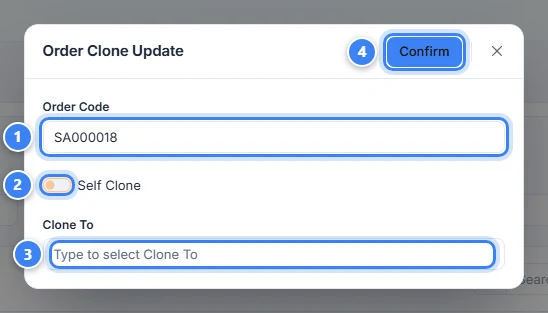 Order clone window
- Order Code — the original order reference number being duplicated.
- Self Clone — uncheck to duplicate this order into a different order type.
- Clone To — choose destination order type such as Sales from a Quotation.
- Confirm — creates the duplicate order record.
Every field and control
The window provides quick options to control how the document is duplicated:
- Order Code: shows the code of the source transaction. This field is read-only for verification.
- Self Clone: when checked, creates a new document of the exact same type (for example, Sales Order to Sales Order). Uncheck this box if you want to convert the document into a different type.
- Clone To: appears when Self Clone is unchecked. Select the destination order type, such as Quotation to Sales Order, or Sales Order to Delivery Order.
- Confirm: click this button to process the duplication. The system creates the new draft order, copies over all line items and customer information, and opens the new record for editing.
Real-life example
A corporate customer accepts a detailed equipment quotation. The sales representative opens the quotation on the Order list, clicks Clone in the row action menu, unchecks Self Clone, and chooses Sales in the Clone To selector. After clicking Confirm, a new sales order is generated immediately with all line items intact.
Common questions
Does duplicating an order affect the original transaction?
No. The original transaction remains completely unchanged. The system creates a separate, independent draft document with its own unique reference code.
Are payment records copied over when cloning?
No. Cloning only copies product lines, quantities, and customer details. The newly created document starts with an unpaid balance so you can collect fresh payments.
Can I change line items on the cloned order?
Yes. As soon as the clone is confirmed, you can open the new record in the editing window to adjust quantities, add products, or update delivery terms.
Related pages
- Orders list — browse, search, and track all documents across your workspace.
- Add or change an order — create a new document or modify line items and pricing.