
Add or change a coupon
Create and modify promotional discount coupons with spending limits, outlet restrictions, and date ranges.
Add or change a coupon
Use this window to create or update promotional coupon codes for your business. Coupons let you offer promotional discounts when customers purchase products in your outlets or storefront. You can restrict vouchers to specific payment methods, set minimum spending requirements, limit total redemptions, and target first-time customers.
When you use this
- You launch a seasonal marketing campaign and want to distribute discount vouchers.
- You partner with a payment provider to offer discounts when customers pay with their service.
- You want to attract new customers by offering an exclusive welcome discount.
- You need to pause a coupon or adjust its expiration date.
Before you start
- You need permission to manage promotional coupons.
- Set up your outlets and payment methods in advance if you want to restrict coupon eligibility.
Open the coupon window
In the navigation menu, go to Sales and select Coupons. Click Add Coupon in the top action bar to open a blank form, or click the edit icon on an existing coupon row.
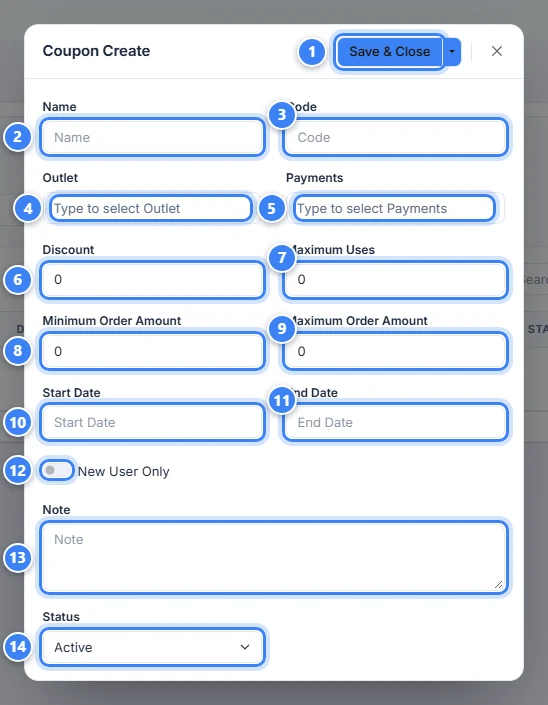 Coupon edit window
- Save — save coupon changes.
- Name — promotional coupon name.
- Code — voucher code customer enters at checkout.
- Outlet — store outlet where this coupon is valid.
- Payment Method — payment method required to use this coupon.
- Discount — discount rate or amount deduction.
- Maximum Uses — maximum number of times this coupon can be redeemed.
- Minimum Order Amount — minimum order total required before coupon applies.
- Maximum Order Amount — cap on qualifying order total for coupon discount.
- Start Date — date when coupon becomes active.
- End Date — date when coupon expires.
- New User Only — restrict coupon redemption to first-time customers.
- Note — internal description or terms for this coupon.
- Status — Active or Inactive coupon state.
Fill in the coupon parameters.
Enter the campaign details and define usage boundaries:
- Type a descriptive Name to identify the promotion internally.
- Enter the promo Code that customers enter during checkout. Use uppercase letters and numbers without spaces.
- Choose a specific Outlet if the coupon is valid only at one branch. Leave it empty to allow all outlets.
- Select a Payment Method if the discount applies only to a specific bank, mobile wallet, or card provider. Leave it empty to allow any payment method.
- Enter the Discount value applied when customers redeem the coupon.
- Set the Maximum Uses to limit how many times customers can redeem this coupon in total.
- Specify Minimum Order Amount to require a minimum purchase total before the discount activates.
- Set Maximum Order Amount if you want to cap the order total eligible for the promotion.
- Choose the Start Date and End Date to schedule the active promotion window.
- Check New User Only if you want to reserve this voucher exclusively for first-time customers.
- Add internal comments or campaign notes in the Note box.
- Set Status to Active so customers can use the code immediately.
- Click Save to create or update the coupon.
Every field and action explained.
| Field or action | Type | Description |
|---|---|---|
| Save | Primary button | Validates form entries and saves the coupon record. |
| Name | Text field | Campaign title or promotional description shown in lists and reports. |
| Code | Text field | Case-sensitive voucher string that customers enter during checkout or cashiers apply at point of sale. |
| Outlet | Search selector | Restricts coupon redemption to a single store outlet. Leave blank to make the coupon valid across all locations. |
| Payment Method | Search selector | Restricts voucher eligibility to a specific payment method such as cash, card, or mobile banking. Leave blank to accept all payment options. |
| Discount | Decimal number | The discount amount or deduction deducted from eligible customer orders. |
| Maximum Uses | Integer number | Total number of times this coupon code can be redeemed before the system deactivates it. |
| Minimum Order Amount | Decimal number | Minimum cart or invoice total required before the voucher applies. Orders below this threshold cannot redeem the code. |
| Maximum Order Amount | Decimal number | Maximum order value eligible for the coupon discount. Cart values above this limit do not receive extra deductions. |
| Start Date | Date picker | Calendar date when the coupon becomes valid for redemption. Customers cannot apply the code before this date. |
| End Date | Date picker | Expiration date after which the coupon becomes invalid. Orders placed after this date cannot use the discount. |
| New User Only | Checkbox switch | Restricts voucher usage to customers who have never placed an order before. Returning customers cannot apply the code. |
| Note | Multiline text | Internal remarks, partner contract details, or campaign terms visible to staff. |
| Status | Dropdown list | Indicates whether the coupon is currently usable. Choose Active to permit redemptions or Inactive to suspend the code. |
Real-life example.
A retail store launches an Eid shopping campaign offering 100 dollars off purchases over 1,000 dollars paid through mobile banking. The marketing manager clicks Add Coupon, sets the Name to "Eid Special 2026", and enters the Code "EID100". She selects "Mobile Banking" in Payment Method, leaves Outlet blank so all branches can participate, and enters 100 in Discount. She sets Minimum Order Amount to 1000, enters 500 in Maximum Uses, and schedules Start Date and End Date for the holiday week. She clicks Save. Customers now redeem the discount at checkout when meeting the order threshold.
Common questions
Can I limit a coupon so each customer uses it only once?
Total redemptions are controlled by Maximum Uses. When you enable New User Only, the voucher is restricted to first-time shoppers who have no prior order history.
What happens when a coupon reaches its end date?
The system automatically rejects expired voucher codes at checkout. You can also manually change Status to Inactive at any time to pause redemptions early.
Can customers combine multiple coupons on the same order?
No. An order supports one promotional voucher code at a time to prevent overlapping discounts.
Affiliate field
When your business runs the affiliate program, the coupon window has the field Affiliate. It gives the coupon to one affiliate. Orders with this coupon count for this affiliate. The customer still gets the coupon discount.
- Only active affiliates can be chosen. Otherwise: Choose an active affiliate.
- Only people allowed to change affiliates see this field. For everyone else it is hidden, and the coupon keeps its affiliate when they save.
- Leave it empty for a normal coupon.
See Affiliate on products, contacts and orders for more.
Related pages
- Coupons: browse, search, and export promotional coupon records.
- Affiliate on products, contacts and orders