
Sales and purchase reports
Review sales invoices, vendor purchases, customer dues, supplier balances, and order returns in customizable reports.
Sales and purchase reports
Use the Sales and purchase reports catalog to access real-time summaries of commercial sales activity, procurement bills, outstanding receivables, and return credits. Each report provides comprehensive date, customer, supplier, and outlet filtering alongside one-click export options.
When you use this
- Analyze daily, monthly, or quarterly sales turnover across specific branch outlets.
- Track overdue customer payments to accelerate collection efforts and manage credit limits.
- Audit procurement expenses and verify vendor billing accuracy against goods receipts.
- Monitor merchandise return rates and identify recurring product defects or customer cancellations.
Screen layout
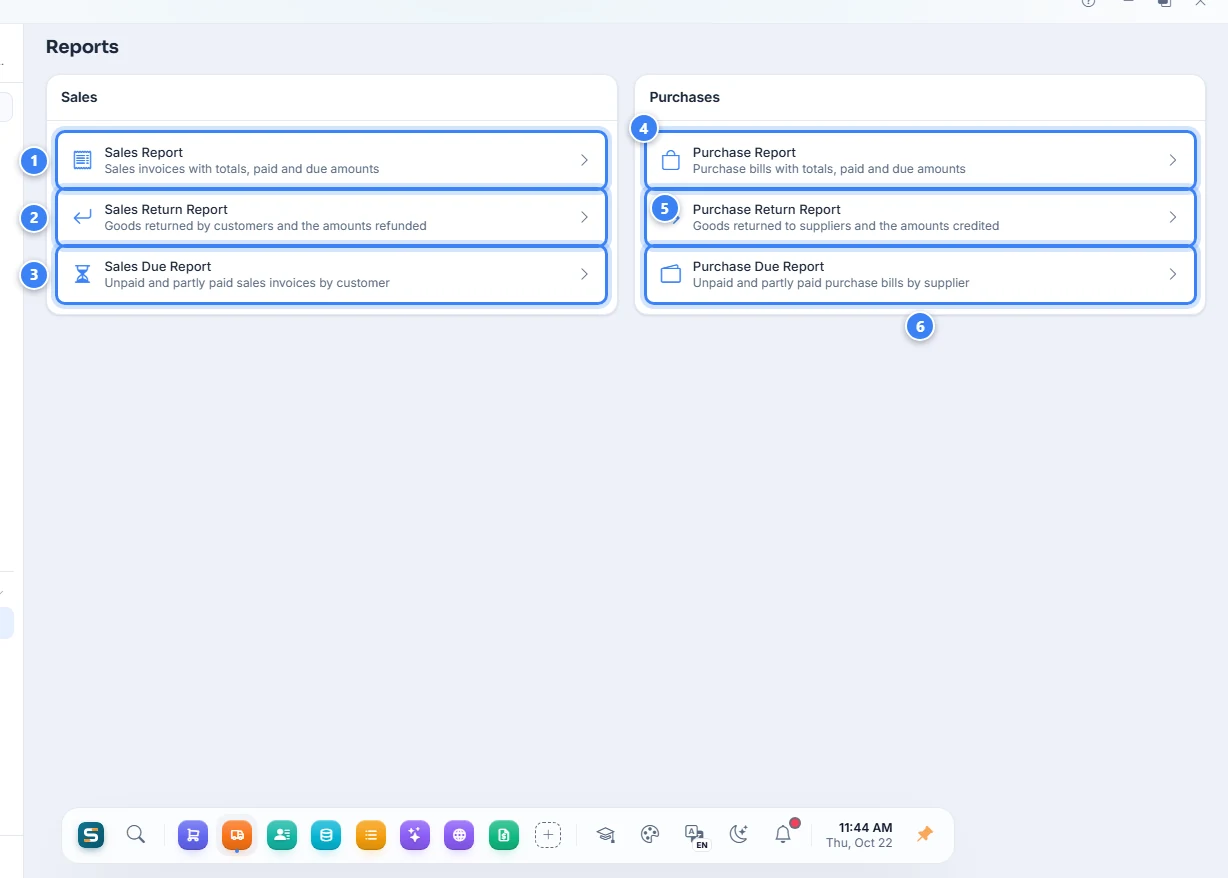 Sales and purchase reports catalog
- Sales report — detailed register of sales orders, invoice totals, paid amounts, and due balances.
- Sales return report — itemized breakdown of goods returned by customers and refund credits.
- Sales due report — outstanding customer receivables and unpaid invoice amounts.
- Purchase report — detailed register of vendor purchases, bills, and received merchandise values.
- Purchase return report — merchandise returned to vendors and supplier debit notes.
- Purchase due report — unsettled vendor balances and pending accounts payable amounts.
Step-by-step: Generating an order report
- Open Reports from your main navigation menu and select Order reports.
- Click any report title from the Sales or Purchases card to open the dedicated report viewer.
- Set your reporting criteria in the filter bar, such as date range, branch outlet, or specific partner name.
- Click Filter to generate the updated data table.
- Review the columns, summary totals, and grouped subtotals displayed on the screen.
- Click Export to download the statement as an Excel or PDF document, or click Print to send it directly to a local printer.
- Click the All reports button in the header toolbar to return to the catalog.
Every field and control
Sales reports
- Sales report (1): Displays all customer sales transactions within the selected period. Shows invoice numbers, creation dates, customer names, branch outlets, subtotal amounts, discounts, applied taxes, and net totals.
- Sales return report (2): Lists all goods returned by customers and issued credit memos. Includes original sales reference numbers, return quantities, refund amounts, and stock re-entry locations.
- Sales due report (3): Focuses specifically on unpaid and partially paid sales invoices. Categorizes balances by customer and displays days outstanding so you can prioritize follow-ups.
Purchase reports
- Purchase report (4): Displays procurement orders and vendor bills. Summarizes received inventory value, shipping charges, supplier tax amounts, and payment settlement progress.
- Purchase return report (5): Tracks merchandise shipped back to suppliers due to damage, oversupply, or specification mismatches. Displays vendor debit notes and credit adjustments.
- Purchase due report (6): Details pending accounts payable obligations. Groups bills by vendor and due date to help your finance team plan disbursements effectively.
Report viewer filters and actions
- Date range: Restrict results by calendar presets (Today, Yesterday, This Month, Last Quarter) or enter custom start and end dates.
- Outlet: Filter commercial figures by specific store location or warehouse, or view consolidated company-wide totals.
- Customer / Supplier: Narrow the register to transactions involving a single business account.
- Export: Generates spreadsheet files (.xlsx, .csv) or printable documents (.pdf) formatted with your company header.
- Print: Opens a clean printer-friendly dialog optimized for standard letter or A4 stationery.
Common questions
How quickly do sales invoices appear in these reports?
All order reports query live system data. As soon as a cashier or sales representative finalizes an order, the transaction appears immediately in the Sales report.
Can I run reports across multiple branch outlets simultaneously?
Yes. If your user role grants access to multiple branches, leave the Outlet filter blank or select All Outlets to view consolidated figures.
How does the system calculate due amounts on returned items?
When you issue a return credit against an invoice with a pending balance, the system automatically reduces the outstanding due balance before calculating any cash refunds.
Related pages
- Orders and sales — create sales orders, issue invoices, and track fulfillment status.
- Purchases — record vendor purchase orders and confirm goods delivery receipts.
- Financial reports — inspect balance sheets, profit and loss statements, and general ledgers.