
Purchases and supplier bills
Track vendor orders, record incoming supplier bills, receive goods into warehouse stock, and monitor outstanding payable balances.
Purchases and supplier bills
Use this screen to manage your purchase orders, incoming vendor bills, and supplier transactions. When you purchase inventory or services from suppliers, recording them here ensures your stock quantities update accurately and your accounts payable records stay up to date. You can review supplier invoices, monitor payment statuses, verify incoming consignments, and open action windows to record supplier payments or print purchase vouchers.
When you use this
- You purchase products from a vendor and need to record the incoming supplier bill.
- You want to verify whether ordered products arrived at your warehouse or outlet.
- You need to check outstanding amounts owed to suppliers and disburse payments.
- You want to return damaged goods back to a vendor and adjust your payable balance.
Before you start
- Add your suppliers in Contacts so you can select them on your purchase orders.
- Make sure your products and variants exist in Products with their buying costs.
- Verify that your receiving Outlets exist so stock increases in the correct warehouse.
- Ensure your role has permission to create and view purchase orders and record supplier payments.
Quick actions from the list.
You can perform several important actions directly from the purchase list.
- New purchase order: Click New Order to open the purchase creation window. Select your supplier and specify the receiving outlet. Add products with their purchase unit costs and tax rates, then save the order.
- Record payment: Open the action menu on any purchase row and choose Payments to launch the payment modal. Enter the amount paid, select the payment account, and save to reduce the balance.
- Goods delivery receipt: Choose Deliveries from the row action menu to verify warehouse dispatches or log incoming delivery consignments.
- Duplicate purchase: Click Clone to copy an existing purchase order into a new transaction when placing repeat restocking orders with the same vendor.
- Print purchase voucher: Choose Print to generate a printable purchase invoice or store copy for your records.
Browse and filter purchases
Filter and search your purchase orders to find specific supplier transactions:
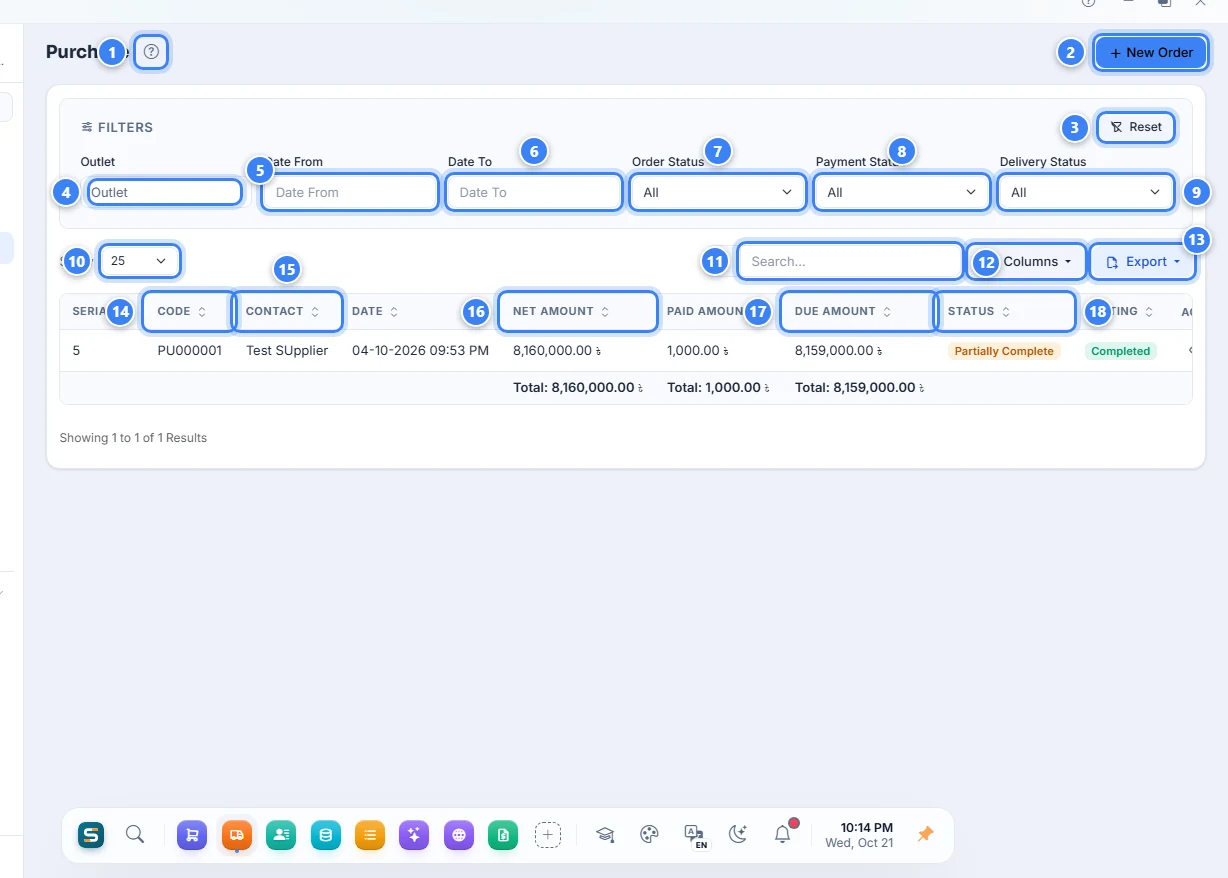 Purchases and supplier bills
- Help (?) — opens this guide beside the screen.
- New Order — opens the window to record a new supplier purchase.
- Reset — clears all filter and search selections.
- Outlet filter — filter purchases by receiving warehouse or branch outlet.
- Date From filter — filter purchases starting from this date.
- Date To filter — filter purchases up to this date.
- Order status filter — filter purchases by workflow status.
- Payment status filter — filter supplier bills by payment state.
- Delivery status filter — filter purchases by goods receiving status.
- Rows per page — choose how many purchase orders to display on one page.
- Search — search purchases by invoice code or supplier name.
- Columns — toggle visibility of purchase table columns.
- Export — export purchase records to Excel or CSV.
- Code column — displays unique purchase invoice reference number.
- Contact column — shows supplier or vendor name.
- Net amount column — displays total purchase cost payable to supplier.
- Due amount column — displays outstanding supplier bill balance.
- Status column — indicates purchase order progress.
Record a new purchase from a supplier
Follow these steps to record a purchase transaction:
- Click New Order to open the purchase entry window.
- Select the vendor in the Supplier field.
- Choose the receiving warehouse or store in the Outlet field.
- Select or scan the products you are buying, enter quantities received, and confirm unit purchase prices.
- Add any applicable shipping charges, discounts, or vendor taxes.
- Select your payment terms or record an immediate down payment if you paid upon order placement.
- Click Save to confirm the purchase order.
Pay supplier bills and track due balances
Manage your accounts payable and settle outstanding balances:
- Locate the purchase order in the table using the search box or date filters.
- Review the Net Amount, Paid Amount, and Due Amount columns to see what is currently owed.
- Open the row action menu and click Payments.
- Enter the disbursed amount, choose your payment method, and specify the paying bank account or cash account.
- Save the payment. The system immediately updates the purchase order payment status to Paid or Partial.
Receive goods into inventory
When your ordered goods arrive at your warehouse:
- Open the row action menu and click Deliveries.
- Review the ordered product lines against the physical delivery manifest.
- Confirm received quantities. Once confirmed, product stock counts increase automatically in the designated warehouse outlet.
- If your order type uses immediate inventory updates upon purchase confirmation, the stock arrives automatically when you save the order.
Every field and filter explained.
| Field or action | Type | Description |
|---|---|---|
| Help (?) | Action link | Opens this user guide in the side panel beside your active workspace. |
| New Order | Primary button | Opens the order modal to record a new supplier purchase invoice. |
| Reset | Secondary button | Resets all active filters, date ranges, and search keywords to defaults. |
| Outlet filter | Search dropdown | Filters purchases to display only orders received at a specific branch or warehouse. |
| Date From filter | Date picker | Displays orders created on or after this starting date. |
| Date To filter | Date picker | Displays orders created on or before this ending date. |
| Order status filter | Dropdown select | Filters orders by processing stage such as Draft, Submitted, or Approved. |
| Payment status filter | Dropdown select | Filters supplier bills by payment condition: Paid, Partial, or Unpaid. |
| Delivery status filter | Dropdown select | Filters purchases by goods consignment state: Delivered, Partial, or Pending. |
| Rows per page | Dropdown select | Sets the maximum number of purchase records displayed per page. |
| Search | Search input | Performs real-time search across purchase invoice numbers, supplier names, and notes. |
| Columns | Dropdown menu | Opens a checklist to show or hide table columns according to your preferences. |
| Export | Dropdown menu | Downloads your filtered purchase list as an Excel spreadsheet or CSV file. |
| Code column | Table column | Shows the unique sequential purchase invoice reference number. |
| Contact column | Table column | Displays the supplier or vendor name associated with the purchase. |
| Net amount column | Table column | Displays the total payable invoice amount after discounts and taxes. |
| Due amount column | Table column | Displays the remaining unpaid balance owed to the vendor. |
| Status column | Table column | Displays a color-coded badge indicating the current order approval or fulfillment state. |
Real-life example
A retail store owner orders 50 wireless headphones from an electronics distributor. When the vendor delivers the goods along with invoice INV-8820, the store manager opens Purchases and supplier bills and clicks New Order. The manager selects "Apex Distribution" as the supplier, picks "Main Warehouse" as the outlet, and adds 50 units of headphones at $25 each.
After verifying the 5% vendor VAT and applying free freight, the manager saves the order. The system creates purchase record PO-00142 with a net amount of $1,312.50. The warehouse stock of headphones immediately increases by 50 units. The store pays $500 immediately via bank transfer and leaves $812.50 due. The table shows status Approved, payment status Partial, net amount $1,312.50, and due amount $812.50. Two weeks later, the manager clicks Payments on that row, records the remaining $812.50 payment, and the status changes to Paid.
Common questions
Does saving a purchase order increase product stock automatically?
Yes, for standard inventory purchase types, saving and approving the purchase order increases stock in the selected outlet. If your business uses separate delivery dispatches, stock increases when you confirm receipt in the Deliveries action window.
What happens if I return defective goods to a supplier?
Create a Purchase Return from the Order menu. The return document reverses the inventory quantity in your warehouse and issues a debit adjustment against the supplier's balance.
Can I record payments for multiple purchase invoices together?
Yes. Go to Receive & Payment in the sidebar menu and select Purchase Payment. You can disburse a single payment against a supplier's total ledger account or allocate it across multiple unpaid invoices.
How do I export my purchase records for accounting?
Apply any desired date or outlet filters, click Export, and select Excel or CSV. The system downloads your filtered list including invoice numbers, supplier names, net amounts, and tax breakdowns.
Related pages
- Orders: understand how sales, purchases, quotations, and returns work across order types.
- Payments: record and review payment transactions and money disbursements.
- Stock receipts: transfer, adjust, or write off warehouse stock.
- Customers and suppliers: manage vendor contact details, tax numbers, and credit terms.