
Going live
Launch your live production workspace, choose how to carry over settings from Practice, and set opening balances.
Going live
Use this wizard when you have finished testing in Practice mode and are ready to launch your real production workspace. Sylloo lets you choose whether to copy your customized catalog and settings or start with a clean slate.
Going live is a one-time onboarding milestone for your business. Once activated, your Live and Practice workspaces operate side by side.
When you use this
- You completed testing items, brands, and categories in Practice and want to launch your actual retail store.
- You need to enter starting cash and bank balances before recording real customer transactions.
- You want to start fresh with default accounting structures and enter clean production records.
Before you start
- You need an active subscription plan to activate Live operations.
- Only the business owner account can start the go-live process.
- Make sure all mock transactions in Practice are complete; transactions themselves are never carried over to Live.
Open the Go live screen
From your Practice workspace, click Go live in the top navigation bar or select Activate Live from the Practice Gate page.
Choose your setup mode
- Choose How do you want to start in Live?:
- Copy my Practice setup — transfers all customized categories, brands, units, items (without stock balances), and invoice templates you created during practice.
- Copy my customers and suppliers too — check this box if you want to copy your real customer list into Live.
- Copy my employees too (their HR records only, never logins) — check this box to transfer HR employee records without copying login credentials.
- Start fresh — begins with a clean, default chart of accounts and an empty catalog.
- In the Opening balances section, select your Opening date (the official date operations begin).
- Type the starting cash amount for your store cash registers and bank accounts in the balance boxes.
- Click Go live.
Monitor provisioning and open Live
Sylloo provisions your live business in the background and displays live progress steps:
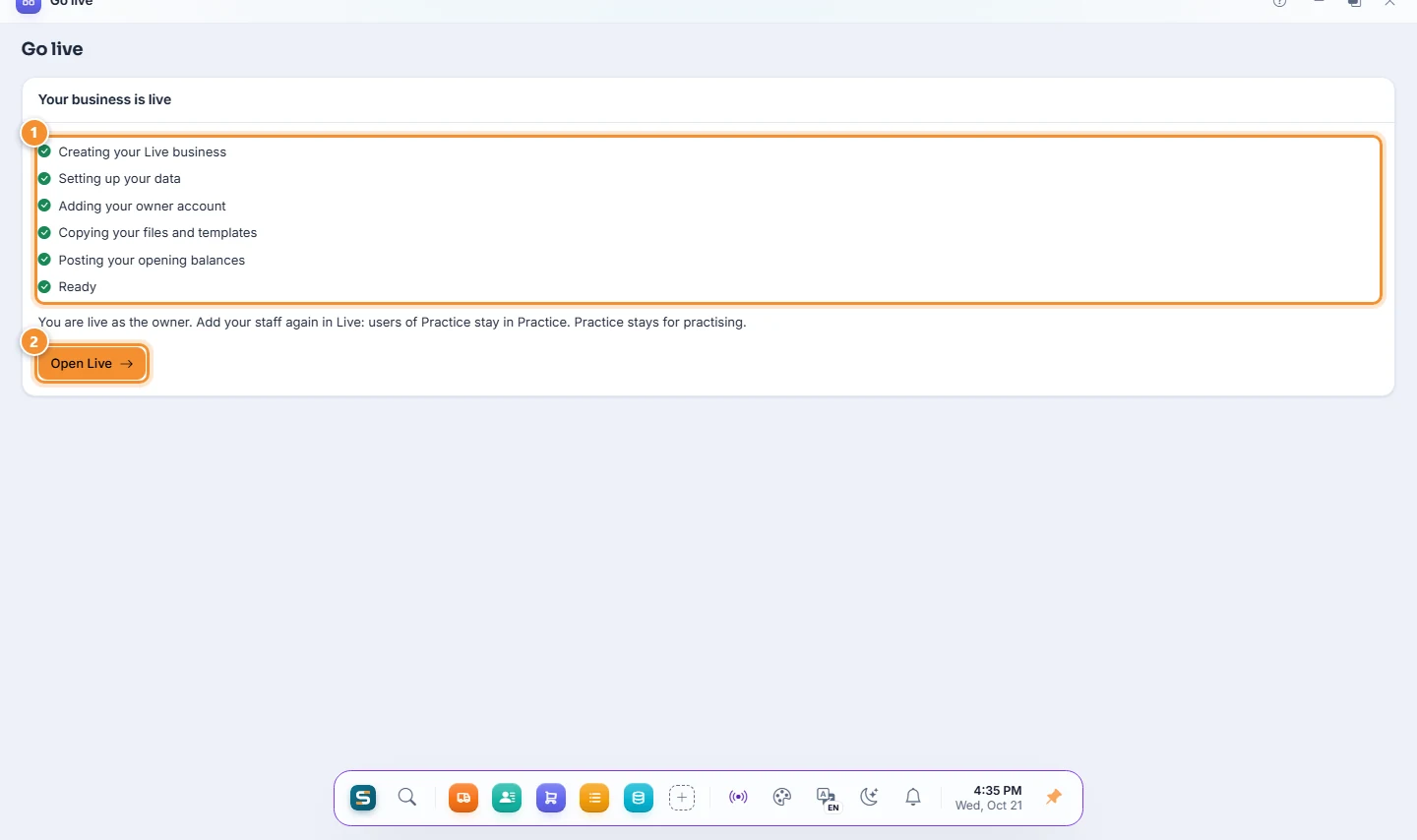 The Go live completion and progress screen
- Provisioning steps — shows live progress as each workspace component is prepared:
- Creating your Live business
- Setting up your data
- Adding your owner account
- Copying your files and templates
- Posting your opening balances
- Ready
- Open Live — launches your live production workspace with an authenticated session. Click this button to enter your live desktop.
Every field on this screen
| Field | What it is for | Example | Required? | Default | What happens when changed | What depends on it |
|---|---|---|---|---|---|---|
| Copy my Practice setup | Carries over customized products, brands, and settings. | Selected | Optional | Selected | Copies settings and templates without dummy stock or orders. | Starting catalog state. |
| Copy my customers and suppliers too | Includes customer and supplier contact records in the copy. | Checked | Optional | Unchecked | Migrates contact profiles while omitting practice transaction history. | Contact list in Live. |
| Copy my employees too (their HR records only, never logins) | Transfers staff HR records to Live. | Checked | Optional | Unchecked | Creates staff profiles without granting immediate login access. | Staff list in Live. |
| Start fresh | Discards practice setups and begins with standard defaults. | Selected | Optional | Unselected | Starts with empty catalogs and default system ledgers. | Completely fresh catalog. |
| Opening date | The legal effective date for opening account balances. | 2026-10-21 |
Yes | Today | Sets transaction date on initial accounting journals. | Opening ledger balance date. |
| Opening balance | The actual starting amount in each cash or bank account. | 15000.00 |
Optional | 0.00 |
Creates starting debit balances in selected cash/bank accounts. | Starting balance sheet totals. |
| Go live | Begins automated provisioning of your production workspace. | Click button | Required | — | Queues workspace setup and opens progress view. | Triggers workspace creation. |
| Open Live | Opens your active live desktop immediately. | Click button | Required | — | Navigates your browser to your live production address. | Launches Live session. |
Handling provisioning issues
If setup stops due to a temporary conflict (such as a duplicate email address):
- Your business is live: Displays confirmation once all provisioning stages pass.
- Try again: Click to retry provisioning after resolving any reported configuration warning.
Example
Farhana has tested POS sales in Practice and is ready to launch her real boutique:
- She opens Go live from her Practice top navigation bar.
- She selects Copy my Practice setup so her uploaded dress catalog and prices copy over.
- She checks Copy my customers and suppliers too.
- She enters
25000under her main cash account and sets today's Opening date. - She clicks Go live. Within moments, all six Provisioning steps show green checkmarks.
- She clicks Open Live and begins ringing up her first real customer invoice.
Common questions
Are my test practice sales copied into Live? No. Dummy sales, practice stock movements, test quotes, and test invoices are never copied into Live. Only clean configuration data and catalog items carry over.
Can I still use Practice after going live? Yes. Practice remains open permanently for safe staff training and testing new features. You can switch between environments at any time from the dock.
Can staff log in to Live immediately? For security, only the business owner's login is enabled initially. The owner can invite staff or assign passwords from Team and users in Live.