
Getting started with the customer portal
Learn how to access your customer self-service portal, browse product catalogs, place new orders, pay invoices, and download account statements.
Getting started with the customer portal
Welcome to the Customer Portal! This self-service portal enables you to manage your business relationship seamlessly. You can browse published product catalogs, place wholesale or retail orders, track delivery stages, verify payments, and download financial statements without waiting for staff assistance.
This tutorial guides you through your first steps: signing in, exploring your dashboard overview, finding products, placing an order, settling invoices, and tracking account statements.
When you use this
- Learn the overall structure and navigation of the customer self-service portal.
- Understand how your orders, balances, and payment records stay synchronized with the merchant.
- Follow a simple 10-minute walkthrough to place an order and review your accounting ledger.
Screen layout
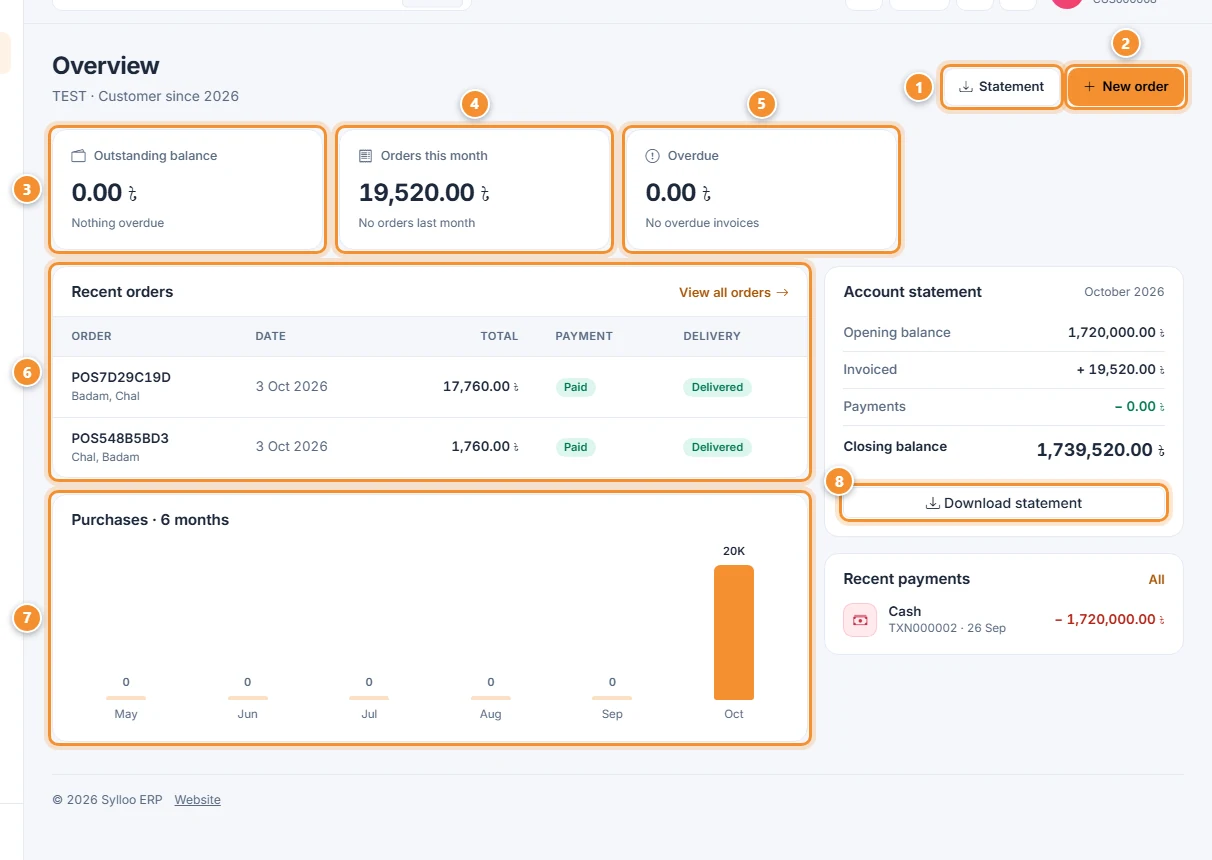 Customer self-service portal overview displaying key metrics recent orders and quick navigation
- Download statement button — navigates to customer accounting ledger statement.
- New order button — opens customer catalog to browse products and place an order.
- Outstanding balance metric — total unpaid balance across all orders and invoices.
- Orders this month metric — monetary total and percentage change vs previous month.
- Overdue balance metric — past-due invoice count and total overdue balance.
- Recent orders card — summary list of recently placed orders with delivery and payment status.
- Purchases trend chart — six-month purchasing volume visual bar chart.
- Sidebar statement download link — quick access link to generate customer statement.
Sign in to your portal account
To access your self-service portal:
- Open the portal sign-in link provided by your supplier (typically
your-shop.com/client/login). - Enter your registered email address and password.
- If this is your first visit, use the activation link sent to your inbox by the supplier, or click Create account if open registration is supported.
For complete sign-in details, see Customer portal sign-in.
Understand your dashboard
Once signed in, the portal dashboard gives you an instant snapshot of your account standing:
- Outstanding balance metric (3) shows total unpaid balances across all active invoices.
- Orders this month metric (4) tracks total purchases completed during the current calendar month.
- Overdue balance metric (5) highlights past-due invoices that require immediate payment.
- Recent orders card (6) lists your latest purchase orders, fulfillment progress, and shipping statuses.
- Purchases trend chart (7) displays a visual monthly comparison of your ordering volume over the last six months.
Browse products and place an order
To place a new order:
- Click New order button (2) in the dashboard header or select Products from the navigation menu.
- Browse products using keyword searches, categories, and brand filters.
- Click a product card to view specifications, available pack sizes, and tiered wholesale pricing.
- Set the desired quantity and click Add to cart.
- When ready, click your Shopping cart and proceed to Checkout to confirm delivery addresses and submit your purchase order.
For full shopping guides, see Customer products catalog, Customer shopping cart, and Customer portal checkout.
Pay your invoices online
When an order is confirmed, you can settle your invoice directly through the portal:
- Navigate to Customer orders to view your order history.
- Locate any order marked unpaid or partially paid and click Pay now.
- Choose your preferred payment method on the Order payment invoice summary screen.
- Follow the provider instructions on Online order payment gateway checkout, enter your transaction identifier, and click complete.
- Review your completed settlements anytime under Customer payments and transactions.
Download your financial statements
To audit your accounts or share records with your accounting team:
- Click Download statement button (1) from your dashboard or select Ledger Statement in the menu.
- Choose your fiscal date range using the start and end calendar pickers.
- Review your opening balance, itemized invoices, payments, and cumulative running balances.
- Click the export button to download an official spreadsheet in Excel or CSV format.
Learn more in Customer Ledger Statement.
Every field and control
Dashboard action controls
- Download statement button — Header shortcut opening your accounting ledger statement.
- New order button — Direct shortcut taking you to the product ordering catalog.
- Sidebar statement download link — Convenient navigation link to view your financial balance records.
Financial metric cards
- Outstanding balance metric — Total amount owed across all unsettled sales invoices.
- Orders this month metric — Total value of orders placed in the active calendar month.
- Overdue balance metric — Sum of unpaid invoice amounts past their due date.
Order cards and visual charts
- Recent orders card — Summarized table of recent purchases showing order codes, dates, totals, and delivery stages.
- Purchases trend chart — Visual bar chart highlighting purchasing trends across past months.
Common questions
How do I update my billing or shipping address?
Navigate to Customer profile from the top-right profile avatar or sidebar menu. You can edit your company name, contact phone numbers, delivery addresses, and login password.
Can I re-order items I previously bought?
Yes. Open Customer orders list, click on any previous completed order to open Customer order details, and add previously purchased items back to your cart.
How quickly are payments reconciled?
Electronic card payments and verified mobile wallet transfers update automatically upon gateway confirmation. Bank wire transfers are reconciled once verified by the merchant finance team.
Related pages
- Customer portal sign-in — Sign in to access your orders and account data.
- Customer dashboard — Comprehensive reference for the portal dashboard interface.
- Customer products catalog — Browse available products and inventory offerings.
- Customer orders list — Track order statuses and fulfillment progress.
- Customer Ledger Statement — View and export complete financial statements.