
Customer payments and transactions
Review historical payments, verify transaction serials, reconcile order invoice references, and export payment ledgers.
Customer payments and transactions
The Customer payments and transactions screen provides buyers with an itemized payment ledger. Customers can verify settlement records, check transaction processing charges, confirm matching order reference numbers, and export historical payment receipts.
When you use this
- Verify completed electronic payments, card charges, or bank wire settlements.
- Match transaction serial numbers with bank statements or payment receipts.
- Check processing fees applied to online payment gateway transactions.
- Export transaction ledgers to CSV or Excel spreadsheets for tax accounting.
Screen layout
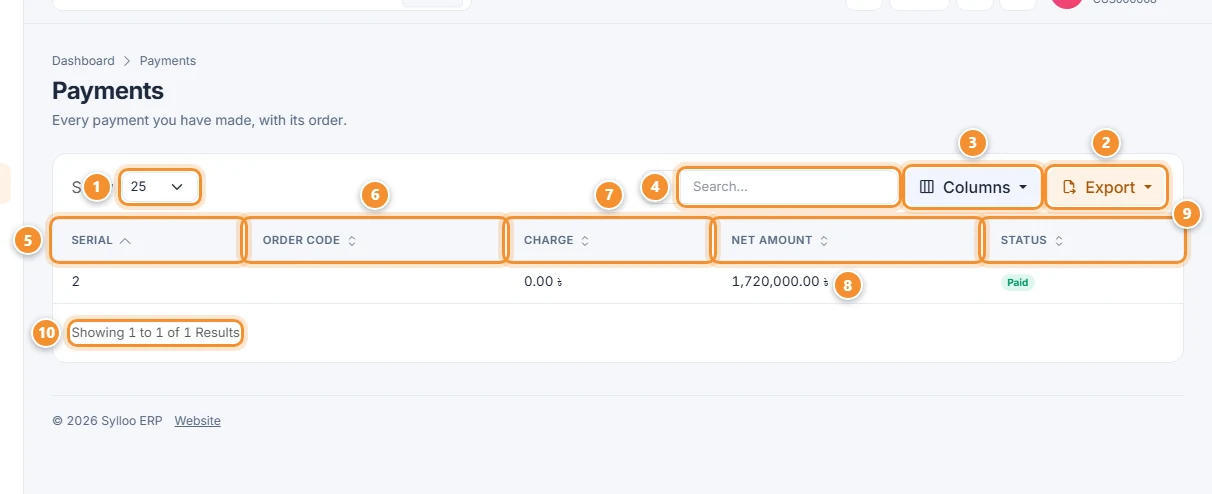 Customer payment transactions ledger with order reconciliation and status
- Page size selector — dropdown to configure visible payment transactions per page.
- Export payments button — exports payment transactions to Excel or CSV.
- Column visibility selector — toggles visible transaction columns in the table.
- Payment search input — keyword filter across serial numbers and order references.
- Transaction serial column — sequential reference identifier of the payment record.
- Order reference column — associated sales order code settled by the payment.
- Processing fee column — applicable payment gateway transaction surcharge.
- Net payment column — total monetary funds transferred to clear the invoice.
- Payment status column — settlement state badge showing completed or pending.
- Results counter — shows active row count and total recorded payments.
Step-by-step: Reviewing payment transactions
- Sign in to your portal account and select Payments from the left navigation menu.
- In Payment search input (4), type the order code or transaction reference you want to inspect.
- Use Column visibility selector (3) if you wish to show or hide specific data columns.
- Review the transaction identifier in Transaction serial column (5) and verify the invoice number in Order reference column (6).
- Check any gateway surcharge under Processing fee column (7) and total cleared funds under Net payment column (8).
- Verify that the payment shows a green Success badge in Payment status column (9).
- Click Export payments button (2) to download your payment records for external bookkeeping.
Every field and control
Table toolbar
- Page size selector (1): Changes the table page size to 10, 25, 50, 100, or 250 records.
- Export payments button (2): Downloads the current payment transaction query in Excel or CSV format.
- Column visibility selector (3): Customizes which table columns are rendered.
- Payment search input (4): Instant search filter matching against payment serials, transaction IDs, and order codes.
Payments table
- Serial (5): Unique sequential transaction serial number assigned to the payment entry.
- Order code (6): Sales order code against which the payment funds were applied.
- Charge (7): Additional gateway convenience surcharge or bank processing fee.
- Net amount (8): The final net monetary sum credited toward order settlement.
- Status (9): Color-coded status badge indicating whether the payment is Completed, Processing, or Failed.
- Results counter (10): Record counter showing the current display range and total payments found.
Common questions
How long does an electronic payment take to appear here?
Payments made via online card or mobile money gateways appear immediately upon receiving settlement confirmation from the gateway provider.
What should I do if a payment succeeded at my bank but shows pending here?
If your bank was debited but the portal shows pending, allow fifteen minutes for gateway synchronization. You can also contact support with your payment reference.