
Reset portal password
Set a new secure password using your verified recovery link to restore access to the customer portal.
Reset portal password
Use the Reset portal password screen to choose a new password for your customer account. Opening the secure link received in your recovery email brings you to this form, where you can establish new credentials and restore portal access.
When you use this
- Finalize account recovery after requesting a reset link from the login page.
- Replace an old or compromised customer portal password with a new passphrase.
- Verify password strength and match before saving new credentials.
Screen layout
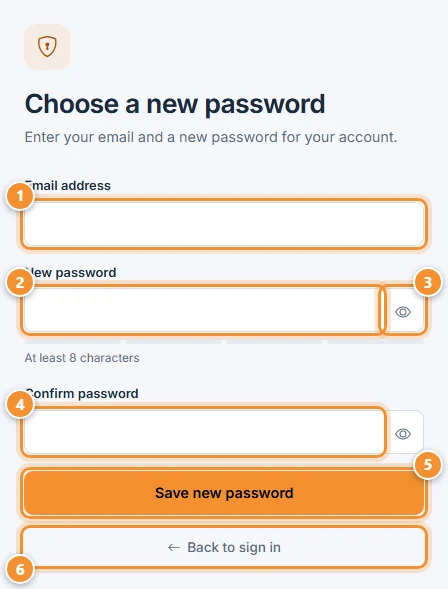 Reset portal password screen
- Email address — customer email associated with the recovery token.
- New password — new account security passphrase.
- Toggle password visibility — shows or hides entered password characters.
- Confirm password — matching confirmation field for the new password.
- Save new password button — stores updated credentials and redirects to login.
- Back to sign in link — returns to the client portal login screen.
Step-by-step: Resetting your account password
- Click the recovery link delivered to your email inbox from Forgot portal password.
- The form opens with your registered address in Email address (1).
- In New password (2), type a new passphrase. Watch the strength bar to ensure it meets security standards.
- Click Toggle password visibility (3) if you wish to verify character entries.
- Re-type the exact same passphrase into Confirm password (4).
- Click the Save new password button (5). A success confirmation appears, and you are redirected to sign in with your updated credentials.
Every field and control
Password reset fields
- Email address (1): The email address bound to the password reset token. Ensure this matches your registered customer profile.
- New password (2): New secret passphrase protecting your customer portal. The strength indicator displays weak, fair, good, or strong ratings based on complexity.
- Toggle password visibility (3): Eye icon button that unmasks password characters to help verify accuracy.
- Confirm password (4): Duplicate entry field confirming that both passphrase entries match exactly.
- Save new password button (5): Validates the security token, updates your encrypted account password, and activates your credentials.
- Back to sign in link (6): Cancels the reset attempt and navigates back to the portal sign-in form.
Common questions
What should I do if the screen displays an invalid token notice?
Password reset tokens expire after 60 minutes or after being used once. If your link is invalid or expired, return to Forgot portal password to request a new recovery link.
Does changing my portal password affect previous order records?
No. Updating your credentials only changes your login authentication. All active orders, delivery tracking numbers, past invoices, and ledger balances remain completely intact.
Related pages
- Client portal sign-in — log in using your newly configured password.
- Forgot portal password — request a new reset link if your session expires.
- Client profile — manage account settings once logged in.