
Shopping cart
Review selected items, adjust order quantities, inspect financial totals and taxes, and proceed to checkout in the customer portal.
Shopping cart
The Shopping cart screen lets customers review pending order selections before finalizing purchases. Buyers can adjust item quantities, remove unwanted products, verify line totals and taxes, and proceed directly to payment checkout.
When you use this
- Verify selected products and unit prices before committing to a commercial order.
- Adjust order quantities or remove surplus lines from your basket.
- Inspect financial subtotals, promotional discounts, and applicable VAT.
- Proceed directly to delivery location selection and order settlement.
Screen layout
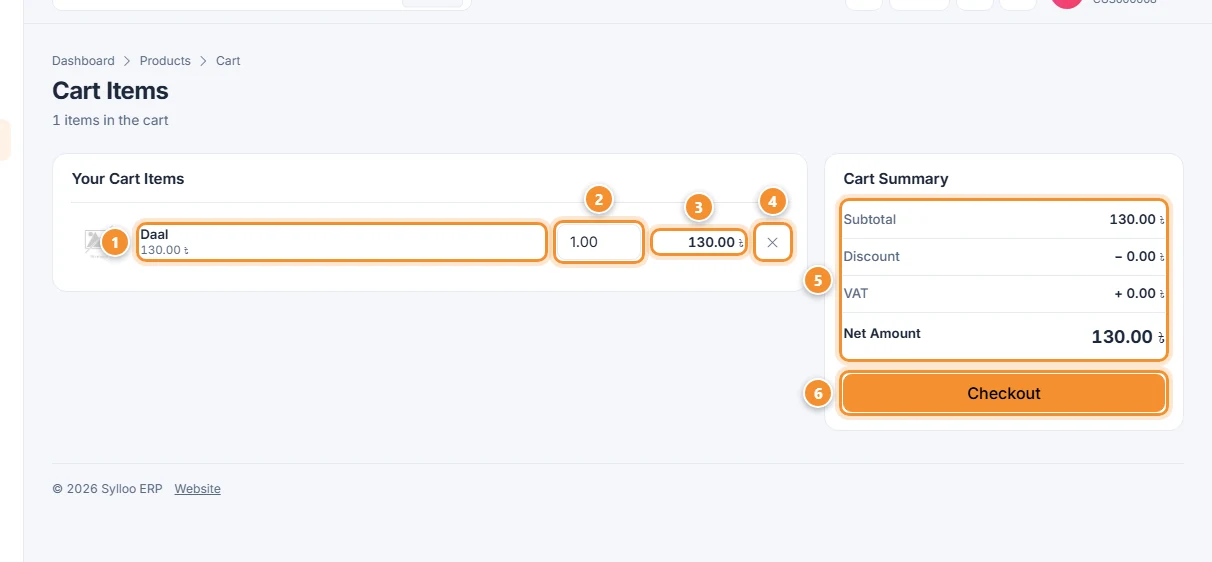 Customer shopping cart with item quantities line totals and order summary
- Cart product description — commercial product name and unit price.
- Item quantity input — number of product units to purchase.
- Line total amount — calculated line extension price based on quantity.
- Remove item button — deletes the line item from the shopping cart.
- Order financial summary card — breakdown of subtotal, applicable discounts, and VAT.
- Proceed to checkout button — advances to delivery address and payment processing.
Step-by-step: Managing your cart and ordering
- In the customer portal header, click the cart icon or navigate to Customer products catalog to add products.
- In Item quantity input (2), enter your desired order quantity for each product line. The line total and order summary recalculate automatically.
- To delete an unwanted product line, click Remove item button (4).
- Review Order financial summary card (5) to verify gross subtotal, applied discounts, and sales tax.
- Click Proceed to checkout button (6) to open the Order checkout screen.
Every field and control
Cart item lines
- Cart product description (1): Displays the primary product photo, commercial title, and individual unit price.
- Item quantity input (2): Numeric input field allowing buyers to set the purchased quantity. Entering zero removes the item automatically.
- Line total amount (3): Mathematical product of unit price multiplied by quantity.
- Remove item button (4): Trash or delete icon removing the line entry from your active cart session.
Cart summary
- Subtotal (5): Cumulative gross total across all active cart lines before discounts and taxes.
- Discount (5): Total promotional deductions or contract savings applied to your order.
- VAT (5): Estimated value-added tax calculated on taxable items.
- Net amount (5): Final payable amount required to settle the order.
- Proceed to checkout button (6): Direct action button forwarding to Order checkout for shipping confirmation and payment.
Common questions
Does adding a product to the cart reserve the inventory?
No. Items in your shopping cart remain available to other buyers until you complete the final payment step at checkout.
Can I save my cart and finish the purchase later?
Yes. Your cart contents remain saved to your customer account session so you can resume purchasing upon signing back in.