
Bookings
View and manage customer appointments, scheduled reservations, practitioner assignments, and booking dates.
Bookings
Use the Bookings screen to view scheduled appointments, patient visits, and facility reservations. You can filter upcoming dates, check practitioner availability, print appointment schedules, and update booking records as customers arrive.
When you use this
- Review confirmed appointments for doctors, stylists, rooms, or consultation tables.
- Filter reservations by date range or practitioner to prepare daily staff schedules.
- Update appointment timings or cancel bookings when customers request changes.
- Print a daily roster of scheduled visitors for your reception or front desk.
Screen layout
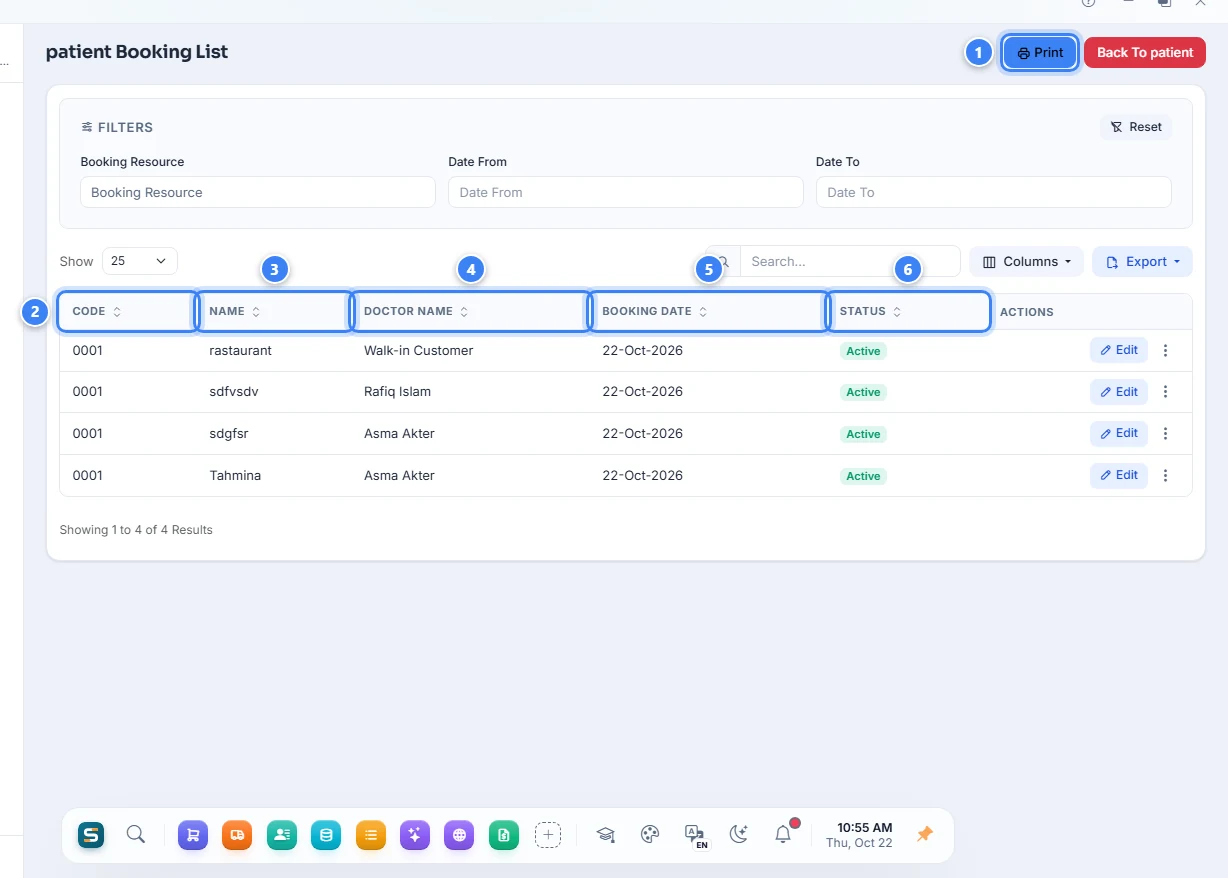 Customer and patient bookings list
- Print list — generates a printable schedule of customer appointments and bookings.
- Code column — unique reference number assigned to the booking.
- Name column — customer or patient full name.
- Doctor Name column — assigned doctor, practitioner, or booking resource.
- Booking Date column — scheduled appointment date.
- Status column — shows whether the appointment is confirmed, pending, or attended.
Step-by-step: Managing customer appointments
- Open the Bookings menu from your main navigation bar.
- Filter the table by date range or specific resource to view matching reservations.
- Review the customer names, assigned practitioners, and appointment dates in the table.
- Click Print (1) to produce a printable daily schedule for the front desk.
- To reschedule or modify booking details, click Edit on that specific appointment row.
- If a customer cancels their reservation, click Delete on the row to release the allocated slot.
Every field and control
Toolbar buttons
- Print (1): Generates a formatted printable document containing the filtered appointment roster.
Roster columns
- Code (2): The unique reference number assigned to this reservation file.
- Name (3): Full name of the customer or patient who booked the appointment.
- Doctor Name (4): The assigned physician, therapist, consultant, or facility resource booked for the session.
- Booking Date (5): The calendar date and time scheduled for the appointment.
- Status (6): Current attendance badge indicating whether the booking is pending, confirmed, or completed.
Row actions
- Edit: Opens the booking editor modal to adjust customer information, notes, or scheduled times.
- Delete: Removes the appointment from the calendar and frees up the reserved slot for other customers.
Common questions
How do customers book appointments online?
Customers can reserve available slots through your public customer booking portal or embedded website widget without requiring direct staff intervention.
Can I reassign an appointment to a different practitioner?
Yes. Click Edit on the booking row, choose another available practitioner from the resource dropdown, and save your changes.
What happens when an appointment is deleted?
Deleting a booking removes it from active schedules and immediately releases that time slot for new reservations.
Related pages
- Admissions and fees — track admissions, room assignments, and facility fees.
- Customers and suppliers — maintain contact details and history for your customers.
- Orders — create sales invoices and collect payments for booked services.