
Add or edit journal entry
Record or update multi-line double-entry journal entry transactions with balanced debits and credits.
Add or edit journal entry
Use this window to record or modify a multi-line double-entry journal entry. Unlike single-entry vouchers, this window gives direct control over both sides of each accounting entry.
When you use this
- Entering complex transactions that touch multiple asset, liability, revenue, or expense accounts simultaneously.
- Adjusting accumulated depreciation, recognizing accruals, or recording prepaid expense amortizations.
- Correcting wrong account postings from previous transactions without modifying historical documents.
- Recording owner capital injections, partner drawings, or inter-company loan settlements.
Before you start
- You need an active user account with permission to create or edit this journal type.
- Ensure all relevant chart of accounts ledger categories exist and are active.
- Verify that the transaction date falls within an open accounting period.
Open the journal entry window
- Go to Accounting in the left sidebar and open your Journal entry list.
- Click the green Add Receipt button above the datatable.
- The Add or edit journal entry window opens with a blank form.
Fill header and add lines
- Set the transaction Date and select the originating branch in Outlets.
- Enter an optional external tracking code in Reference and summarize the goal in Particulars.
- Choose a counterparty in Customer Or Supplier or select the staff member in Employee.
- Use Search Ledger Account to add your first accounting line.
- Choose whether the line is a Debit or Credit, enter the monetary price, and pick a payment method if it affects cash or bank accounts.
- Add the matching balancing line using the account search dropdown.
- Confirm that Total Debit equals Total Credit and the red uncleared warning disappears.
- Click Save & Close to post the balanced transaction to your general ledger.
Every field on this screen
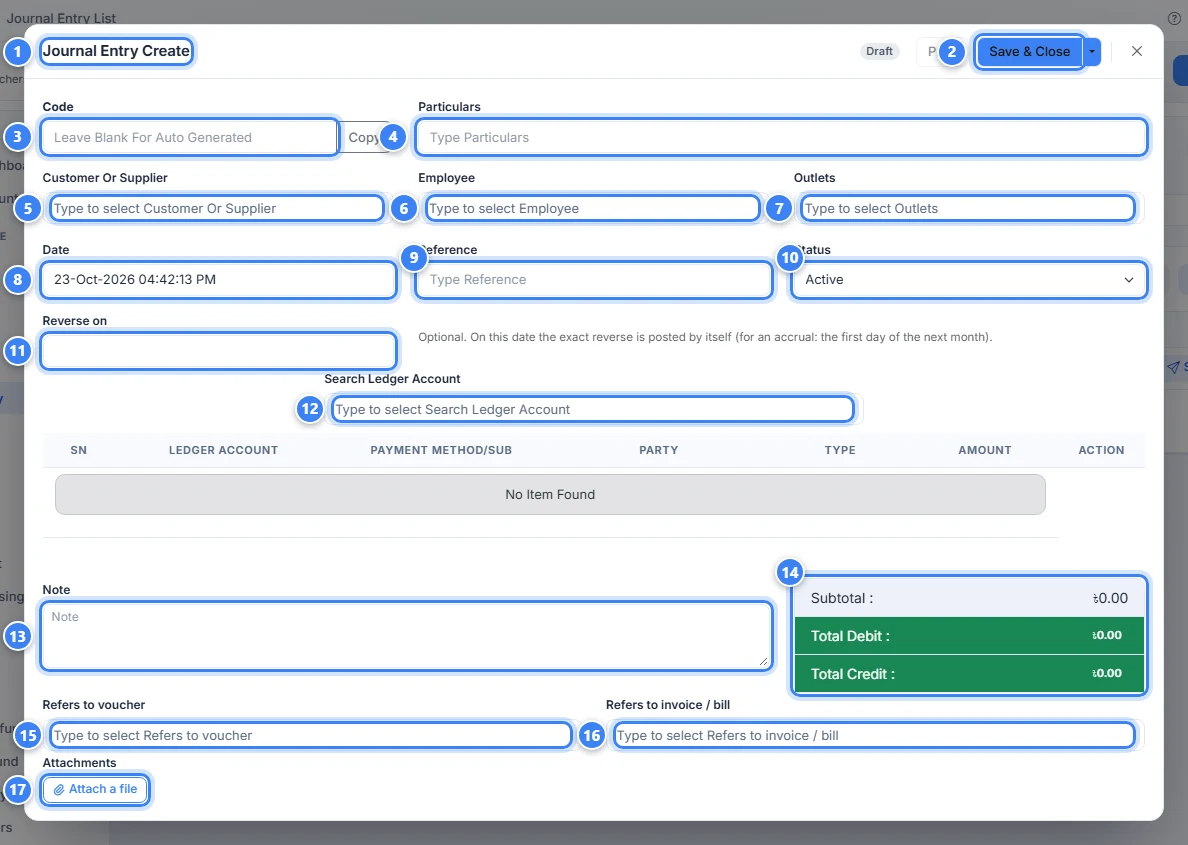 Add or edit journal entry window
- Modal title — Identifies the journal type and indicates whether you are creating or updating a record.
- Save & Close button — Validates balanced debits and credits, saves changes, and posts entries to the ledger. Also referred to as Save in draft mode.
- Voucher code field — Unique sequential journal Code. Leave blank to let the system generate the next sequential number.
- Particulars field — Summary explanation describing the overall purpose of this transaction.
- Contact field — Search dropdown to assign a counterparty. Labeled Customer Or Supplier on screen.
- Employee field — Staff member responsible for entering or managing this journal record.
- Outlet field — Originating store branch or warehouse Outlets for branch-level accounting reports.
- Receipt date field — Accounting posting Date. Defaults to today and must be within an open period.
- Reference field — Optional external audit code, such as a vendor invoice or memo number.
- Status field — Operational status dropdown. Choose Active to process normally or Inactive to suspend.
- Reverse date field — Optional Reverse on date for automatic accrual reversals on the specified date.
- Search Ledger Account — Search select to choose and append chart of accounts lines to the table.
- Note field — Internal remarks, audit notes, or explanations recorded alongside the journal.
- Totals summary card — Real-time summary showing subtotal, total debits, total credits, and uncleared amounts.
- Reference voucher field — Dropdown linking this entry to an earlier voucher. Shown as Refers to voucher.
- Reference invoice field — Dropdown linking this entry to an existing bill. Shown as Refers to invoice / bill.
- Add Attachment button — Click Attach a file to upload supporting calculation sheets or bills.
Line details and debit credit balancing
When you pick an account from Search Ledger Account, a new line appears in the table:
- Ledger account — Displays the unique account code and chart of accounts title.
- Payment Method — Required when the selected account is a cash or bank ledger. Enabled automatically for monetary accounts.
- Party — Optional contact for this line. Defaults to Same as the voucher if left blank.
- Type — Choose whether this line represents a Debit or Credit entry.
- Price — Enter the numerical monetary amount for this line.
- X button — Click the red X button to delete an unwanted row from the table.
The summary card dynamically calculates total debits and credits. When debits and credits are not equal, the card shows a red highlighted Uncleared Amount indicating the exact difference needed to balance.
Document workflow and actions
The following actions are available on saved journal entries:
-
Print — Generates a printable journal voucher slip complete with signature blocks.
-
Duplicate — Creates a new draft journal copying all accounts, lines, and amounts.
-
Make recurring — Configures this journal as a recurring template on a set schedule.
-
Submit — Submits a draft journal entry into the approval list for managerial review.
-
Approve — Managerial action to approve a submitted journal and post entries to the ledger.
-
Reject — Rejects a submitted journal back to draft status for correction.
-
Withdraw — Recalls a submitted journal back to draft state before review.
-
Cancel entry — Voids a posted journal and generates reverse balancing lines.
-
Reason — Explanatory note entered by a manager when deciding on a pending journal.
-
Reason for cancelling — Mandatory note recording why a posted journal was cancelled.
-
Attachments — View and open uploaded media files and images linked to the journal.
-
Remove — Deletes an uploaded attachment before saving changes.
Examples
Example: Recording monthly machinery depreciation
Suppose your company records $500 monthly depreciation on manufacturing equipment:
- Click Add Receipt to open the modal.
- In Particulars, enter
October machinery depreciation. - In Search Ledger Account, select
5800 - Depreciation Expense. - In the new line row, set Type to
Debitand enter500.00in Price. - In Search Ledger Account, select
1720 - Accumulated Depreciation: Machinery. - In the second row, set Type to
Creditand enter500.00in Price. - Both total debits and total credits show $500.00. Click Save & Close.
Example: Owner cash injection into bank account
Suppose a business owner invests $5,000 cash into the company bank account:
- Click Add Receipt.
- In Particulars, enter
Owner capital investment. - In Search Ledger Account, select your commercial checking bank account.
- Set Type to
Debit, enter5000.00, and selectBank Transferin Payment Method. - In Search Ledger Account, select
3010 - Owner Capital. - Set Type to
Creditand enter5000.00. - Click Save & Close to record the capital addition.
Common questions
Can a journal entry contain more than two lines?
Yes. You can add as many debit and credit lines as needed. Compound entries balance correctly as long as total debits equal total credits.
What does the Reverse on field do?
If you enter a date in Reverse on, the system creates an automated reversing entry on that future date. This is ideal for end-of-month accruals.
Why does the system refuse to save my journal entry?
The system blocks saving if total debits do not match total credits, or if a cash/bank account is missing a payment method under the configured type condition.
Related pages
- Journal entry list — Main table showing recorded journal transactions, filters, and export tools.
- Journal entry list — Single-entry money collection and expense vouchers.
- Period lock and year close — Financial closing processes and automated annual journals.