
Website theme settings
Configure theme styling parameters, brand colors, typography, logos, and custom display options for your storefront.
Website theme settings
The Website theme settings screen gives you fine-grained control over the visual presentation, color schemes, typography, brand assets, and functional options of an installed website theme.
When you use this
- Update brand colors, accent palettes, and background themes across your storefront.
- Upload high-resolution brand logos, mobile icons, and site favicons.
- Select typography styles and font pairings for headings, buttons, and body copy.
- Configure social media links, store contact details, and footer copyright statements.
Screen layout
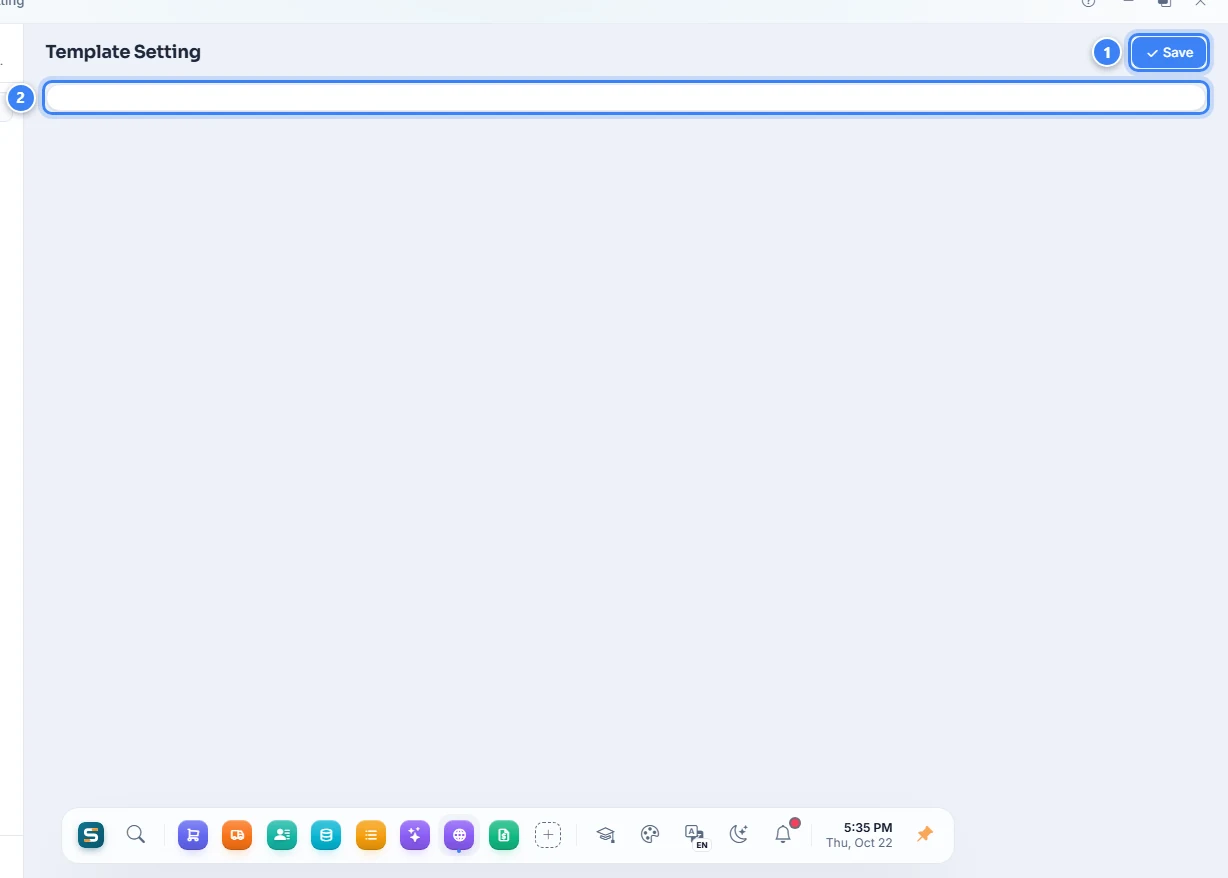 Website theme settings editor with parameter groups typography and brand styling controls
- Save settings button — persists theme configuration parameters and style variables.
- Theme configuration parameters card — editor area for color schemes logos fonts and layout options.
Step-by-step: Customizing theme settings
- Navigate to Website in the main desktop navigation bar and select Themes.
- Locate the theme you wish to customize, open its action menu, and select Settings.
- In Theme configuration parameters card (2), review the organized parameter sections (such as Brand Colors, Header & Navigation, Typography, and Footer Settings).
- Update desired settings by picking colors with the visual color picker, selecting fonts from dropdown menus, or typing custom labels.
- Click Save settings button (1) in the header to save your changes and apply the updated styles to the template.
Every field and control
Header action controls
- Save settings button — Saves all modified styling parameters and updates the theme configuration for the storefront.
Configuration settings area
- Theme configuration parameters card — Interactive container rendering the schema-driven settings fields defined by the theme developer. When settings schemas are loaded, this area displays color pickers, image uploaders, toggle switches, text fields, and select inputs grouped into clear categories.
Common questions
Do changes in theme settings apply immediately to the live site?
Yes. If you edit settings on your active live theme and click Save settings button (1), the updated colors, fonts, and assets take effect immediately for online shoppers. If you edit an inactive theme, changes are saved to that theme's configuration without affecting the live storefront.
Can I reset settings back to the theme's original default colors?
Yes. From the Website themes and templates grid, open the theme's actions menu and click Reset options to restore original factory styling defaults.
Can different themes have different setting options?
Yes. Each theme defines its own customizable parameter schema. Some themes may offer advanced product card badges, announcement bar toggles, or custom layout modes specific to their design.
Related pages
- Website themes and templates grid — View installed themes, check live status, and switch storefront templates.
- Visual website builder — Customize page sections, hero sliders, and content blocks.
- Website template market — Discover new official themes and design layouts.