
Add or edit user role
Define role titles and unique programmatic keys when adding or updating security access roles in Sylloo ERP.
Add or edit user role
The Add or edit user role modal is used to establish new security role definitions or modify the display titles and programmatic keys of existing roles. Once a role is created, its detailed permissions matrix can be configured to regulate access across modules.
When you use this
- Create a brand-new role profile (such as "Delivery Driver", "Auditor", or "Branch Supervisor").
- Rename an existing role title to reflect updated organizational terminology.
- Establish distinct programmatic keys for roles before assigning detailed permissions.
- Duplicate an existing role to customize its title and identifier for a new job function.
Screen layout
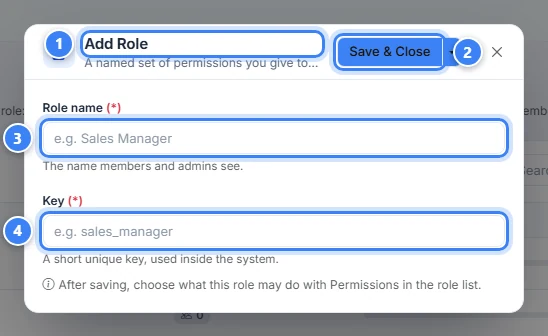 Add or edit user role modal with title and system key fields
- Role modal title — identifies role creation or title modification.
- Save button — saves the role title and system identifier key.
- Role title field — friendly display name of the role (e.g., Cashier, Store Manager).
- Role system key field — unique programmatic slug or identifier for internal permission checks.
Step-by-step: Creating or editing a role
Step 1: Open the role editor
- Go to Team & Billing in the main desktop navigation bar and select Roles.
- Click Add role in the header toolbar (or click the edit pencil icon in the row actions of an existing role). The modal window appears.
Step 2: Enter title and programmatic identifier
- In Role title field (3), enter a clear, recognizable display name for the role (for example, "Inventory Auditor").
- In Role system key field (4), enter a unique identifier using lowercase alphanumeric characters, dots, or underscores (for example,
inventory_auditor). - Click Save button (2). The role is created or updated, and the modal closes.
Step 3: Set role permissions
- After saving a newly created role, locate it on the Roles and permissions list.
- Click the shield lock icon in the row actions to configure the specific permissions matrix.
Every field and control
Header action controls
- Save button — Action button (
roleStore). Labeled Save button on screen. Validates input fields, stores the role record, and closes the modal window.
Role definition fields
- Role name — Text field (
title). Labeled Role title field on screen. Required. The public, user-friendly name displayed in dropdown selectors when assigning staff members to roles (for example, "Cashier" or "Store Manager"). - Name — Text field (
name). Labeled Role system key field on screen. Required. The programmatic slug or code used internally for authorization checks. Must be unique across all roles in your business.
Real-life business examples
Adding a Quality Inspector role
Your manufacturing or retail operations introduce a quality control checkpoint. You open the role modal, enter "Quality Inspector" in Role title field (3), enter quality_inspector in Role system key field (4), and click Save. You then open the permissions matrix to assign view-only access to products and inspection approvals.
Renaming an executive role
Your company restructures job titles, changing "Shop Incharge" to "Branch General Manager". You open the role editor for the existing role, update the title field to "Branch General Manager", and click Save. All staff members holding that role immediately display the updated title across all reports.
Common questions
Can I change the system key of an existing role?
Yes. You can edit the system key as long as the new value remains unique within your business. However, keeping system keys stable is recommended if external integrations or custom automation scripts rely on specific role slugs.
Are permissions configured directly inside this modal?
No. This modal defines the identity, title, and key of the role. Detailed functional permissions are configured through the dedicated Configure role permissions matrix modal opened via the shield lock icon.
What characters are allowed in the system key?
Letters, numbers, hyphens, underscores, and dots are accepted. Spaces should be avoided; use underscores or hyphens instead (for example, store_manager).
Related pages
- Roles and permissions list — View and manage all security roles and member assignments.
- Configure role permissions matrix — Grant or restrict specific functional capabilities.
- User accounts and staff list — Assign configured roles to team member accounts.