
Plan and billing
Manage your subscription tier, renew plans, review Live and Practice environments, and download invoices.
Plan and billing
Use the Plan and billing screen to monitor your business subscription tier, renew or upgrade packages, inspect environment allowances, and download official billing invoices. You can update legal billing credentials and manage the credit card or mobile payment channels linked to your workspace.
When you use this
- Check how many days remain on your active subscription period.
- Renew plan validity or upgrade to a higher tier with more user and outlet limits.
- Update your legal company name, billing email, address, or tax registration details.
- Download PDF tax invoices and receipts for accounting records.
Screen layout
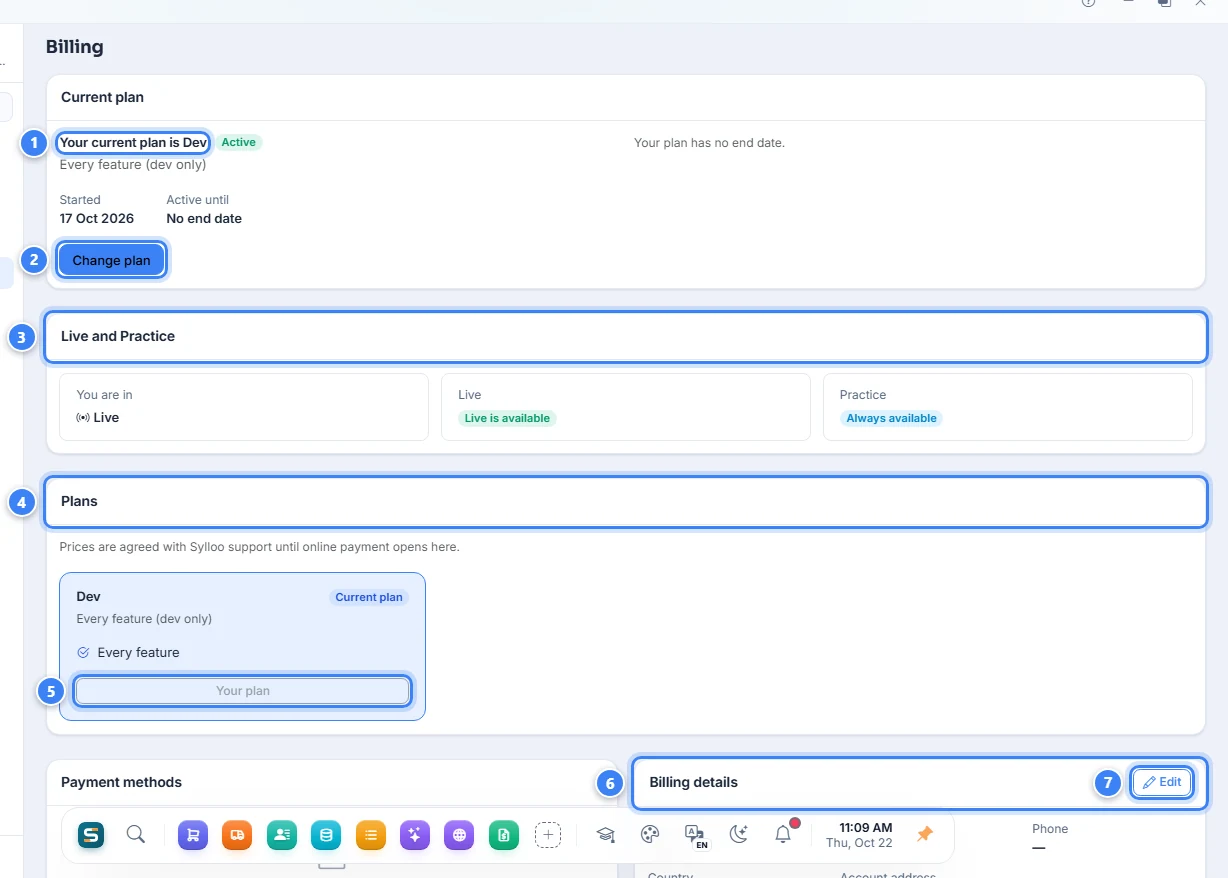 Subscription plan and billing settings
- Current plan summary — displays the currently active subscription plan and status badge.
- Change plan button — scrolls down to select an upgrade or alternative subscription tier.
- Live and Practice card — explains differences between live operations and test practice mode.
- Plans comparison card — lists available plan tiers, pricing, and feature allowances.
- Your plan button — indicates the active tier currently assigned to your account.
- Billing details card — contains business entity name, billing email, address, and VAT information.
- Edit details button — opens inline editable fields to update invoicing details.
- Billing history card — lists historical subscription invoices with download links.
Step-by-step: Updating billing details and renewing your plan
- Open Settings > Plan and billing from your main navigation menu.
- In the Current plan (1) card, verify your active renewal date and allowed outlets.
- To extend subscription validity before expiry, click Renew plan in the plan summary.
- To choose a different package, click Change plan (2) and inspect the Plans (4) comparison grid.
- Under Billing details (6), click Edit (7) to open the company profile editor.
- Update your legal Business name, Billing email, Country, and Phone number.
- Click Save details to confirm changes, or click Cancel to discard edits.
Every field and control
Subscription and environment cards
- Current plan (1): Highlights your active subscription package, start date, renewal due date, and grace period countdown.
- Renew plan: Triggers immediate extension of your active subscription tier.
- Change plan (2): Scrolls down to compare available packages and select an upgraded tier.
- Live and Practice (3): Clarifies the operational boundary between your production business workspace and the sandboxed Practice area.
- Plans (4): Side-by-side pricing matrix comparing feature limits, staff user allowances, and branch quotas across available tiers.
- Your plan (5): Disabled badge marking the subscription tier currently assigned to your business account.
- Payment methods: Displays active payment options, mobile money gateways, and credit card processors accepted for subscription renewals.
Billing details and history
- Billing details (6): Contains legal invoice recipient data printed on official ERP tax receipts.
- Edit (7): Reveals the editable input fields for your billing address and company registration.
- Business name: Registered legal entity name to appear on formal invoice receipts.
- Billing email: Primary accounts email address where billing renewal reminders and PDF receipts are delivered.
- Country: Dropdown menu to select your company tax jurisdiction and currency zone.
- Phone: Contact telephone number for billing communications and transaction verifications.
- Save details: Stores modified invoice details to your business account record.
- Cancel: Reverts unsaved changes and closes the billing details editing mode.
- Billing history (8): Table documenting past subscription transactions, payment dates, amounts, and direct PDF download links.
Common questions
What happens when a subscription plan expires?
Your account enters a temporary grace period where live transactions remain accessible so your store operations are not abruptly interrupted. If unresolved, the system switches to read-only mode until you renew.
How does Practice mode work alongside Live?
The Practice environment provides a safe copy of your workspace to test new catalog items, train cashiers, and experiment without altering real financial books.
Can I upgrade my plan mid-cycle?
Yes. When you choose a higher plan, the system prorates the remaining balance of your existing term toward the new tier.
Related pages
- Users and roles — check staff user seats allowed by your subscription plan.
- Outlets — review branch limits and store allocations.
- Practice and Live — understand how practice mode sandboxes work.