
Payment methods
Configure commercial payment types, surcharge percentages, minimum and maximum transaction limits, and settlement options.
Payment methods
Use the Payment methods screen to register and maintain customer payment types accepted across point of sale checkouts, online store orders, and accounts receivable collections. You can define settlement rules, payment processing fees, and minimum or maximum allowed amounts per transaction.
When you use this
- Add tender types such as Cash, Card, Mobile Banking, Bank Transfer, or Cheque.
- Configure processing surcharges or convenience fees associated with digital or card payments.
- Set minimum or maximum payment transaction limits for specific payment instruments.
- Toggle payment method availability without deleting historic payment records.
Screen layout
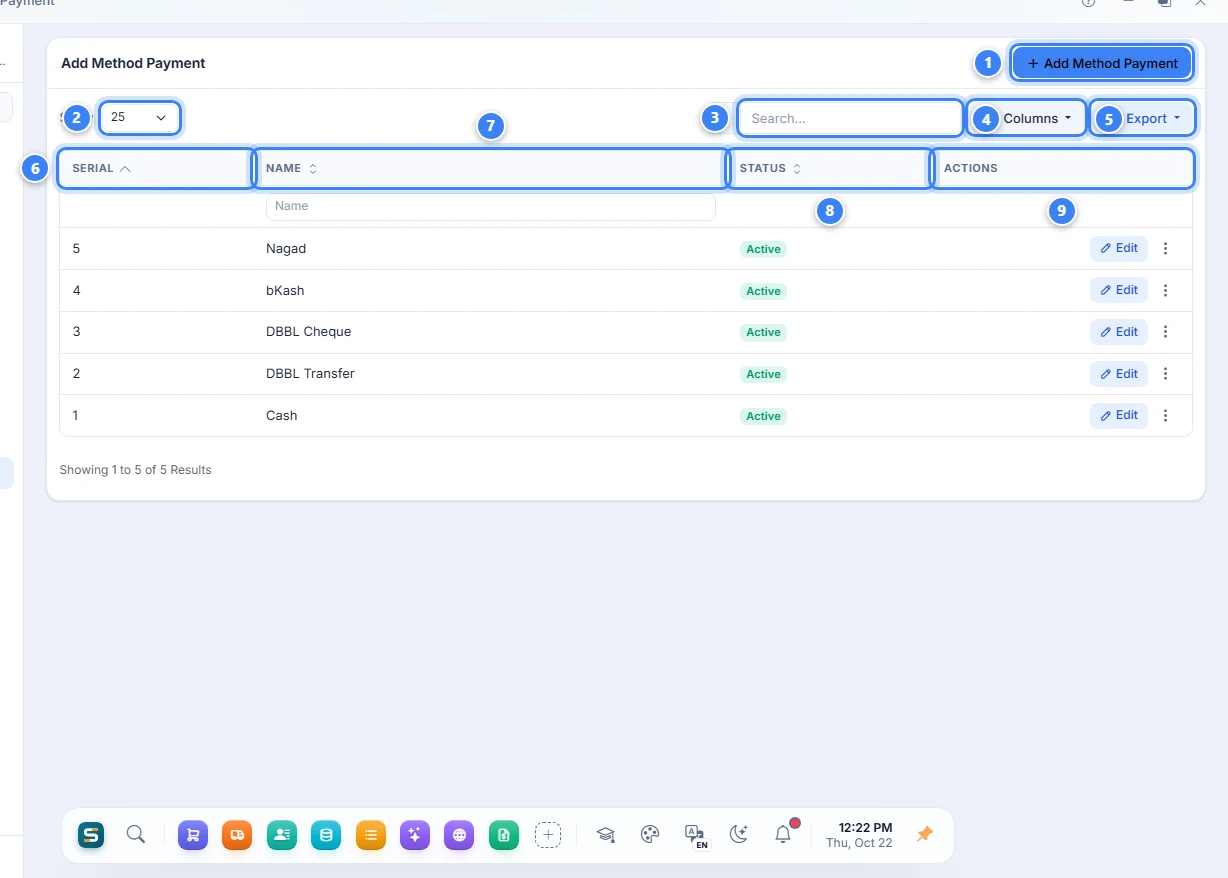 Payment methods settings list
- Add Method Payment — opens modal window to register a new payment method.
- Rows per page — selects how many payment method records appear on each page.
- Search filter — filters payment methods by name or code.
- Columns toggle — customizes which columns are visible in the table.
- Export button — downloads the payment method list as an Excel spreadsheet or CSV.
- Serial column — system sequential indexing number.
- Name column — payment method display name.
- Status column — active or inactive payment method availability badge.
- Actions column — row action buttons to modify methods or delete.
Step-by-step: Adding a new payment method
- Open Settings from your main navigation menu and select Payment methods.
- Click the Add Method Payment (1) button in the header card.
- In the modal dialog, specify the tender name in Name (7) (such as Credit Card, Cash on Delivery, or Mobile Wallet).
- Configure optional transaction surcharge percentages in Charge if processing fees apply.
- Set transaction boundary rules using Minimum Payment and Maximum Payment thresholds if needed.
- Choose the account ledger associated with this payment method for automatic journal entries.
- Click Save to activate the payment method. The new method is immediately selectable during sales order checkouts and bill payments.
Every field and control
Datatable controls and filters
- Add Method Payment (1): Launches the creation modal to configure a new commercial payment tender.
- Rows per page (2): Customizes the number of rows displayed simultaneously (10, 25, 50, or 100).
- Search filter (3): Rapid text filter querying payment method names and codes.
- Columns toggle (4): Checkbox dropdown enabling you to customize which table attributes are visible.
- Export button (5): Downloads the payment method catalog as a formatted Excel spreadsheet or CSV file.
Table columns and row actions
- Serial (6): Chronological record order assigned automatically upon payment method creation.
- Name (7): Tender label displayed on invoice checkout screens and payment collection receipts.
- Charge: Optional fee percentage or fixed surcharge applied when this payment method is selected (configurable via columns toggle).
- Minimum Payment: Lowest monetary value permitted per transaction using this payment tender.
- Maximum Payment: Highest monetary ceiling permitted per single transaction.
- Status (8): Active green badge indicates the method is available at checkouts; red inactive badge prevents new selection.
- Actions (9): Row action buttons including Edit (pencil icon) to modify fees and account links, and Delete (trash icon) to remove unused payment methods.
Common questions
How do customer payment surcharges work during point of sale checkout?
If you enter a surcharge percentage in the Charge field, the checkout terminal automatically computes and appends the convenience fee to the customer invoice total when this payment method is selected.
Can I delete a payment method that has already been used on recorded sales?
No. Payment methods referenced by existing sales receipts, accounting vouchers, or customer invoices cannot be deleted to preserve financial audit fidelity. You should toggle the method status to Inactive instead.
Where do I link bank accounts or cash drawers to payment methods?
When editing a payment method in the creation modal, you can select the default financial account ledger from Chart of accounts. Receipts recorded with this payment method automatically post debits to that ledger account.
Related pages
- Sales and orders — record sales transactions and accept payments.
- Desktop POS — process retail cashier payments with configured tender types.
- Chart of accounts — manage financial ledgers linked to cash and bank receipts.