
Contact groups
Categorize customers, suppliers, and business parties into structured tiers and groups.
Contact groups
The Contact groups screen allows you to classify customers, wholesale dealers, and suppliers into organizational groups. Grouping contacts helps you structure price tiers, filter financial ledgers, run targeted marketing campaigns, and organize sales reporting.
When you use this
- Create a customer tier (such as VIP, Retail, or Corporate Wholesale).
- Categorize vendors and suppliers by product category or geographic region.
- Assign a default contact group to automatically tag new customer registrations.
- Deactivate an obsolete contact category without affecting existing customer profiles.
Screen layout
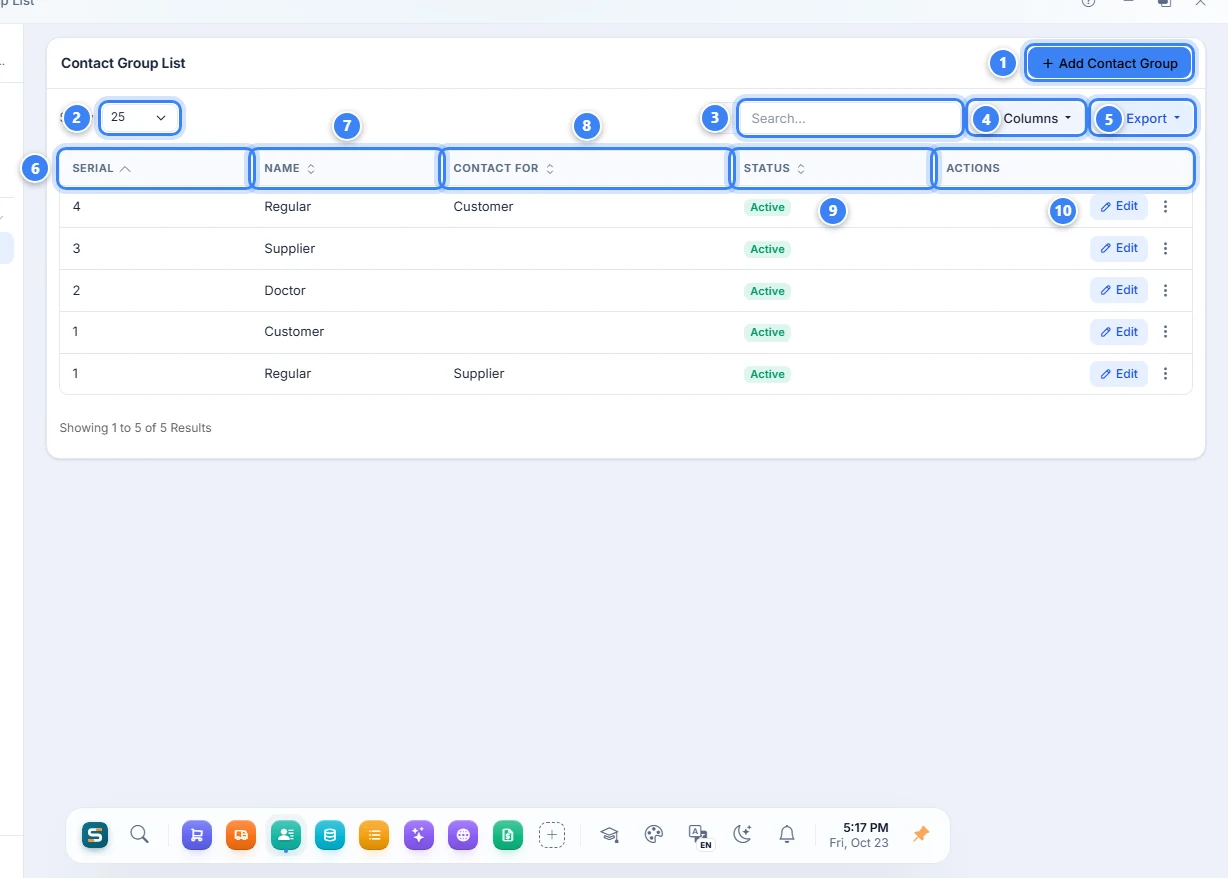 Contact groups list
- Add Contact Group — opens the modal window to create a new customer or supplier contact group.
- Rows per page — selects how many contact group rows appear on each page.
- Search filter — filters contact groups by name or category keyword.
- Columns toggle — customizes which data columns are visible in the table.
- Export button — downloads the contact group list as an Excel spreadsheet or CSV.
- Serial column — system sequential indexing number.
- Name column — identifying title of the contact group.
- Contact for column — intended relationship classification (Customer or Supplier).
- Status column — active or inactive operational availability indicator.
- Actions column — row action buttons to modify group details or delete.
Step-by-step: Creating a contact group
- Navigate to Settings and select Contact groups.
- Click Add Contact Group (1) in the header toolbar.
- In the modal dialog, enter the group title into Name (7) (such as
Wholesale Tier A). - In the Contact group lookup field, select the primary contact type (such as Customer or Supplier).
- Set the operational state in Status (9) to Active.
- Check Default group if new contacts should automatically join this category.
- Click Save to store the group.
Every field and control
Datatable toolbar and filters
- Add Contact Group (1): Launches the creation window to add a customer or supplier group.
- Rows per page (2): Selects whether to show 10, 25, 50, or 100 groups per page.
- Search filter (3): Rapid text filter querying contact group names.
- Columns toggle (4): Checklist dropdown enabling you to customize which table columns are visible.
- Export button (5): Downloads the complete contact group list to an Excel spreadsheet or CSV.
Table columns and row actions
- Serial (6): Chronological record order assigned automatically upon creation.
- Name (7): Descriptive title of the contact group (
name). - Contact for (8): Party type indicating whether this group organizes customers or vendors (
contact_for). - Status (9): Operational state (
status_badge). Active groups appear in contact dropdowns; inactive groups remain archived. - Actions (10): Controls including Edit (ti ti-pencil) to modify properties and Delete (ti ti-trash) to remove groups with no assigned contacts.
Contact group configuration modal
- Name: Display title shown on customer profile screens and report filters.
- Contact group: Lookup selector linking the category to a major contact type (Customer or Supplier).
- Status: Mark Active for active daily operations or Inactive to retire the group.
- Default group: When checked, newly registered contacts automatically inherit this group unless an alternative is chosen.
- Save: Validates the name and stores the contact group.
Common questions
What happens when a contact group is marked as the default?
When staff create a customer or supplier without specifying a group, or when a customer registers online, the system automatically assigns the default group.
Can a customer belong to multiple contact groups?
Each contact profile links to one primary group for clear reporting, pricing rules, and credit control categorization.
Can I delete a contact group that contains active customers?
No. To preserve relationship records and historical transactions, groups with linked contacts cannot be deleted. Reassign the contacts first, or set the group status to Inactive.
Related pages
- Contacts list — manage customers, suppliers, and corporate profiles.
- Contact profile edit — assign contact groups and credit limits.
- Sales orders — filter commercial sales orders by contact group.