
Business pack and regional defaults
Switch operational packs to load industry-specific chart of accounts, tax rates, measurement units, and order types.
Business pack and regional defaults
Use the Business pack and regional defaults screen to switch your company's operational profile or initialize pre-packaged industry configurations. Each pack provisions tailored chart of accounts, default product units, transaction numbering prefixes, tax groups, and booking resources without altering your existing commercial data.
When you use this
- Transition your company from a general business profile to a specialized vertical such as retail, restaurant, school, or clinic.
- Inspect what new chart of account heads, voucher categories, and order channels an industry pack introduces before switching.
- Test different operational business packs in the Practice environment without risking live business data.
- Standardize multiple business outlets under pre-configured regional tax rules and accounting classifications.
Screen layout
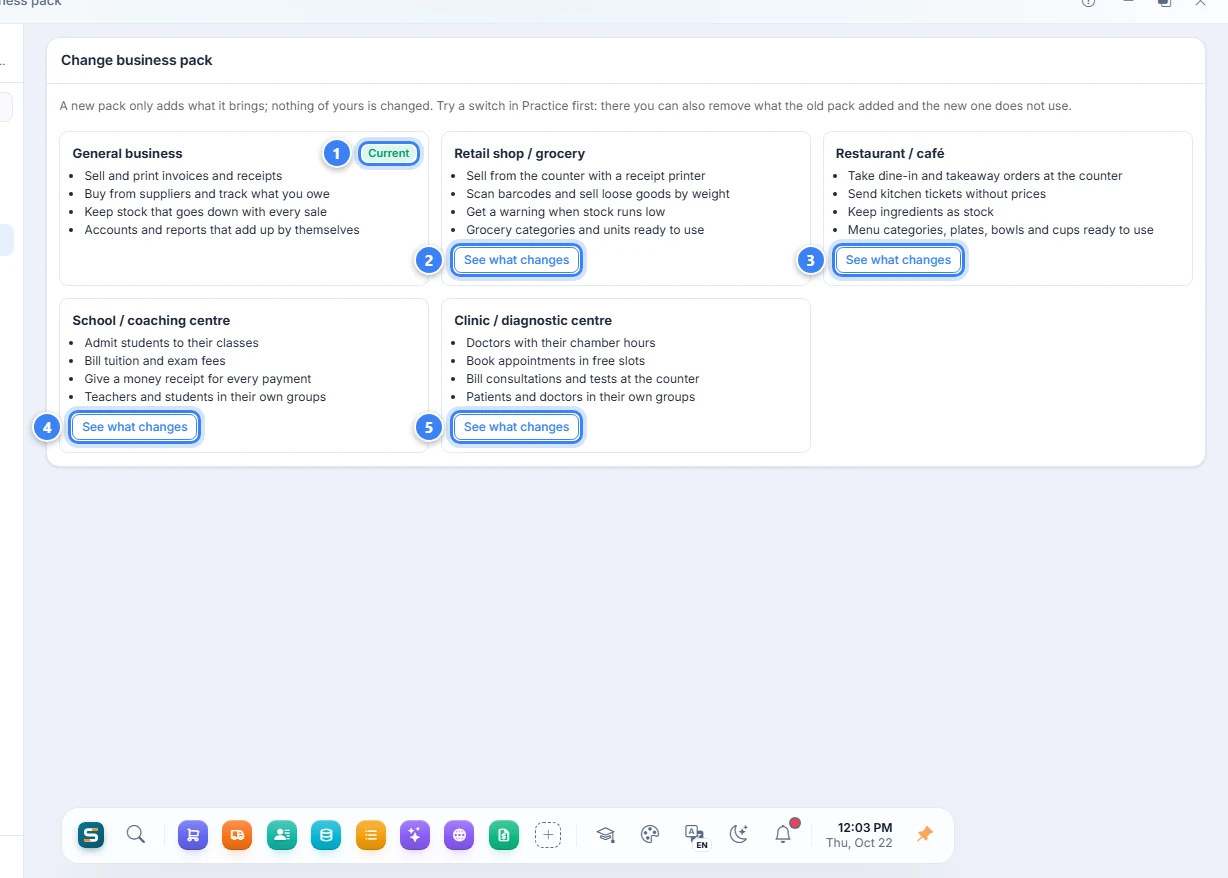 Business pack and regional defaults catalog
- Current pack badge — identifies the active business pack currently configuring your system.
- Retail pack preview — inspects setup rules and demo data for retail and grocery businesses.
- Restaurant pack preview — inspects setup rules and table structures for restaurant and cafe operations.
- School pack preview — inspects setup rules and student intake tiers for coaching centres and schools.
- Clinic pack preview — inspects setup rules and doctor appointment workflows for clinics.
Step-by-step: Previewing and switching a business pack
- Open Settings from your main navigation menu and select Business Pack.
- Review the Current pack badge (1) on the Change business pack card to confirm which operational profile is active.
- Browse the available business pack cards and read their feature highlights.
- Click See what changes on your target pack card (such as Retail pack preview (2) or Restaurant pack preview (3)).
- Review the plan table displaying new records that will be added (such as inventory categories, point of sale channels, or ledgers).
- If testing in Practice, optionally review removable records that were added by your previous pack.
- Click the Switch to :pack button and confirm the dialog to begin automated provisioning.
Every field and control
Business packs catalog
- Change business pack: Main configuration card presenting all available industry packages and starter presets.
- Current pack badge (1): Green status indicator highlighting the business pack currently governing default accounting codes and document channels.
- General business: Standard commercial configuration providing foundational double-entry ledger accounts, sales, and inventory management.
- Retail shop / grocery (2): Injects barcode scanners, piece/pack measurement units, point of sale tills, and rapid customer checkout channels.
- Restaurant / café (3): Provisions dining table resources, kitchen display categories, ingredient inventory tracking, and guest billing splits.
- School / coaching centre (4): Sets up student admissions, academic fee schedules, monthly tuition billings, and classroom allocation resources.
- Clinic / diagnostic centre (5): Configures doctor consultation calendars, patient appointment slots, diagnostic lab tests, and medical billing categories.
Pack switch planning and actions
- See what changes: Inspects the comprehensive difference plan before committing any system updates.
- Added by the new pack: Itemized list detailing each entity (ledgers, units, order types) that the incoming pack will create.
- Switch to :pack: Submits the background job to provision newly introduced pack records into your business profile.
- Cancel: Closes the preview plan and returns to the catalog cards without making changes.
Common questions
Will switching a business pack overwrite or delete existing sales invoices?
No. Business pack transitions are strictly additive on Live. The system only adds the new categories and ledger codes needed by the selected pack; your existing invoices, contacts, and inventory stay completely intact.
Can I remove unused records left over from an old business pack?
Selective record removal is exclusively available in the Practice environment. On Live systems, all previously created records remain preserved to protect audit trails and accounting integrity.
How long does it take for a new business pack to activate?
Provisioning typically completes within a few seconds. The screen displays a live progress bar while new templates and default accounts are being generated.
Related pages
- Practice and Live — test configuration switches safely in the practice sandbox.
- System and business settings — configure company name, base currency, and language.
- Chart of accounts — customize ledger categories introduced by your business pack.