
Add or change a payment type
Configure payment voucher titles, prefixes, suffixes, printable templates, and active states for sales and purchases.
Add or change a payment type
Use this window to configure payment transaction types in your business. Payment types define the rules, display titles, reference code formats, and printable money receipt templates used for sales receipts or purchase disbursements. You can customize voucher prefixes and suffixes to distinguish customer collections from supplier payments, choose print layouts, and enable or disable specific voucher flows.
When you use this
- You set up a new payment workflow, such as customer advance receipts or vendor disbursements.
- You customize voucher reference codes with unique prefixes like PAY or REC.
- You assign a branded printable money receipt template to a payment category.
- You pause or deactivate an outdated payment workflow without deleting historical records.
Before you start
- You need administrative permission to configure order and payment settings.
- Create or customize invoice templates in advance if you want to assign a specialized print design.
Open the payment type window
Navigate to Settings and open Payment Types, or open the payment type editor from your management console. The configuration modal opens.
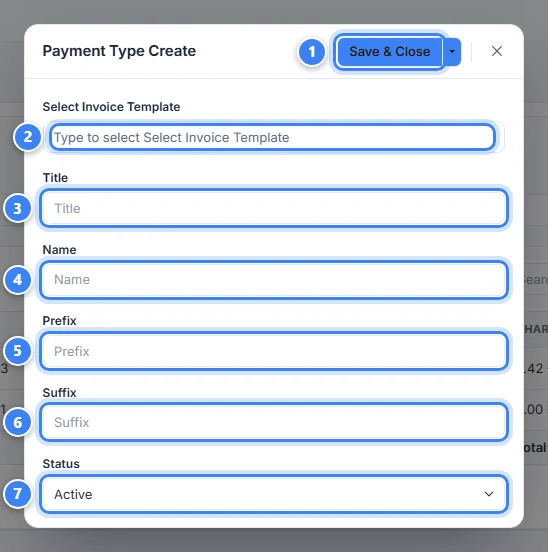 Payment type configuration window
- Save — save payment type settings.
- Select Invoice Template — choose printable voucher template.
- Title — display title shown in menus and headers.
- Name — internal payment type identifier.
- Prefix — prefix prepended to voucher reference codes.
- Suffix — suffix appended to voucher reference codes.
- Status — Active or Inactive payment type state.
Configure payment type settings
Fill in the voucher naming and formatting rules:
- Choose an Invoice Template: select the printable money receipt design from the Select Invoice Template dropdown.
- Set the Title: type the customer-facing or menu title (such as "Sales Receive" or "Purchase Payment").
- Set the Name: enter the internal system identifier.
- Define Voucher Numbering: enter a Prefix (such as "REC-") and an optional Suffix (such as "-2026") to format generated voucher codes automatically.
- Set Status: select Active so cashiers and accountants can record payments under this type immediately.
- Click Save: save the settings to update application menus and numbering sequences.
Every field and action explained
| Field or action | Type | Description |
|---|---|---|
| Save | Primary button | Validates form entries and saves the payment type configuration. |
| Select Invoice Template | Search selector | Selects the branded layout used when printing payment receipts and vouchers. |
| Title | Text field | Human-readable title displayed on menu items, screen headings, and printed receipts. |
| Name | Text field | Internal system name used to identify the payment type in settings and logs. |
| Prefix | Text field | Characters prepended to sequential numbers when generating payment reference codes (e.g., REC-). |
| Suffix | Text field | Optional characters appended to payment voucher numbers (e.g., /HQ). |
| Status | Dropdown list | Controls whether this payment type is usable. Choose Active to allow transactions or Inactive to suspend it. |
Real-life example
A distribution company wants all customer payment receipts to show the prefix "CR-" and use a dual-copy receipt layout. An administrator opens Add or change a payment type, sets Title to "Customer Receipt", and enters "customer_receipt" in Name. She selects "Compact Money Receipt" from Select Invoice Template, types "CR-" into Prefix, and leaves Suffix blank. She sets Status to Active and clicks Save. From then on, new payment vouchers are sequentially numbered CR-0001, CR-0002, and print using the compact receipt design.
Common questions
How does the prefix affect existing payment records?
Changing the prefix only applies to newly generated payment vouchers. Existing payments preserve their original reference numbers for audit and accounting consistency.
Can I delete a payment type after recording transactions?
No. To protect financial integrity and audit trails, payment types with existing transactions cannot be deleted. Instead, change Status to Inactive to prevent new entries.
What happens if I leave the prefix and suffix blank?
The system generates reference numbers using the raw sequential number without added formatting characters.
Related pages
- Payments list: browse, search, and manage payment transactions.
- Add or change a payment: record individual receipts and disbursements.
- Order list: review sales and purchase orders tied to payment types.