
Add or change a payment
Record customer sales receipts and supplier purchase disbursements with order allocations, payment methods, and fees.
Add or change a payment
Use this window to record a new payment voucher or edit an existing draft payment transaction. Depending on your business workflow, you use this window to collect customer invoice payments, pay supplier purchase bills, or record advances. You can select specific payment accounts, record gateway charges, track bank cheques, and automatically allocate collected funds across outstanding customer orders.
When you use this
- A customer makes a cash, card, or bank payment against their outstanding sales invoices.
- You pay an outstanding purchase bill to a supplier from your company bank account.
- A customer pays an upfront deposit or advance payment before orders are delivered.
- You need to update an unposted draft payment transaction before finalizing accounts.
Before you start
- You need permission to create or edit payments for this payment.
- Ensure your customer or supplier contact exists in the system.
- Set up payment methods (such as cash accounts or bank accounts) so you can record where funds were deposited or withdrawn.
Open the payment window
Navigate to the Payment list from Sales or Purchases. Click Add Payment in the upper right action bar, or click the edit icon on an unposted draft payment row.
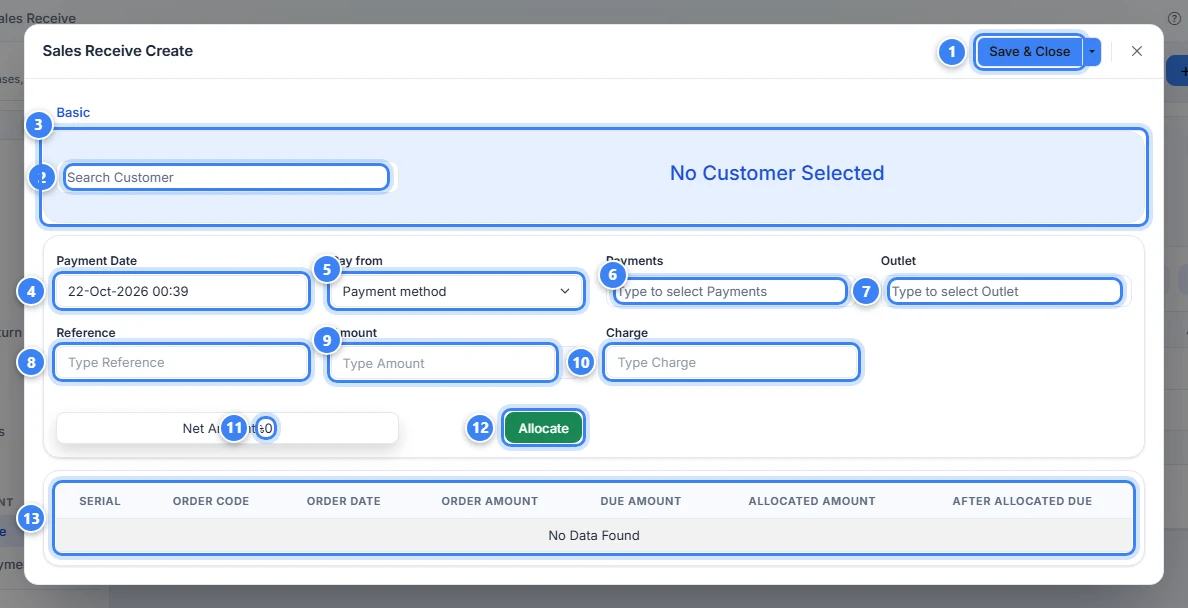 Payment entry window
- Save — saves the payment voucher and posts financial records.
- Contact search — search and select the customer or supplier contact.
- Contact balance summary — displays contact details, total due, and available credit balance.
- Payment Date — official date when funds were received or paid.
- Pay from — choose whether to receive via payment method or deduct from existing credit balance.
- Payment Method — select bank account, cash, or mobile gateway.
- Outlet — branch or outlet where the payment was transacted.
- Reference — slip, memo, or transaction reference note.
- Amount — total payment amount being recorded.
- Charge — gateway processing fee or service charge.
- Net Amount — net funds after deducting transaction fees.
- Allocate — automatically applies payment amount across unpaid orders.
- Order allocations table — lists unpaid orders and allocation breakdown for this contact.
Fill in payment details and allocate funds
Complete the transaction form and distribute payments across invoices:
- Select the Contact: use the search box to find your customer or supplier. Once selected, the contact card displays outstanding dues and available credit.
- Set the Payment Date: verify the transaction date. It defaults to today.
- Choose Pay from: if the customer has existing credit on their account, choose whether to receive fresh funds via a payment method or deduct from their credit balance.
- Select Payment Method: choose the destination account, such as Cash, City Bank, or Card Terminal. If paying by cheque, enter the cheque number, bank name, and date.
- Select Outlet: choose the retail outlet or branch where this transaction occurred.
- Enter Amount and Charge: type the transaction amount. If payment gateway fees apply, enter the charge in the Charge box. The system automatically computes the Net Amount.
- Allocate across orders: click Allocate to distribute the payment across open orders automatically, oldest invoice first. You can also manually adjust the allocated amounts in the table.
- Save transaction: click Save to complete the payment and post entries to ledgers.
Every field on the Basic tab
Form fields and controls
| Field or action | Type | Description |
|---|---|---|
| Save | Primary button | Validates entries, records the payment voucher, and posts financial ledger entries. |
| Contact search | Search selector | Searches customer or supplier records by name, code, or phone number. |
| Contact balance summary | Information card | Displays selected party code, phone number, total outstanding due, and available credit. |
| Payment Date | Date picker | Official date when money changed hands. |
| Pay from | Dropdown list | Selects whether payment comes through a payment method or deducts from customer credit. Shown when party has credit. |
| Payment Method | Search selector | Bank, cash, or mobile financial service account handling the transaction. |
| Cheque fields | Input group | Captures cheque number, bank name, branch, leaf, payee, and date when paying via cheque. |
| Outlet | Search selector | Outlet or branch location responsible for the transaction. |
| Reference | Text field | Optional bank slip number, transaction reference code, or cashier note. |
| Amount | Currency input | Gross payment amount collected from the customer or paid to the supplier. |
| Charge | Currency input | Transaction gateway fee or surcharge deducted from gross receipts. |
| Net Amount | Display box | Net funds received after subtracting gateway charges from gross payment amount. |
| Allocate | Action button | Automatically assigns payment funds to unpaid orders starting with oldest invoices. |
Allocations table
| Column | Type | Description |
|---|---|---|
| Serial | Number | Sequence numbering for invoice rows. |
| Order Code | Text | Unique invoice reference number for the unpaid order. |
| Order Date | Date | Date when the original order or purchase was created. |
| Order Amount | Currency | Original grand total amount of the order invoice. |
| Due Amount | Currency | Remaining unpaid balance before applying this payment. |
| Allocated Amount | Currency | Amount of current payment assigned toward this specific order. |
| After Allocated Due | Currency | Projected remaining due balance on the order after applying this payment. |
Every field on the Additional Fields tab
When custom attributes or compliance parameters are configured for this payment type, they appear on this tab. You can record extra transaction properties such as voucher tracking codes, external audit tags, or regional compliance references. If no custom schemas are defined, this tab stays hidden.
Real-life example
A wholesale customer with an outstanding balance of 15,000 dollars visits your store to pay 10,000 dollars by bank transfer. The billing officer clicks Add Payment, selects the customer name, and reviews their total due of 15,000 dollars. She sets Payment Method to "Prime Bank Account", types "TRX-98214" into Reference, and enters 10000 in Amount. She clicks Allocate. The system allocates 6,000 dollars to an older invoice, completely clearing it, and applies the remaining 4,000 dollars to the next invoice. She clicks Save. The payment completes instantly and ledger accounts update.
Common questions
What happens if the payment amount is greater than the total due?
Any excess amount unallocated across open invoices is retained on the customer account as an advance credit balance. You can apply this credit toward future orders.
Can I manually choose which invoices receive payment?
Yes. Clicking Allocate distributes funds automatically by due date, but you can directly type custom allocation amounts into the Allocated Amount column for any order row.
How do gateway charges affect financial accounts?
The gross amount credits the customer receivable balance, the charge posts to a payment processing expense account, and the net amount debits your bank account.
Related pages
- Payments list: browse, filter, and track payment transactions.
- Order list: manage customer sales orders and supplier purchase bills.
- Payment type settings: customize payment numbering, prefixes, and invoice templates.