
Variant list
Browse, search, filter, and manage product variant templates such as sizes, colors, and materials.
Variant list
Use this screen to view and manage variant templates across your inventory. Variant templates define reusable product attributes—such as Size (S, M, L, XL), Color (Red, Blue, Green), or Storage Capacity (64GB, 128GB, 256GB)—so you can generate multiple stock-keeping items without creating each option from scratch.
Variant template represents an attribute group and its preset values that can be applied to items when creating variant products.
When you use this
- You set up retail clothing or footwear departments and want to create standard Size or Color attribute groups.
- You review existing variant templates before generating stock combinations for newly arrived items.
- You search for a specific attribute template to add new option values or update its operational status.
- You export your variant templates directory to an Excel spreadsheet for merchandise catalog audits.
Before you start
- You need access to this screen. If you do not see it, ask your administrator.
- Prepare the list of attribute values your products will require.
Open the variant list
Click the Variants menu item on the Product application sidebar or desktop dock. The variant list table opens.
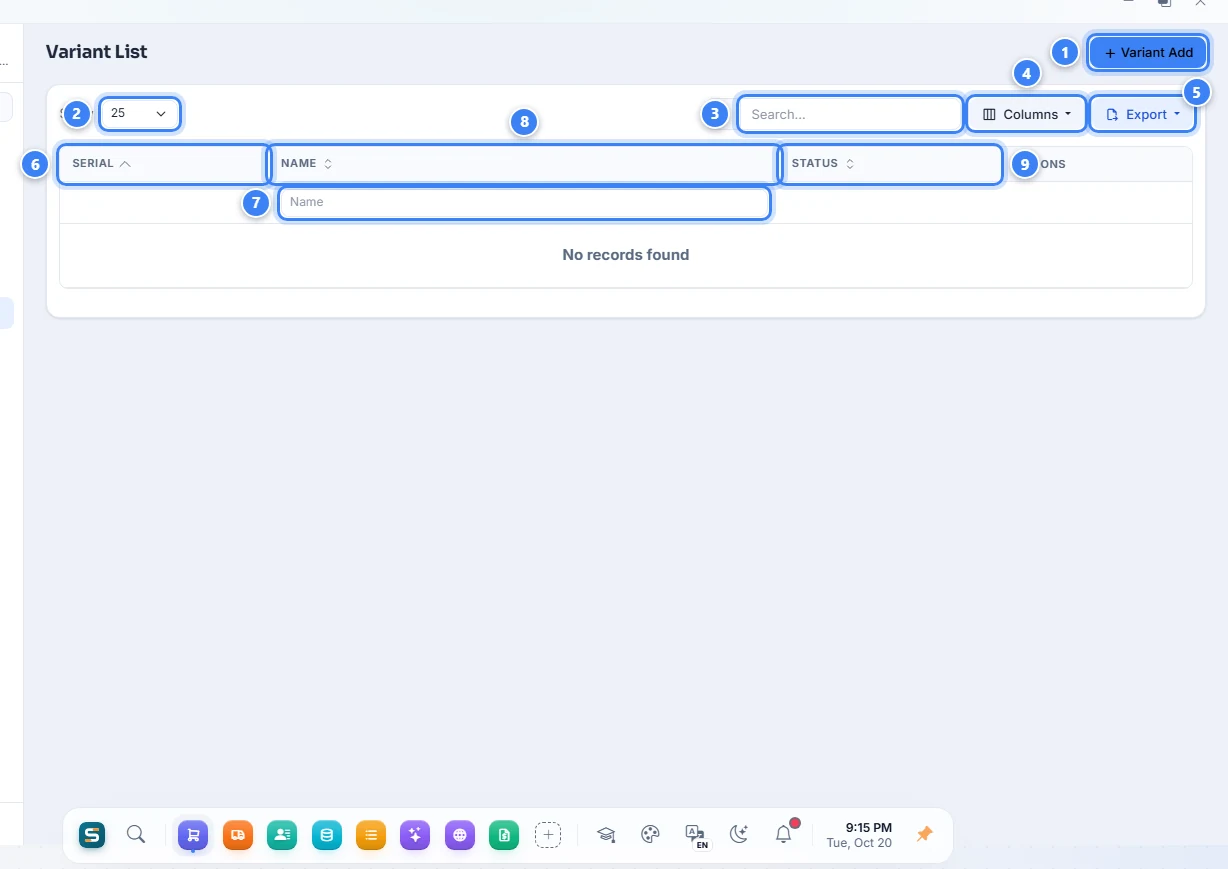 The variant list
- Variant Add — opens the window to register a new variant template.
- Rows per page — selects how many variant rows to display per page.
- Search — search variants by name.
- Columns — toggles datatable column visibility.
- Export — exports variant list to Excel or PDF.
- Serial column — displays serial sequence number.
- Name filter — inline filter for variant name.
- Name column — displays variant attribute name.
- Status column — indicates active or inactive variant status.
Every field on the variant list
| Control | What it is for | Example | Required? | Default | What happens when changed | What depends on it |
|---|---|---|---|---|---|---|
| Variant Add | Button opening the variant template creation modal window. | Click button | Optional | — | Opens the Add Variant modal. | Allows creating new attribute templates. |
| Rows per page | Dropdown controlling visible table rows. | 25 |
Optional | 10 |
Changes table page length. | Adjusts pagination numbers. |
| Search | Global search across variant template names. | Size |
Optional | Blank | Filters table rows matching query. | Narrows visible variant templates. |
| Columns | Menu to toggle visibility of table columns. | Toggle checkbox | Optional | All visible | Shows or hides selected columns. | Customizes table view. |
| Export | Downloads variant directory into files. | Click button | Optional | — | Generates Excel or PDF download. | Variant catalog reporting. |
| Serial column | Displays sequential row index number. | 1 |
Display | — | Shows row index in the catalog. | Sequential display ordering. |
| Name filter | Inline column filter for variant name. | Color |
Optional | Blank | Filters table rows by name substring. | Inline column filtering. |
| Name column | Table column displaying variant template title. | Size |
Display | — | Clicking sorts table alphabetically. | Sort display order. |
| Status column | Table column displaying active or inactive state. | Active |
Display | — | Shows green or grey status badge. | Template availability on product forms. |
Example
Arif manages an apparel retail store:
- He opens Variants from the Product dock.
- He types
Sizein the Search box to see if shoe and shirt sizes are already configured. - The table displays the
Sizetemplate with an Active status badge. - Confident that standard sizes exist, he proceeds to configure new t-shirt inventory.
Common questions
What happens if I set a variant template to Inactive? Existing products created using that template retain their variants, barcodes, and stock levels. However, catalog staff cannot select an inactive template when creating new products.
Can I delete a variant template that is attached to products? No. To preserve product variation records and sales history, delete actions are blocked while active products reference the template.
What is the difference between a variant template and a variant product?
A variant template is a reusable preset rule (like Color: Red, Blue, Green). A variant product is the actual sellable item (like Cotton T-Shirt - Blue - Large) with its own SKU, barcode, and inventory count.
Related pages
- Add or change a variant — Create or update variant templates and values.
- Product list — View all catalog items and their variations.
- Add or change a product — Generate variation rows using templates on the Variant tab.