
Automatic messages
Configure automated transactional SMS and email notifications triggered by business events.
Automatic messages
Use the Automatic messages screen to set up instant, hands-free text messages and emails triggered automatically when key events occur across your business. You can enable notifications for new orders, delivery dispatches, quotations, invoices, payment receipts, and customer registrations.
When you use this
- Automatically send customers an SMS order confirmation the moment you complete a sale or POS checkout.
- Send an automated email with tracking details and delivery information when you dispatch orders.
- Notify customers when you issue payment receipts or record payments against invoices.
- Send automated one-time passcodes and welcome emails when you register new customer accounts.
Screen layout.
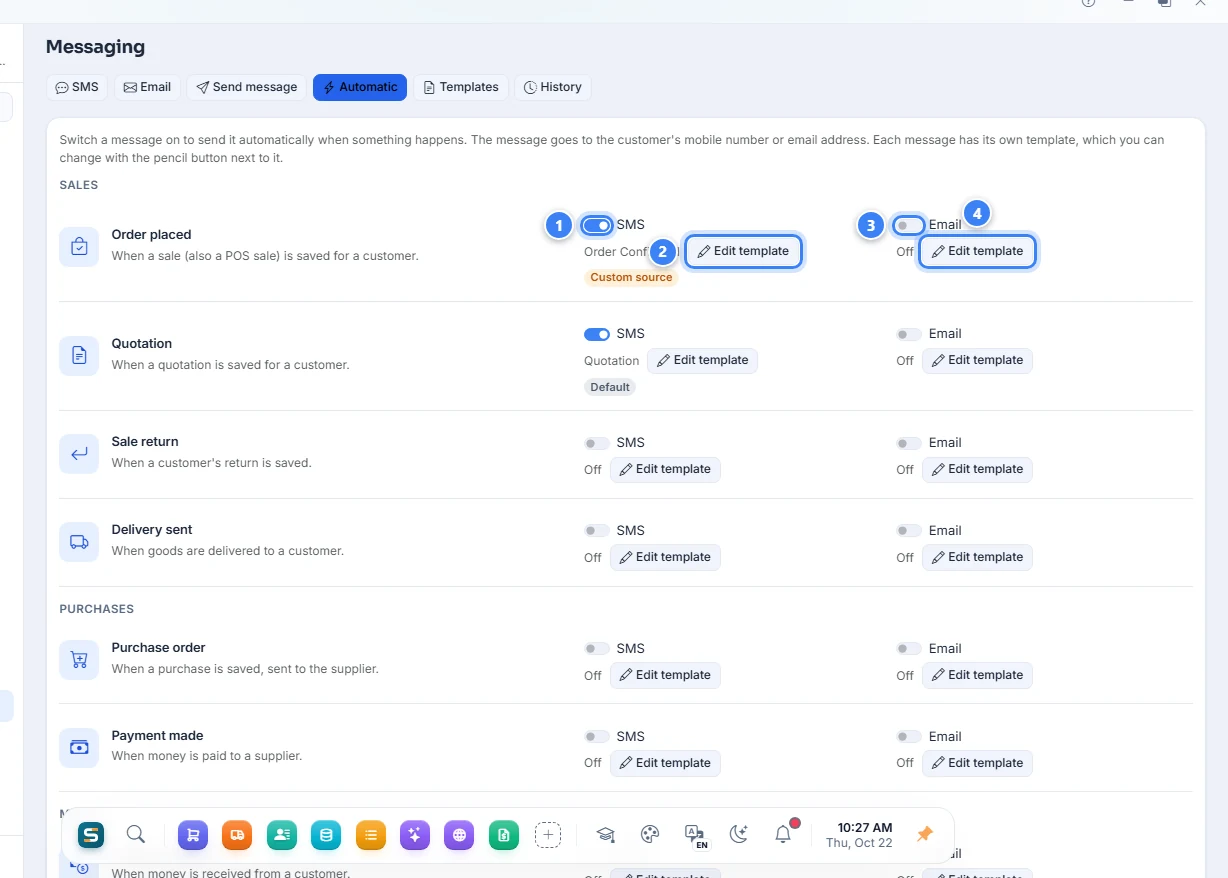 Automatic notification event rules
- SMS event switch — enables or disables automated text message sending for this event.
- Edit SMS template — customizes the text message wording and dynamic tags for this trigger.
- Email event switch — enables or disables automated email delivery when the event occurs.
- Edit Email template — customizes the HTML email layout, subject line, and tags.
Step-by-step: Enabling an automatic notification.
- Go to Settings > Messaging from the main menu.
- Click the Automatic tab in the messaging header.
- Locate the business event you wish to automate (for example, Order placed or Delivery sent).
- Turn on the SMS event switch (1) to send automated text messages, or the Email event switch (3) to send email notifications.
- Click Edit template (2 / 4) next to the enabled channel to adjust the notification text, greeting, or variables.
- Click Save to confirm your changes. Any matching transactions completed in your ERP will now transmit alerts immediately.
Every field and control.
Event switches and templates.
- SMS event switch (1): Toggle switch (
eventSwitches.{{ $row['event']->value }}.sms) activating automated text messages for this specific business trigger. - eventSwitches.{{ $row['event']->value }}.{{ $channelKey }}: Generic event channel checkbox switches enabling or disabling messaging for any supported notification event.
- Edit SMS template (2): Opens the template customization dialog to adjust message phrasing and placeholders. You can use dynamic variables such as
{{ customer_name }}and{{ order_number }}.- Reset options: Reverts visual options back to default settings.
- Reset to default: Completely restores the original factory message wording.
- Email event switch (3): Toggle switch (
eventSwitches.{{ $row['event']->value }}.email) enabling automated email delivery for the trigger. - Edit Email template (4): Opens the rich-text email template designer to customize subject lines, company header logos, body text, and transaction summaries.
Supported automated event triggers.
The following operational events can be configured independently.
- Order placed: Triggered when you record a new sales order or POS receipt.
- Quotation sent: Transmitted when you create a quotation or estimate for a prospect.
- Sale return: Sent when you process a customer return or refund.
- Delivery sent: Dispatched when you mark goods as shipped or hand them to a courier.
- Purchase order: Sent to suppliers when you finalize a purchase order.
- Payment received: Transmitted to customers when you record incoming funds against an invoice.
- Payment made: Sent to vendors when you complete purchase bills or expense payments.
- Account receipt: Triggered when you record non-order receipts or journal entries.
- Admission created: Dispatched upon student or customer admission registration.
- Welcome: Automatically sent when you create a new customer profile or user account.
- OTP: Security code messages delivered during multi-factor authentication or sign-in verification.
Common questions
What happens if a customer does not have a mobile number?
If you turn on the SMS switch but the customer profile lacks a mobile number, the system skips SMS delivery without stopping your sale. It records a note in the messaging history.
Can I include dynamic transaction totals in the message?
Yes. When editing the template, use supported variables such as {{ total_amount }} or {{ due_balance }}. The system automatically replaces these tags with exact numbers when generating the message.
Affiliate messages
When your business runs the affiliate program, the list has the group Affiliates with six messages. Each comes with a ready email and SMS (the SMS also in Bangla), so you only switch it on:
- Affiliate joined — welcome message with the affiliate link.
- Affiliate approved — when staff approve a waiting affiliate.
- Affiliate refused — when staff refuse an affiliate.
- Affiliate commission earned — when a sale they brought is completed.
- Affiliate payout sent — when they are paid.
- Affiliate payout details changed — a safety message to the affiliate's own email and mobile whenever their payout details change.
Affiliate payout details changed is switched on by itself when you start the affiliate program. Keep it on. The other five stay off until you switch them on here.
The templates can use these words: affiliate_code, affiliate_link, affiliate_portal_url, commission_amount, order_code, payout_serial, payout_amount, payout_net_amount, payout_date, payout_method, payout_reference and changed_at.
Related pages
- SMS and email: Connect text message gateways and set up mail delivery servers.
- Orders: Create and manage sales orders that trigger automated confirmations.
- Payments: Record customer payments that generate automated receipts.
- Affiliate on products, contacts and orders