
Online order payment gateway checkout
Finalize invoice settlement by providing the bank transaction reference, authorization code, or mobile wallet identifier.
Online order payment gateway checkout
The Online order payment gateway checkout screen allows customers to submit payment confirmation details for an order invoice. Customers record their bank transaction ID, card authorization reference, or mobile payment number to finalize invoice reconciliation.
When you use this
- Submit your bank wire or mobile wallet transaction identifier after transferring funds.
- Verify the exact invoice code and payable amount due before completing checkout.
- Review custom provider payment instructions such as bank account details or merchant numbers.
- Switch to a different payment method if you need to choose another settlement channel.
Screen layout
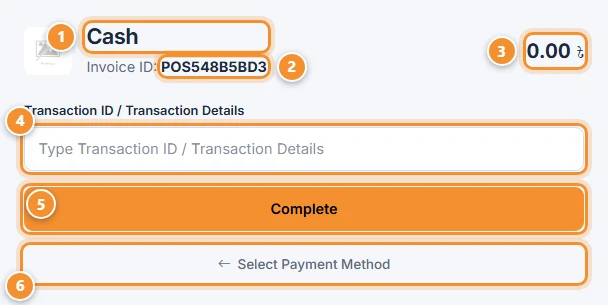 Customer online order payment gateway checkout screen with payment instructions and transaction reference entry
- Payment method gateway title — heading identifying the selected payment processor or gateway.
- Invoice reference code — unique identifier of the sales order invoice being settled.
- Payable amount due — exact monetary figure required to settle the order.
- Transaction identifier field — text input to enter the bank transaction ID, card authorization code, or wallet reference.
- Complete payment button — submits the transaction reference for invoice reconciliation.
- Switch payment method link — returns back to payment method selection options.
Step-by-step: Completing your payment submission
- On the payment gateway checkout screen, confirm the payment provider shown under Payment method gateway title (1).
- Check the order code beside Invoice reference code (2) and note the total owed under Payable amount due (3).
- If instructions are displayed below the invoice summary, read the payment details carefully and transfer the exact amount using your mobile banking application or bank account.
- Once your bank or wallet confirms the transaction, enter the receipt code into Transaction ID / Transaction Details (Transaction identifier field) (4).
- Click Complete payment button (5) to submit the payment record to the merchant.
- If you need to pay using another method, click Switch payment method link (6) to choose a different provider.
Every field and control
Gateway header and order summary
- Payment method gateway title — Displays the brand logo and official name of the chosen payment channel.
- Invoice reference code — Bold tracking code referencing the order invoice being settled.
- Payable amount due — Formatted currency badge displaying the exact outstanding amount owed.
Payment form and actions
- Transaction ID / Transaction Details (Transaction identifier field) — Input box for entering your transaction serial, bank transfer reference, or mobile wallet transaction ID.
- Complete payment button — Action button that records your payment confirmation and advances the invoice toward settlement.
- Switch payment method link — Navigation link directing back to the payment service screen to select an alternative payment method.
Common questions
Where can I find my transaction ID?
Your transaction ID or reference code is generated by your payment provider. For mobile wallets (such as bKash or Nagad), it appears in the SMS confirmation. For bank wire transfers, it is printed on the transfer receipt or bank mobile application statement.
What happens after I click complete?
The system creates a pending payment record linked to your sales order. Staff verify the received funds against the provided reference, and the invoice status changes to settled once confirmed.
Can I change my payment method after opening this page?
Yes. Click Switch payment method link (6) at the bottom of the card to return to the payment method selection menu without affecting your order.
Related pages
- Order payment invoice summary — Select an available payment provider or digital wallet.
- Customer orders — View overall order status and fulfillment history.
- Customer payments and transactions — Check transaction approval statuses and payment history.