
Client dashboard
Review outstanding account balances, track active deliveries, browse monthly spending trends, and place new orders.
Client dashboard
Use the Client dashboard as your central customer portal workspace. Upon signing in, buyers and corporate accounts can immediately assess their financial standing, inspect real-time parcel delivery progress, review past invoices, and generate official statements.
When you use this
- Inspect current outstanding and overdue balances across open customer invoices.
- Track real-time progress on active shipments from confirmation to doorstep delivery.
- Review six-month purchasing volume trends to monitor commercial procurement expenses.
- Launch new orders directly from the product catalog or download official ledger statements.
Screen layout
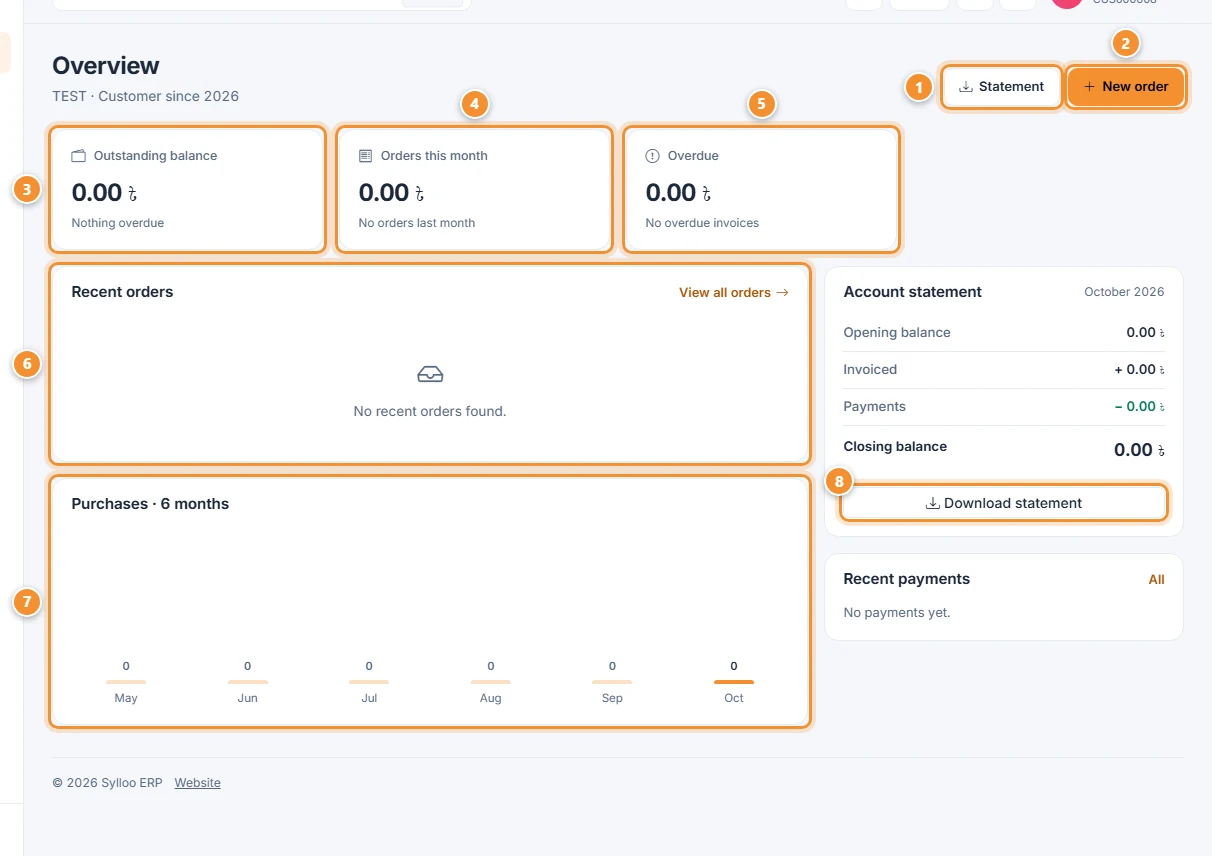 Customer self-service portal dashboard overview
- Download statement button — navigates to customer accounting ledger statement.
- New order button — opens customer catalog to browse products and place an order.
- Outstanding balance metric — total unpaid balance across all orders and invoices.
- Orders this month metric — monetary total and percentage change vs previous month.
- Overdue balance metric — past-due invoice count and total overdue balance.
- Recent orders card — summary list of recently placed orders with delivery and payment status.
- Purchases trend chart — six-month purchasing volume visual bar chart.
- Sidebar statement download link — quick access link to generate customer statement.
Step-by-step: Navigating your customer portal dashboard
- Sign in to your account at Client portal sign-in to open the dashboard.
- Review your headline figures: check Outstanding balance metric (3) and Overdue balance metric (5).
- If an overdue balance requires settlement, click the banner notification to proceed directly to checkout.
- In Recent orders card (6), click any order code to review line items, tracking events, or printable receipts.
- To place a new purchasing order, click the New order button (2) to open the storefront catalog.
- Click Download statement button (1) or Sidebar statement download link (8) to review your formal ledger.
Every field and control
Header actions and summary metrics
- Download statement button (1): Top-right action button directing to Customer account ledger statement for PDF/Excel downloads.
- New order button (2): Primary header action directing to Customer products catalog to select items and add them to cart.
- Outstanding balance metric (3): Aggregate amount owed across all invoiced orders, net of settled payments and returns.
- Orders this month metric (4): Total purchase volume for the active calendar month, including comparative percentage vs the preceding month.
- Overdue balance metric (5): Total monetary value of invoices whose payment due date has elapsed without full settlement.
Activity cards and analytics
- Recent orders card (6): Chronological table of your latest purchase orders showing order numbers, order dates, net values, payment statuses, and fulfillment delivery tags.
- Purchases trend chart (7): Bar graph tracking cumulative purchasing totals across the trailing six months.
- Sidebar statement download link (8): Dedicated link in the portal sidebar menu for quick one-click access to financial statements.
Common questions
How often are balance figures updated on the dashboard?
Financial metrics and order states refresh in real time. As soon as a cashier or administrator records a payment or posts an invoice in the main business system, your dashboard updates immediately.
Can I click directly on an order to view its delivery details?
Yes. Clicking on any order row in the recent orders table takes you to the detailed order view, displaying parcel tracking steps, dispatch carrier details, and itemized receipts.
Related pages
- Customer products catalog — browse available items and place orders.
- Customer account ledger statement — generate official accounting statements.
- Customer orders list — view and filter your full historical purchase records.