
Period lock and year close
Lock accounting books up to a specific date and close completed financial years to roll balances into retained earnings.
Period lock and year close
The Period lock and year close screen lets you manage your fiscal calendar. You can lock accounting periods against backdated entries and close completed financial years.
Locking books protects finalized periods against accidental edits. Closing a financial year zeroes income and expense accounts, transferring net surplus or deficit into retained earnings.
When you use this
- Locking past dates after finalizing monthly accounts or filing statutory tax returns.
- Closing completed fiscal years to calculate net profit and roll balances into equity.
- Adding upcoming financial year definitions to your accounting calendar.
- Reopening a closed financial year temporarily under administrative audit supervision.
Before you start
- You need accounting administrator privileges to change lock dates or close fiscal years.
- Ensure all inventory adjustments, depreciation runs, and bank reconciliations for the period are complete.
- Verify that your retained earnings ledger account exists under Equity settings.
Open the financial years screen
- Go to Accounting in the left navigation sidebar.
- Select Settings and choose Financial Year.
- The period lock controls and fiscal calendar table appear.
Lock books or close a year
- To lock a period, choose a date in Lock date and click Lock books.
- To close a completed fiscal year, locate the year in the table and click Close year in the Actions column.
- Review the automatic closing summary and confirm to post retained earnings entries.
Every field on this screen
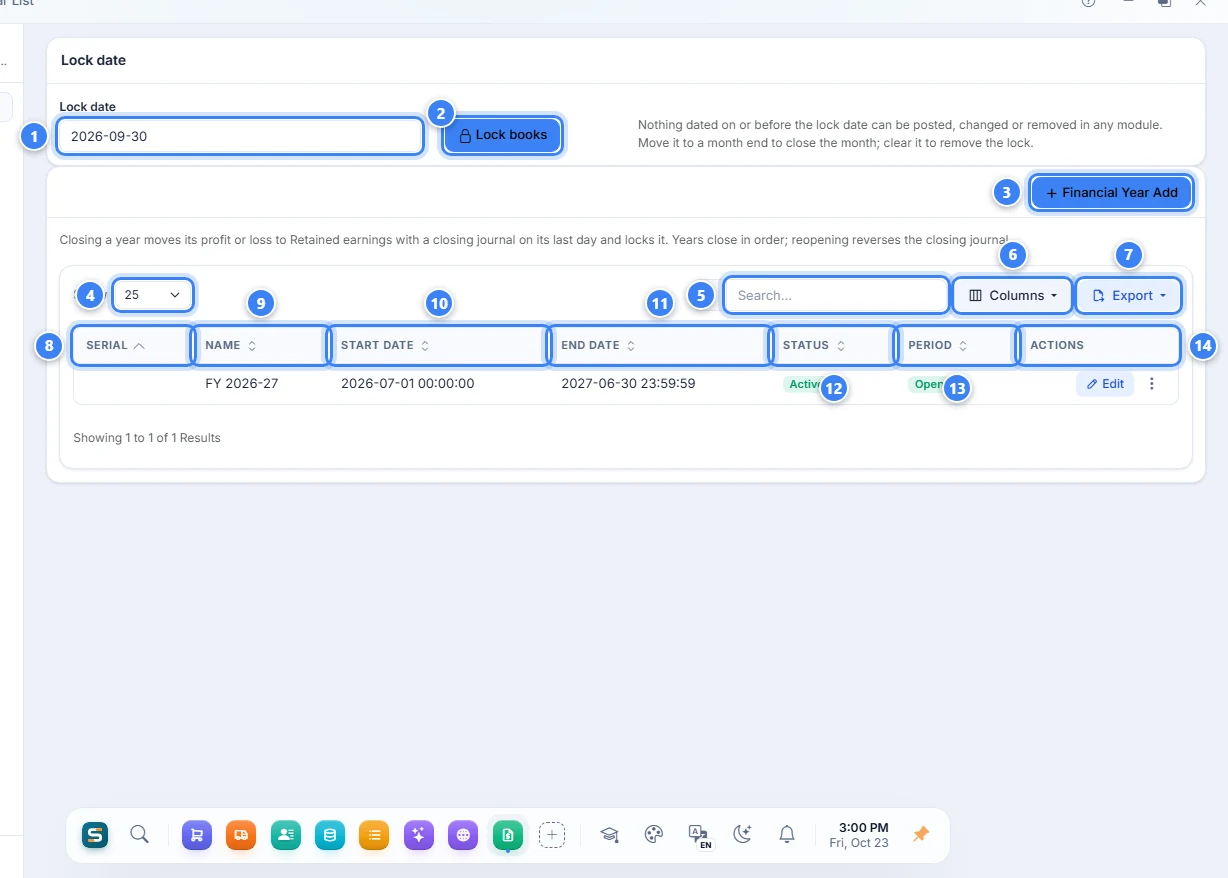 Period lock and financial years list
- Lock date — Date input setting the cutoff date before which all journal entries are locked.
- Lock books — Saves the lock date and prevents backdated edits or new vouchers.
- Financial Year Add — Opens the window to add a new accounting fiscal year.
- Rows per page — Selects how many fiscal years to display per table page.
- Search — Searches financial years by label or name.
- Columns — Toggles datatable column visibility.
- Export — Exports financial year records to an Excel spreadsheet or CSV file.
- Serial column — Displays sequential numbering of financial years.
- Name column — Displays the title or designation of the financial year.
- Start Date column — Displays the start date of the fiscal calendar.
- End Date column — Displays the end date of the fiscal calendar.
- Status column — Indicates whether the fiscal year is Active or Inactive.
- Period column — Shows the period state as either Open or Closed.
- Actions column — Provides row actions to Edit, Close year, Reopen year, or Delete.
Period lock controls
The top card provides tools to freeze accounting history:
- Lock date: Date picker setting the historical cutoff point. Transactions dated on or before this date cannot be created, modified, or deleted.
- Lock books: Enforces the lock cutoff across all accounting vouchers, orders, invoices, and payments.
Fiscal year columns and actions
The table displays every configured accounting calendar:
- Serial: Chronological sequence number of the fiscal year record.
- Name: Display name of the financial year (for example, FY 2025-2026).
- Start Date: Official starting calendar date of the fiscal cycle.
- End Date: Official closing calendar date of the fiscal cycle.
- Status: Operational status enabling or disabling the year for transaction posting.
- Period: Period state indicating whether the year is Open or Closed.
Row actions
Manage each year using the Actions column:
- Edit: Updates the name, dates, or active status of an open fiscal year.
- Close year: Finalizes the year, posts closing journal vouchers, and zeroes temporary accounts.
- Reopen year: Reopens a closed financial year for authorized audit corrections.
- Delete: Removes an unclosed fiscal year that contains no posted accounting transactions.
Common questions
What happens when a user attempts to save a transaction before the lock date?
The system blocks the action and displays an alert indicating that the accounting period is locked.
Can a closed financial year be reopened?
Yes. Authorized administrators can click Reopen year to reverse the closing voucher and permit approved adjustments.
Related pages
- Voucher list — Record single-entry payments, receipts, and bank fee adjustments.
- Journal entry list — Multi-line manual journal entries and year-end closing vouchers.
- Financial reports — Review year-end financial statements and balance sheets.