
Cheques
Track and manage customer collection cheques, supplier payment cheques, and security deposits.
Cheques
The Cheques screen tracks every physical paper cheque across your business. You can monitor incoming customer payments, track outgoing vendor cheques, manage security deposits, and update clearing statuses.
Cheques register automatically when you log an invoice payment or voucher with a cheque payment instrument. You can also record standalone cheques directly from this screen.
When you use this
- Tracking customer cheques on hand before depositing them into your bank account.
- Monitoring supplier cheques awaiting clearance to ensure your bank balance remains sufficient.
- Updating cheque statuses to Deposited, Cleared, Bounced, Returned, or Void.
- Holding security deposit cheques for warehouse leases, equipment rentals, or customer guarantees.
Before you start
- You need an active user account with permission to view and record cheques.
- Verify that your business bank accounts exist in the Accounting area.
- If writing supplier cheques, ensure you have active cheque books registered under settings.
Open the cheque register
- Go to Accounting in the left navigation sidebar.
- Select Cheques.
- The register opens on the Received cheques tab by default.
Filter and record cheques
- Switch tabs between Received, Issued, and Security deposits to view specific categories.
- Click Record cheque to log a new standalone cheque entry.
- Review maturity dates and due alerts to identify cheques requiring bank presentation.
Every field on this screen
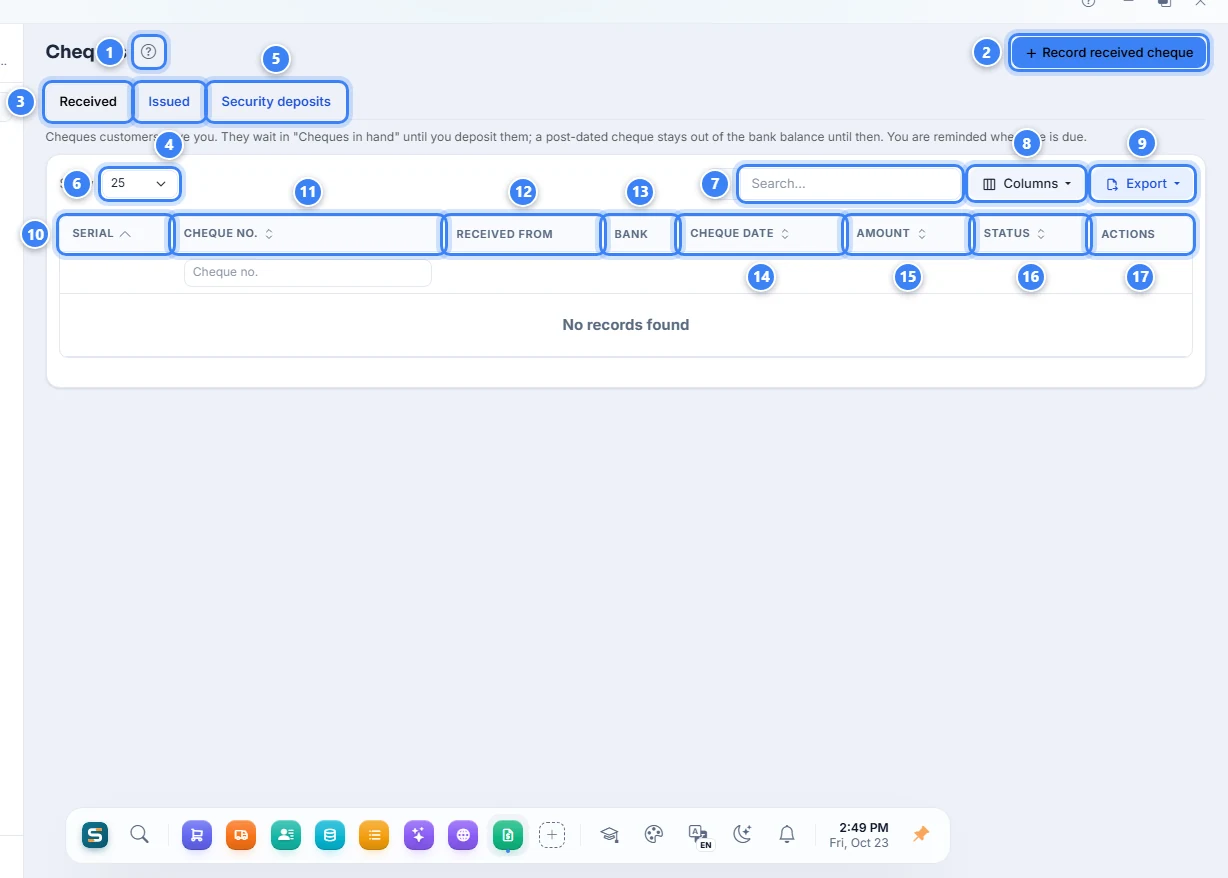 Cheque register
- Help (?) — Opens this Help Center guide in a slide-out side panel.
- Record cheque — Opens the entry window to register a received or issued cheque.
- Received tab — Lists incoming customer cheques awaiting bank deposit or clearance.
- Issued tab — Lists outgoing vendor cheques drawn against your business bank accounts.
- Security deposits tab — Lists refundable deposit cheques held without immediate bank collection.
- Rows per page — Selects how many cheque rows appear per table page.
- Search — Searches cheques by leaf number, party name, or issuing bank.
- Columns — Customizes which columns to show or hide in the datatable.
- Export — Exports filtered cheque records to an Excel spreadsheet or CSV file.
- Serial column — Displays the system serial number assigned to the cheque record.
- Cheque no. column — Displays the printed leaf number from the cheque face.
- Party column — Displays the customer who paid the cheque or vendor who received it.
- Bank column — Displays the name of the issuing bank and branch.
- Cheque date column — Displays the maturity or issue date written on the cheque leaf.
- Amount column — Displays the monetary face value of the cheque.
- Status column — Shows the operational lifecycle status badge of the cheque.
- Actions column — Provides row actions to update status, view history, or void.
Cheque register tabs
The register categorizes cheques into three distinct operational tabs:
- Received: Incoming cheques collected from retail customers. These begin in On Hand status and transition to Deposited and Cleared.
- Issued: Outgoing cheques written to suppliers, contractors, or landlords. These begin in Issued status and transition to Presented and Cleared.
- Security deposits: Cheques collected as collateral or performance guarantees. These remain on hand until returned or cashed upon default.
When cheques approach their maturity dates, a yellow badge appears above the table. It warns you about cheques due within the configured alert period.
Cheque lifecycle statuses
Every cheque moves through structured status transitions:
- On Hand: The physical cheque is stored safely in your cash register awaiting deposit.
- Deposited: You presented the customer cheque to your commercial bank for clearance.
- Cleared: The bank successfully settled the funds into your bank account balance.
- Bounced: The drawee bank dishonored the cheque due to insufficient funds or signature mismatch.
- Returned: You returned an uncashed security deposit or dishonored cheque back to the issuer.
- Void / Cancelled: You stopped payment or voided an erroneous or spoiled cheque leaf.
Row actions and status updates
You can manage cheque lifecycles using the Actions column. Click the action button on any row:
- View: Opens the audit modal displaying payment links, transaction memos, and status timeline.
- Edit: Modifies payee details, bank names, or leaf numbers before presentation.
- Deposit: Records the deposit date and target receiving bank account.
- Clear: Confirms bank clearance and posts the final settlement ledger entry.
- Bounce: Marks the cheque as dishonored and logs bank service charges.
- Return: Releases a security deposit cheque back to the issuing contact.
- Void: Voids the cheque leaf permanently and reverses provisional accounting entries.
Common questions
What happens to accounting ledgers when a cheque bounces?
Marking a cheque as Bounced reverses the deposit credit and restores the outstanding balance on the customer receivable ledger.
Can I deposit a security deposit cheque?
Yes. If a customer or contractor forfeits their guarantee, you can transition the security deposit into your bank account.
How does the due alert count cheques?
The system checks all active cheques whose maturity date falls within your business alert threshold, alerting you before leaves expire.
Related pages
- Voucher list — Single-entry money collection vouchers and payments.
- Bank statements and reconciliation — Match cleared cheques against bank statement lines.
- Financial reports — Financial statements and cash flow summaries.