
Template Designer
Visually arrange template section orders, select parent layouts, configure section settings, and manage blocks.
Template Designer
The Template Designer provides a visual page composition tool for page templates (templates/*.json) and section groups (groups/*.json) in Theme Studio. It allows you to arrange sections in display order, select parent layouts, configure section settings, manage child blocks, and insert new section blueprints without editing raw JSON files by hand.
Each storefront page template pairs with a JSON blueprint that dictates the order and settings of each section instance rendered on the page.
When you use this
- Building a new page layout from existing section blueprints.
- Changing the display order of sections on your storefront pages.
- Customising section settings and populating reusable child blocks for a specific page.
- Managing reusable section groups such as headers and footers that appear across multiple pages.
Before you start
- Open Website Manage → Theme Studio from the Developer Console.
- Open any template JSON file (such as
templates/home.json) and ensure Designer mode is active in the breadcrumbs bar.
How to use the template designer
- Open the target template JSON file and verify that the view toggle shows Designer.
- In the top block, configure the template Title and choose a parent Layout file.
- Click Preview to view your layout in real time.
- Review the Configured sections list. Click Expand section to reveal settings and child blocks.
- Use Move up and Move down to reorder sections, or click Hide section to toggle storefront visibility.
- Click Duplicate section to clone an instance, or Remove section to delete it.
- Click Edit code to jump straight to the section template file.
- If the section contains Child blocks, expand the block rows or click Add block chips to append new items.
- To append new sections, select a section from Section choices, pick an optional preset from Preset choices, and click Add section.
- Click Save in the breadcrumbs bar (
Ctrl+S) to commit your template changes.
Every field and control in Template Designer
The Template Designer provides template attributes, section instance rows, and section inserters:
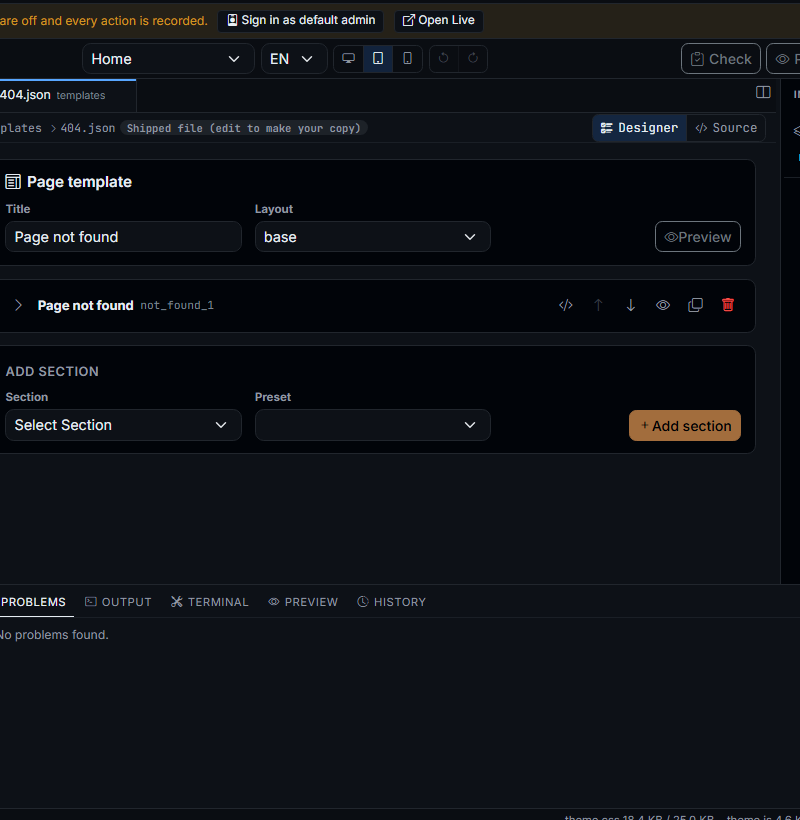 Theme Studio template designer
- Template attributes — Top-level metadata specifying page title and layout wrapping:
- Title — Human-readable name of this template in Theme Studio.
- Layout — Dropdown menu selecting which parent layout file (
layouts/*.html) wraps the page content. - Preview — Button that opens the live storefront preview panel showing this template.
- Configured sections — List of all section instances placed in this template:
- Expand section — Toggles the section settings and child blocks container.
- Edit code — Opens the section template HTML file (
sections/<type>.html) in a new editor tab. - Move up — Moves the section earlier in the storefront display order.
- Move down — Moves the section later in the storefront display order.
- Hide section — Hides or shows the section on the live storefront without deleting its configuration.
- Duplicate section — Clones the section instance with all its current settings and blocks.
- Remove section — Deletes the section instance from this template.
- Child blocks — Expandable block items nested inside sections.
- Add block — Action chip that appends a new child block instance to the section.
- Add section picker — Card for inserting new sections into the template:
- Section choices — Dropdown list of all available section blueprints from
sections/*.json. - Preset choices — Dropdown list of starter presets configured on the selected section.
- Add section — Button that appends the chosen section blueprint and preset to the end of the template.
- Section choices — Dropdown list of all available section blueprints from
Complete example: Customising the home page layout
Suppose you want to add a feature section to your store home page:
- In Theme Studio, open
templates/home.jsonand switch to Designer view. - In the template card, ensure Title is set to
Home Pageand Layout is set tobase. - In the Add section card, open Section choices and select
Featured Products · Products. - Open Preset choices and pick
Grid 4 Columns. - Click Add section to append the product grid to the bottom of the page.
- Click Move up repeatedly to position the section directly beneath the hero banner.
- Click Expand section on the new section row and adjust its heading text.
- Click Preview to verify the layout on screen.
- Press
Ctrl+Sto save the template draft.
Result: The home page template updates with the new product grid section placed in the chosen order.
How to extend
- Add new section blueprints to
sections/so they appear automatically in Section choices. - Define presets inside section schemas so designers can insert fully styled sections with one click.
- Switch to Source mode in the breadcrumbs bar to edit raw JSON attributes directly.
Rules and pitfalls
- Every section instance in a template must have a unique identifier string.
- Hidden sections remain in the template JSON with
"disabled": trueand retain all configured settings. - Section groups (
groups/*.json) do not use layout wrappers; their Layout selector is hidden automatically.
Common questions
What is the difference between a template and a section group?
A page template (templates/*.json) defines the full section layout for a specific page route and assigns an HTML layout wrapper. A section group (groups/*.json) defines reusable sections that render together across multiple pages, such as a global header or footer.
Can I place the same section multiple times on one page? Yes, unless the section schema specifies an instance limit. Each added instance receives an independent identifier and separate setting values.
Related pages
- Section Designer — Design section blueprints, settings, blocks, and presets.
- Settings Designer — Configure global theme settings and colour schemes.
- Editor — Code editor, tabs, split view, and previewers.
- Title bar — Workspace controls, theme switcher, and release actions.