
Product Setting Edit
Define product type identifiers, standard catalog feature toggles, and custom parameter schemas in the Product Setting window.
Product Setting Edit
The Product Setting Edit window allows developers to configure product classification details, customize standard catalog feature behaviors, and build custom parameter schemas. Custom schema fields defined here automatically appear on the product editing screen in the regular business catalog so staff can enter specialized attributes.
When you use this
- Creating a new product type: set up an identifier key such as
digital_courseorsubscriptionwith tailored catalog features. - Toggling catalog capabilities: enable or suppress barcodes, variants, carton packaging, batch tracking, or serial numbers for specific item categories.
- Building custom schema fields: add specialized inputs such as warranty period, download URL, release year, or author name.
- Copying template snippets: quickly grab copy-ready theme tags to display custom field values on storefront pages.
What you work with
- Basic tab: controls the primary name key, display title, operational status, sku prefix/suffix, and catalog feature switches.
- Additional Fields tab: an interactive schema builder allowing you to add, edit, reorder, duplicate, and remove custom attributes.
How it works for you
- On the Product Setting list, click Product Setting Add or click edit on an existing row.
- Under the Basic tab, fill in the display Title and unique technical identifier Name.
- Toggle the feature switches to customize how catalog forms behave for this type.
- Click the Additional Fields tab to view or manage custom schema parameters.
- Click Add field to create a new parameter or click Edit field on an existing row.
- Enter the field label, identifier, type, and optional default values.
- Click Update field to save changes to the parameter.
- Save the window to finalize the product type definition.
Every field on this screen
Basic tab
The Basic tab holds the fundamental type identity and determines which catalog features are enabled or suppressed for products of this type.
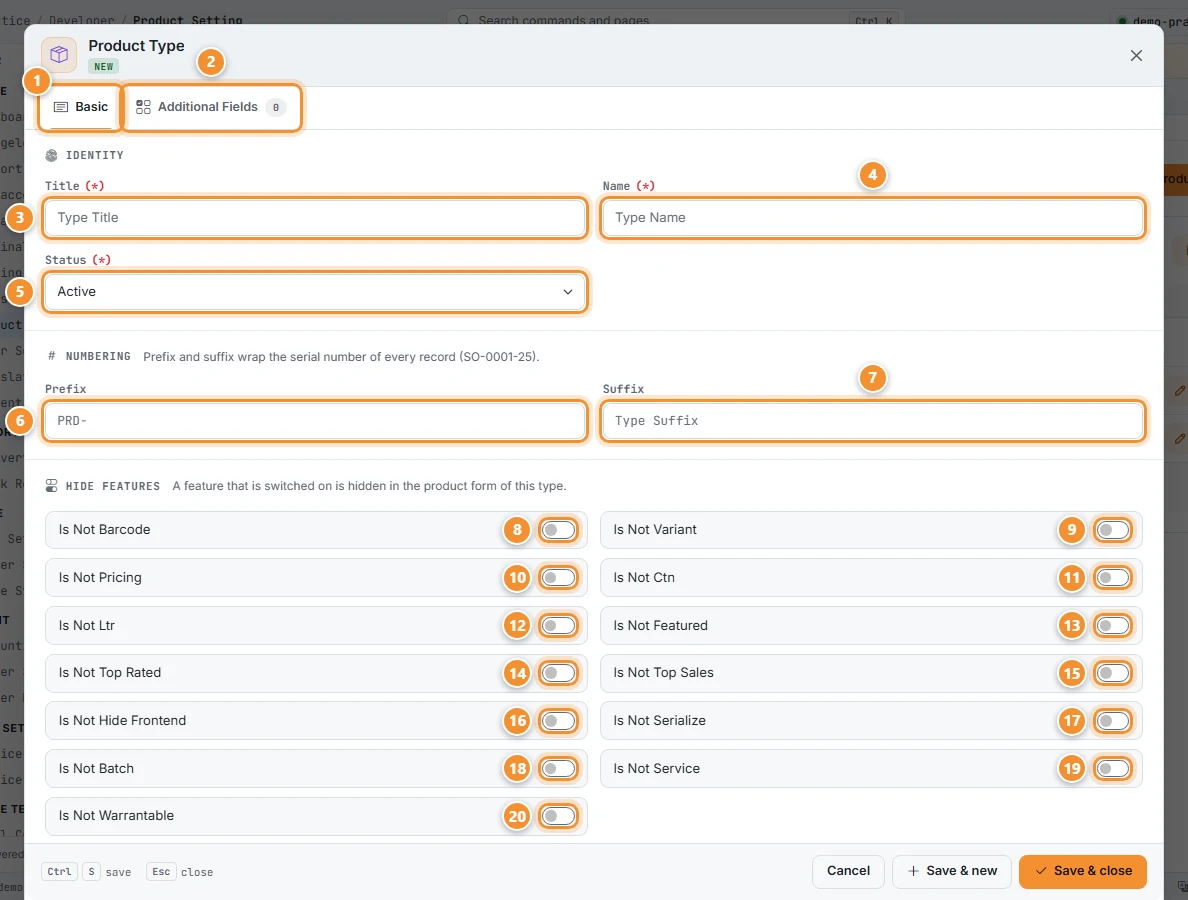 Adding or changing a dynamic type — Basic tab
- Basic — tab containing primary classification settings and catalog feature flags.
- Additional Fields — tab switching to the custom parameter schema builder.
- Title — human-readable name of the product type shown in product forms and reports. Example:
Digital Asset. Required. - Name — unique technical identifier key without spaces or special characters. Example:
digital_asset. Required. - Status — active or inactive switch. Inactive types cannot be assigned to new catalog items.
- Prefix — optional text automatically prepended to generated item SKUs or serial numbers for this product type.
- Suffix — optional text automatically appended to generated item SKUs or serial numbers.
- Is Not Barcode — switch to hide barcode generation and barcode scanning fields for products of this type.
- Is Not Variant — switch to suppress product variations (such as color or size) when not needed for this item category.
- Is Not Pricing — switch to disable standard retail pricing tiers when items use quote-only or variable rates.
- Is Not Ctn — switch to hide carton and master case packaging calculations.
- Is Not Ltr — switch to hide liquid volume and liter conversion measurements.
- Is Not Featured — switch to remove the featured product badge option from catalog items.
- Is Not Top Rated — switch to suppress top-rated merchandise badges.
- Is Not Top Sales — switch to suppress bestseller promotional flags.
- Is Not Hide Frontend — switch that forces items of this type to always remain visible in your online shop catalog.
- Is Not Serialize — switch to disable individual unit serial number tracking on stock receipts and sales.
- Is Not Batch — switch to suppress batch and lot expiration tracking.
- Is Not Service — switch to mark items as physical goods rather than intangible services.
- Is Not Warrantable — switch to hide warranty claims and duration settings from product forms.
Additional Fields tab
The Additional Fields tab lets you attach custom schema attributes to the product type.
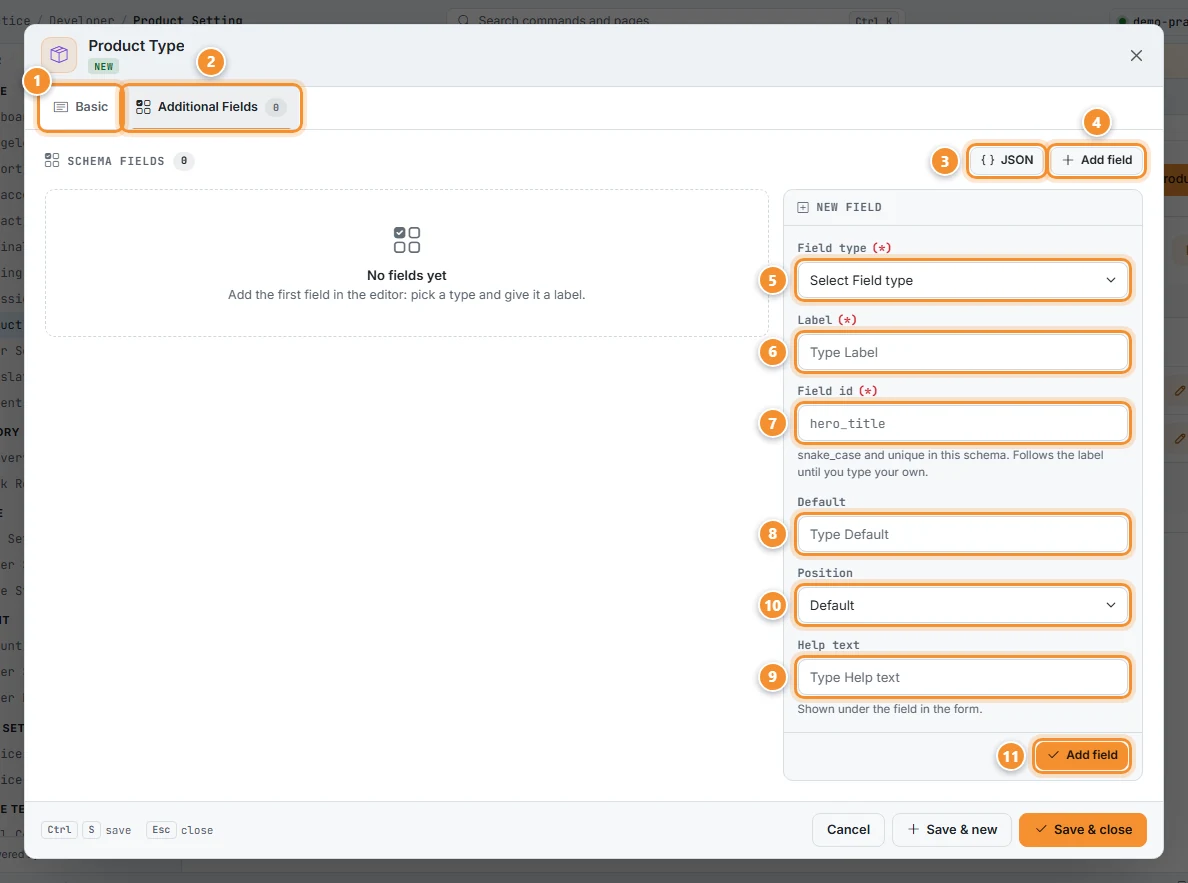 Configuring custom additional schema fields
- Basic — tab switching back to the primary identity and feature flags.
- Additional Fields — tab displaying the parameter schema builder and custom fields.
- JSON — view mode showing the structured schema definitions in raw text format.
- Add field — button creating a new parameter row in the schema builder.
- Field type — dropdown selecting the input control type (Text, Number, Select, Date, Checkbox, Textarea, Media).
- Label — human-readable title displayed next to the field on the product editing screen. Example:
Warranty Period. - Identifier — unique variable key for this attribute (the Field id). Example:
warranty_months. - Default — optional initial value pre-filled when staff create a new product of this type.
- Help text — explanatory guidance displayed below the field to assist store managers.
- Position — integer determining the display order of the attribute within the product form.
- Save field — button (labeled Update field) that applies your parameter settings to the schema.
Complete example: Defining a "Book" product type with an ISBN field
Suppose you sell books and want catalog editors to record the ISBN number and author for each volume:
- Click Product Setting Add.
- On the Basic tab:
- Title:
Book - Name:
book - Is Not Warrantable: Switch ON (books do not carry warranties).
- Is Not Serialize: Switch ON (books do not use individual serial numbers).
- Title:
- Switch to the Additional Fields tab and click Add field:
- Field type: Text
- Label:
ISBN Number - Identifier:
isbn - Help text:
Enter the 13-digit international book identifier.
- Click Update field.
- Click Add field again:
- Field type: Text
- Label:
Author Name - Identifier:
author
- Click Update field.
- Save the window.
- When staff create a product and pick
Book, the ISBN Number and Author Name fields appear immediately.
How to extend
- Display custom fields in storefront templates: read the values inside your theme templates using:
<p><strong>ISBN:</strong> {{ product.isbn }}</p> <p><strong>Author:</strong> {{ product.author }}</p> - Filter products by type: use
namekeys in storefront queries:{% set books = get_products({'type': 'book'}) %} - Add custom dropdown options: set the Field type to
Selectand enter comma-separated choices in the Options field.
Rules and pitfalls
- Safe identifier keys: use lowercase letters, numbers, and underscores for field identifiers (
release_year, notRelease Year!). - Required parameters: make sure every field has a clear label and identifier before saving.
- Do not reuse identifiers: each field inside a product type must have a unique identifier key.
Common questions
What happens if I remove a field from a product type schema?
Existing products retain their stored values, but the field input disappears from the catalog edit form.
Can I reorder fields on the product screen?
Yes. Use the Move up and Move down buttons or enter numerical values in the Position box.
Related pages
- Product Setting — viewing and managing the list of all registered product types.
- Themes and Theme Studio — rendering product type parameters on website pages.
- Developer sign-in — accessing the Developer console.