
Title bar
Switch storefront themes, select preview pages and languages, test responsive viewports, and publish drafts.
Title bar
The Title bar is the primary control header in Theme Studio. It allows developers to switch between storefront themes, select template preview contexts, toggle responsive device viewports, undo draft edits, run validation checks, and manage publishing workflows.
All configuration controls in the title bar operate on an isolated working draft. Your live website remains unchanged until you publish.
When you use this
- Switching between multiple storefront themes to edit sections, stylesheets, or page templates.
- Selecting specific pages (such as Home, Product, Collection, or Cart) and languages to preview changes live.
- Checking theme health to catch missing translation keys, syntax errors, or schema validation problems before release.
- Publishing working drafts immediately, scheduling them for upcoming marketing launches, or discarding changes.
Before you start
- Sign in to Developer Console and open Website Manage → Theme Studio.
- Ensure at least one storefront theme is installed in your store.
How to use the title bar
- Click the theme switcher on the far left to select the storefront theme you want to work on.
- Choose the Page picker and Language picker dropdowns in the center to set the active preview context.
- Select a device viewport from the Device buttons (Desktop view, Tablet view, or Mobile view) to preview responsive layouts.
- Click Check to run automated validation on schemas and template syntax.
- Click Preview or copy the preview link to inspect storefront changes.
- Open the Publish menu and its Publish drawer to deploy changes immediately or schedule a release.
Every field and control in the title bar
The Title bar contains controls grouped into three main sections:
 Title bar control header
- Theme switcher — Displays the currently active theme name, theme version, format badge, and draft state chip. Clicking the switcher opens the theme dropdown menu.
- Page selector — The Page picker dropdown menu allowing you to select which storefront page template (such as Home, Collection, Product, Cart, or Blog) is rendered in the preview canvas.
- Language selector — The Language picker dropdown menu allowing you to switch the active preview locale (for example, EN, BN, or FI) to test translations and localized content.
- Device viewport — The Device buttons responsive selector offering three preview modes: Desktop view (1440px), Tablet view (768px), and Mobile view (375px).
- Undo and redo draft steps — Step backward or forward through draft revision history without losing unsaved progress.
- Check — Runs automated health diagnostics across your theme templates, settings schemas, and translation files, reporting errors in the Problems tab.
- Preview — Opens or focuses the live interactive storefront preview panel in the bottom workspace area.
- Copy preview link — Copies a shareable preview link to your clipboard to view the draft in another window or on mobile devices.
- Publish — Primary release button that opens the Publish menu and release drawer with options to publish now, schedule a launch date, or discard draft edits.
Theme switcher dropdown menu
Clicking the theme switcher opens the Themes list and management actions:
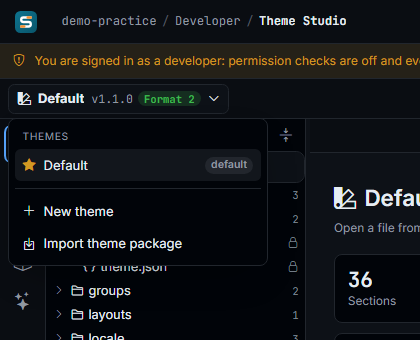 Theme switcher dropdown menu showing installed themes
- Installed themes — The Themes list shows all available themes with star indicators for the default active theme and chips indicating format versions.
- New theme — Opens the modal window to create a brand-new storefront theme from starter files.
- Install from GitHub — Opens the Install a theme from a repository window. This button replaces the old import button, which still shows in this picture until it is retaken. A repository connection is now the way to bring in a theme built elsewhere.
- Upgrade to format 2 — Displayed when editing legacy format 1 themes; upgrades the theme to format 2 directory structure and schema standards.
Publish dropdown menu
Clicking the Publish button opens the Publish menu and Publish drawer for deploying the current working draft:
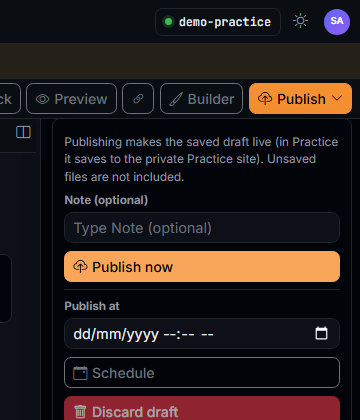 Publish dropdown menu with scheduling options
- Note (optional) — Optional text field to describe release changes for the version history log (for example, "Updated winter sale announcement banner").
- Publish now — Deploys all draft template, section, and schema changes directly to your live storefront.
- Publish at — Date and time input to specify when scheduled publication should take place.
- Schedule — Queues the draft to automatically publish at the chosen date and time.
- Discard draft — Deletes all unpublished modifications and resets the working draft back to the published version.
Complete example: Previewing a promotion on mobile and scheduling a release
Suppose you created a seasonal discount banner and want to verify its mobile display before setting it live next week:
- In the Page selector, select
Home. - In the Device viewport control, click the Mobile icon to set the preview frame to 375px width.
- Click Preview to verify that the banner fits mobile screens cleanly without text clipping.
- Click Publish to open the release menu.
- In Note (optional), type
Winter campaign launch. - In Publish at, set
2026-11-01 00:00. - Click Schedule.
Result: The draft remains safely isolated and is scheduled to automatically release to live shoppers on November 1st at midnight.
How to extend
- Add new page templates in your theme's
templates/folder (such aspage.about.html); they appear automatically in the Page selector. - Add new language files in your theme's
locale/folder (such aslocale/fr.json); the language code appears immediately in the Language selector. - Define section schemas with device-specific options to support responsive customization.
Rules and pitfalls
- Always run Check before publishing to ensure there are no unclosed HTML tags, missing translation keys, or invalid JSON schemas.
- If Undo draft step is disabled, no earlier draft revisions exist for the current editing session.
- Clicking Discard draft removes all draft edits permanently; make sure to export a package first if you want a backup.
Common questions
Why is the Publish button disabled? The Publish button is disabled if your account does not have theme publishing permissions or if another publish operation is actively in progress.
Does changing the preview language change the live website language? No. The Language selector only changes the language in the interactive preview canvas so you can review localized phrases.