
Product Setting
Configure product types, technical identifier keys, and custom parameter schemas in the Developer console.
Product Setting
The Product Setting screen lets developers define and manage product types for your online storefront and business catalog. Each type provides a unique identifier key and a structured parameter schema. Themes and store sections read these settings to render specialized attributes such as dimensions, materials, or digital download links.
When you use this
- Adding specialized product lines: create unique product categories such as digital downloads, event tickets, or custom furniture.
- Configuring theme section parameters: define custom schema fields that storefront templates read when displaying product specifications.
- Reviewing registered types: inspect technical keys, titles, and publication states across all merchandise classifications.
- Retiring obsolete item types: deactivate or remove product types that are no longer offered in your store.
What you work with
- Product Setting list: the central table displaying registered product classifications, identifier keys, and operational statuses.
- Product Setting Add window: opens the editor to create a new product type with custom schema parameters.
- Datatable filters: inline search filters to locate product types by title or name key.
How it works for you
- Open the Developer console from the application menu.
- In the navigation sidebar, click Product Setting.
- Review the existing product classifications in the table.
- Use the inline search filters on title or name to quickly narrow down large lists.
- Click Product Setting Add to open the Product Setting Edit window.
- To modify an existing classification, click edit in the row actions column.
Every field on this screen
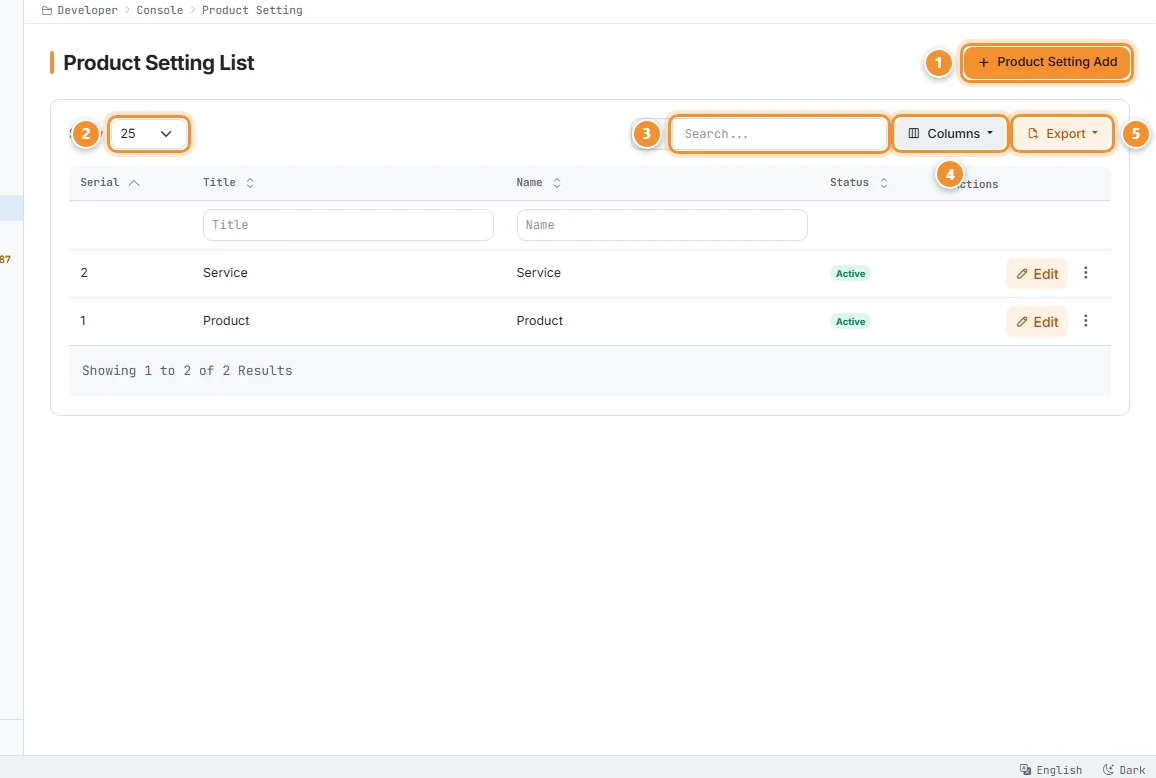 The Product Setting list screen
- Product Setting Add — opens the Product Setting Edit window to register a new product classification.
- Show — dropdown selecting how many product type rows are displayed per table page (10, 25, 50, or 100).
- Search — quick search input to find records matching any keyword across the table. You can also filter columns directly with the inline title and name filters.
- Columns — toggles column visibility for Serial, Title, Name, Status, and row actions.
- Export — exports the visible product classifications table into spreadsheet format. In the table, each row displays Title, technical key Name, and operational Status, along with action buttons to edit or Delete the type definition.
Complete example: Listing and inspecting product types
Suppose you run an apparel store and need to verify the identifier key for your shoe catalog before writing a theme section:
- Navigate to Product Setting.
- Type
shoesinto the name filter header. - The table filters down to show the row:
- Title: Footwear
- Name:
shoes - Status: Active
- You can now use
shoesin your theme template to filter catalog items or render shoe-specific sizing charts.
How to extend
- Add a new product type: click Product Setting Add and configure custom attributes in the Product Setting Edit window.
- Use types in website themes: reference the
namekey in your theme templates (for example{{ product.type == 'shoes' }}) to display custom layouts. - Build custom storefront sections: attach custom schema fields to the type so store managers can fill in technical specifications directly on the product edit screen.
Rules and pitfalls
- Unique name keys: every product type must have a unique
namevalue without spaces or special characters. - Active status requirement: inactive product types are hidden from storefront menus and cannot be selected when adding new items.
- Deleting in-use types: you cannot delete a product type while products in your catalog are still assigned to it; reassign or archive those products first.
Common questions
Where do the custom schema fields appear after I create a product type?
When store managers edit a product assigned to this type in the regular catalog, the custom fields you defined appear automatically in the product form.
Can I rename the name key after creating a product type?
It is best to keep the name key consistent once established, because theme sections and templates query this specific identifier.
Related pages
- Product Setting Edit — adding and modifying product types and their custom parameter schemas.
- Developer sign-in — authenticating into the Developer console.
- Themes and Theme Studio — using product types inside storefront templates.