
Admission Setting
View and manage educational admissions and membership intake classifications.
Admission Setting
Admission Setting enables developers to view, search, and manage intake programs for educational institutions, training academies, and membership organizations.
Every admission program integrates student registration with automated order generation and double-entry accounting ledgers.
When you use this
- Reviewing all configured academic and training intake classifications.
- Searching for specific admission programs by title or technical identifier.
- Exporting admission programs to Excel or CSV for organizational reporting.
- Opening the editor to configure new or existing admission classifications.
Before you start
- Sign in to the Developer Console with your developer credentials and two-factor code.
- Ensure appropriate student or member contact categories exist in Contact Setting.
- Confirm fee billing voucher types are configured in Order Setting.
Open the admission settings screen
In the Developer Console left navigation explorer, under the General section, click Admission Setting.
Search or filter admission types
Use the live Search bar above the datatable to locate programs by title or identifier. Adjust visible records with the Show dropdown.
Manage columns or export
Click Columns to toggle visible table columns, or click Export to download the records as Excel or CSV.
Open the creation window
Click Admission Setting Add in the top right corner above the datatable to open Admission Setting Edit.
Every field on this screen
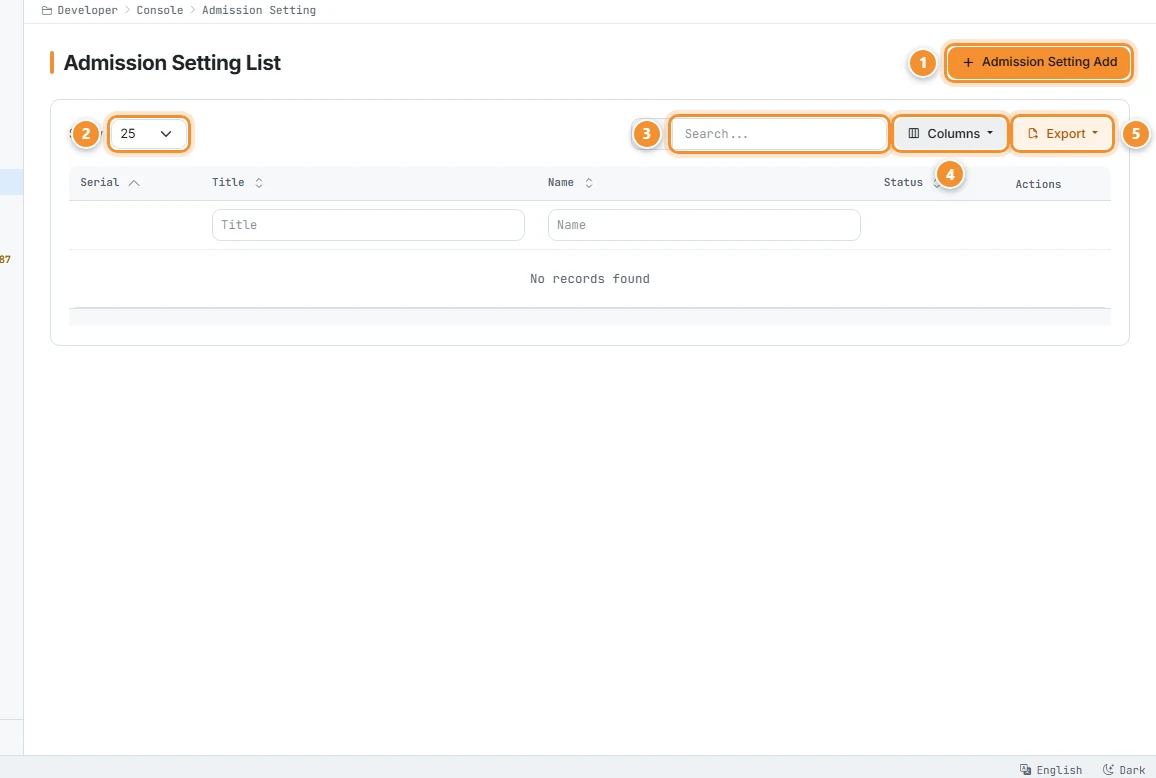 The admission resource type list screen
- Admission Setting Add — opens the modal to configure a new admission intake program.
- Show — controls how many admission type records to display per table page (10, 25, 50, 100, or 250).
- Search — live search box that filters the table by program title or technical name.
- Columns — dropdown menu toggling visibility of datatable columns (Serial, Title, Name, Contact Type, Order Type, and Actions).
- Export — exports the visible admission types table to Excel or CSV format.
In the table, each row displays Serial, Title, Name, Contact Type, Order Type, Status, and action buttons to modify or Delete records.
Complete example: Auditing active intake programs
Suppose an administrator needs to verify that the academic year programs are correctly mapped:
- Navigate to Admission Setting in the Developer Console navigation.
- In the Search input, type
Diploma. - The table displays all matching diploma intake programs alongside their linked contact categories and billing vouchers.
- Click Export to save the verified configurations to an Excel spreadsheet for the academic registrar.
How to extend
- Define custom applicant data fields by editing the linked contact type in Contact Setting.
- Configure specialized tuition invoice layouts by modifying the order voucher in Order Setting.
- Adjust ledger mappings and approval tiers in Admission Setting Edit.
Rules and pitfalls
- Deleting an admission type removes it from active intake selection for new students.
- Always ensure the referenced Order Type and Contact Type remain active.
- Technical names must remain unique across all admission classifications.
Common questions
Where do staff process received student applications? Staff manage and evaluate student applications directly inside the Admission module workspace.
Can different admission programs use different fee order types? Yes. Each admission classification can generate its own distinct order type with dedicated payment terms.