
Theme Information
Configure theme metadata, semantic versioning, supported storefront pages, and manifest settings visually.
Theme Information
The Theme Information designer provides a visual configuration interface for the theme manifest file (config/theme.json) in Theme Studio. It allows developers to specify the theme name, unique slug, semantic version numbers, format specification, default language locale, author credentials, promotional description, target business type flags, thumbnail asset preview, and supported storefront page templates without editing raw JSON markup by hand.
The theme manifest (
config/theme.json) acts as the identity card of the theme package. It tells the storefront engine which templates exist and which business types the theme supports.
When you use this
- Setting up identity metadata when creating a new theme.
- Bumping semantic version numbers before exporting or releasing a theme update.
- Declaring support for specific storefront pages (such as the blog, the About page or the cart).
- Configuring the default language locale and author attribution for distribution.
Before you start
- Open Website Manage → Theme Studio from the Developer Console.
- Open
config/theme.jsonin the editor and ensure Designer mode is active in the breadcrumbs bar.
How to use the theme information designer
- Open
config/theme.jsonand verify that the view toggle shows Designer. - In the top block, update the theme Name, Slug, and Author details.
- Manage the Version number by typing a semantic string or clicking the quick-bump buttons (
+ patch,+ minor,+ major). - Select the theme Format specification and the Default language code from the dropdown menus.
- Provide a concise summary in the Description box.
- Toggle supported business types in the Supports section (
business,store). - Enter a relative asset path in the Thumbnail field to verify the preview image.
- In the Pages card, toggle page template chips to declare supported storefront views, or click Create its template (
+) for any missing page templates. - Click Save in the breadcrumbs bar (
Ctrl+S) to commit your changes.
Every field and control in Theme Information
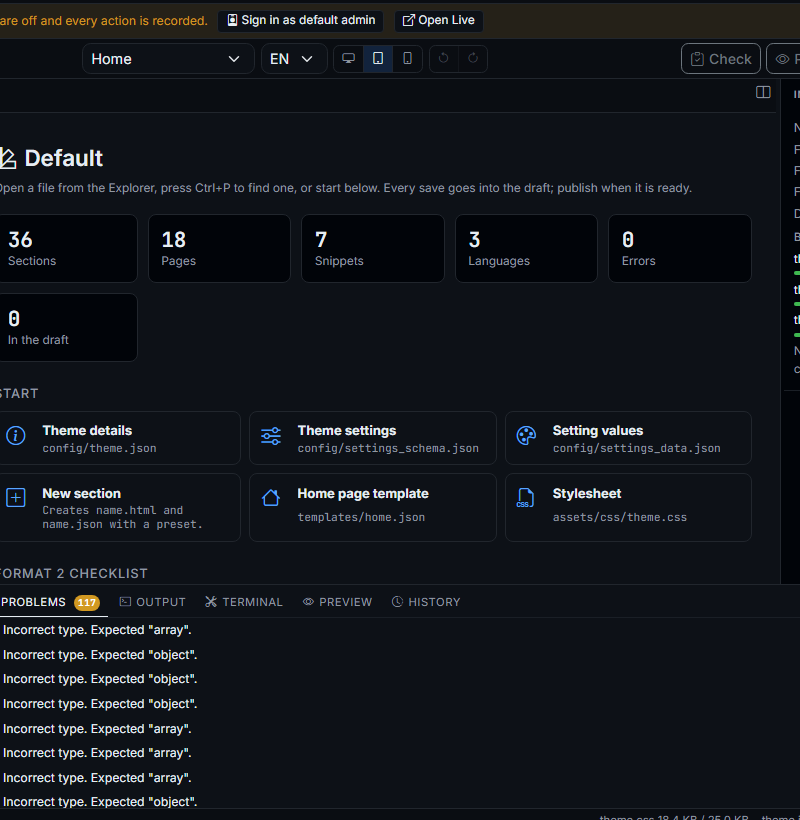
The Theme Information designer provides manifest metadata inputs and a supported pages checklist:
 Theme Studio theme information designer
- Theme metadata attributes — Top-level package configuration and branding settings:
- Name — Display title of the theme shown in the theme picker (e.g.
Sylloo Retail). - Slug — Machine-readable folder name and identifier for the theme package.
- Version — Semantic version string (
major.minor.patch). Use the+ patch,+ minor, and+ majorchip buttons to increment automatically. - Format — Manifest specification version (typically
1or2). - Default language — Primary language locale code used when no translation matches.
- Author — Creator or organisation responsible for developing the theme.
- Description — Multi-line overview explaining the visual style and purpose of the theme.
- Supports — Target business models supported by the theme (
business,store). - Thumbnail — Path to the promotional preview image in
assets/(e.g.thumbnail.png). Displays an instant preview below the field.
- Name — Display title of the theme shown in the theme picker (e.g.
- Supported storefront pages — Visual checklist of standard storefront templates:
- Page chips — Toggle buttons that register or unregister standard template names (such as
home,products,product,cart,pages,page,blogs,blog,about,contact,404). - Open — Action button that opens the existing template JSON file (
templates/<name>.json) in a new editor tab. - Create its template — Action button (
+) displayed when a declared page has no template file on disk, creating a starter blueprint in one click.
- Page chips — Toggle buttons that register or unregister standard template names (such as
Complete example: Preparing a theme for a minor release
Suppose you added an About page to your theme and want to bump the theme version and declare the about page:
- In Theme Studio, open
config/theme.jsonand switch to Designer view. - In the Version row, click + minor. The version increments from
1.0.4to1.1.0. - In the Description field, append
Adds an About page with a team section. - Scroll to the Pages card. Locate the
aboutpage chip and click it to ensure it is highlighted active (on). - Notice that if
templates/about.jsondoes not exist yet, a warning icon appears with a Create its template button. - Click Create its template to generate the starter file.
- Click the Open button next to
aboutto inspect the newly created template. - Press
Ctrl+Sonconfig/theme.jsonto persist the updated manifest.
Result:
The theme manifest is updated with the bumped version, refreshed notes, and the registered about page.
How to extend
- Switch to Source mode in the breadcrumbs bar to add custom manifest fields or view the compiled JSON.
- Add promotional screenshots to
assets/and link them in the Thumbnail field.
Rules and pitfalls
- The theme Slug must contain only lowercase alphanumeric characters and hyphens.
- Semantic versions must follow standard
X.Y.Znotation. - If a page is marked active in Pages but has no corresponding JSON file in
templates/, the storefront returns a fallback layout until you create the template.
Common questions
What is the difference between business and store in the Supports field?
The business flag indicates that the theme is designed for corporate or service websites with enquiry forms and portfolios. The store flag indicates that the theme includes full ecommerce shopping cart, catalogue, and checkout styling.
How does Default language affect merchants?
When a visitor views the website in a language without custom translations in locale/*.json, the storefront falls back to the strings defined under the Default language locale.
Related pages
- Settings Designer — Configure global theme settings and colour schemes.
- Template Designer — Visually arrange section templates and parent layouts.
- Package — Export and download copies of a theme.
- Title bar — Theme switcher, device modes, and publish workflows.