
Locale Designer
Translate theme storefront strings across multiple languages in a side-by-side translation matrix table.
Locale Designer
The Locale Designer provides a visual translation management interface for theme locale files (locale/*.json) in Theme Studio. It aggregates all language strings into a side-by-side translation matrix table, highlights missing translations, allows developers to filter by key or phrase, insert translation tags directly into templates, and add new languages or translation keys without editing raw JSON files.
Translations live in the
locale/directory (for examplelocale/en.default.json,locale/bn.json,locale/fi.json). Storefront templates access these strings using{{ t('key_name') }}or thetTwig filter.
When you use this
- Localising your theme into new languages for international merchants.
- Auditing missing translation strings across all supported language files.
- Adding new translation keys when introducing new storefront features or sections.
- Inserting copy-ready translation tags directly into open HTML templates at the cursor position.
Before you start
- Open Website Manage → Theme Studio from the Developer Console.
- In the Explorer sidebar, expand the
locale/directory and open any translation file (such aslocale/en.default.json). - Ensure Designer view is selected in the breadcrumbs bar.
How to use the locale designer
- Open any file in
locale/and switch to Designer view. - In the top bar, use the Filter keys or texts input to search for specific phrases.
- Check Only missing to isolate translation keys that lack translations in one or more languages.
- If missing keys are detected across files, click Add them in the warning banner to sync all key structures.
- Click Add key to register a new translation identifier.
- Click Add language to introduce a new language file to your theme.
- In the matrix table, edit translations directly in the input fields for each language column.
- Click Find usages on any row to search where that translation key is used across your templates.
- Click Insert at the cursor to place
{{ t('key_name') }}directly into an active template file. - Click Remove to delete an obsolete translation key across all locale files.
- Press
Ctrl+Sto save your changes to the draft.
Every field and control in Locale Designer
The Locale Designer provides search and filtering tools alongside a multi-language translation matrix table:
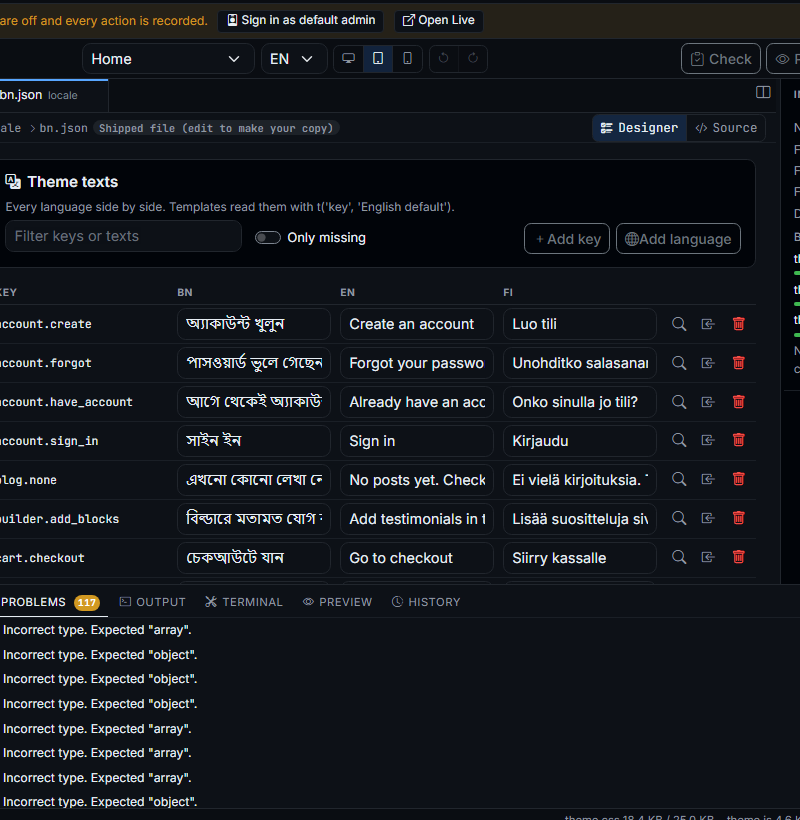 Theme Studio locale designer and translation matrix
- Translation filter and actions — Top toolbar for finding and creating translation keys:
- Filter keys or texts — Live search field that filters table rows matching key names or translation values.
- Only missing — Checkbox toggle that hides completed rows and displays only keys with missing language values.
- Add key — Action button that opens a dialog to define a new translation key string.
- Add language — Action button that creates a new locale file for another language code.
- Add them — Action button shown in the missing keys alert banner that automatically populates missing keys into language files.
- Translations matrix table — Tabular grid displaying all keys and language values:
- Key column — Unique translation identifier string used in templates (e.g.
general.cart.checkout). - Language columns — Text input columns for each active locale (e.g.
EN,BN,FI). Empty fields highlight with a warning outline. - Find usages — Action button that searches the theme codebase for references to the key.
- Insert at the cursor — Action button that pastes
{{ t('key_name') }}into the current active code editor tab. - Remove — Action button that permanently deletes the key from all locale files.
- Key column — Unique translation identifier string used in templates (e.g.
Complete example: Adding a multi-language free shipping banner text
Suppose you added a promotional bar to your theme header and want to provide English and Finnish translations:
- In Theme Studio, open
locale/en.default.jsonand switch to Designer view. - In the toolbar, click Add key.
- Name the key
header.free_shipping_notice. - In the translations matrix table, locate the new row
header.free_shipping_notice. - In the EN column, type
Free delivery on orders over €50!. - In the FI column, type
Ilmainen toimitus yli 50 € tilauksiin!. - Open
sections/header.htmlin a split editor tab and place your cursor where the banner text belongs. - Return to the Locale Designer and click Insert at the cursor on the row.
- The template code inserts
{{ t('header.free_shipping_notice') }}directly at your cursor position. - Press
Ctrl+Sto save both files.
Result: The new banner displays localized text automatically based on the shopper's active language.
How to extend
- Group related keys using dot notation (such as
cart.items,cart.subtotal,cart.empty_message). - Create regional variants (such as
en.default.jsonanden-GB.json) when specific markets require distinct terminology. - Switch to Source mode in the breadcrumbs bar to edit raw JSON dictionaries directly.
Rules and pitfalls
- Key names must be lowercase and contain only alphanumeric characters, underscores, and periods.
- The default language file must end with
.default.json(such asen.default.json). - If a translation is missing for a visitor's language, the storefront automatically falls back to the default language string.
Common questions
How do I pass variables into translation strings?
Define placeholders with double curly braces in your translations (e.g. Hello, {{ name }}!). In your template, pass arguments to the translation helper: {{ t('greeting', { name: customer.name }) }}.
What does the Add them button do in the missing keys alert? When one language file contains keys that other language files lack, the alert identifies the discrepancy. Clicking Add them automatically appends those missing keys into all other language files with blank values, ready for translators to complete.
Related pages
- Explorer — Directory navigation, uploads, downloads, and file management.
- Search — Global text search, regular expressions, and batch replacements.
- Editor — Code editor, tabs, split views, and file handling.
- Theme Information — Configure default locale and manifest settings.