
Settings Designer
Design global theme setting schemas visually, group configuration fields, define setting types, and manage defaults.
Settings Designer
The Settings Designer provides a visual blueprint editor for theme settings schemas (config/settings_schema.json) in Theme Studio. It allows developers to create and organize customization settings into clear categories, specify input types, configure default values, and insert Twig setting calls directly into templates without editing raw JSON files by hand.
Settings defined here appear automatically in the theme customizer for storefront merchants. Form modifications update
config/settings_schema.jsonin your working draft.
When you use this
- Building new global customization options for colors, typography, layout dimensions, and branding.
- Organizing related merchant settings into structured groups and categories.
- Specifying setting input types including color pickers, range sliders, image selectors, and dropdown menus.
- Generating and copying Twig settings snippets to fetch merchant values inside theme templates.
Before you start
- Open Website Manage → Theme Studio from the Developer Console.
- Open
config/settings_schema.jsonand ensure the view is set to Designer in the breadcrumb bar.
How to use the settings designer
- In the breadcrumb bar, ensure Designer mode is active.
- Click Add group to create a new category (such as "Typography" or "Header").
- Enter a descriptive Group title and a unique Group ID.
- In the group settings table, click Add setting or click one of the quick type chips (such as
+ coloror+ range). - Provide a human-readable Setting label, unique Setting ID, select the Setting type, and set the Default value.
- Click the expand arrow on any row to configure Expanded setting details like help text, placeholders, or select options.
- Click Insert template snippet next to any setting to copy its Twig accessor
{{ settings('setting_id') }}. - Click Save in the breadcrumbs bar (
Ctrl+S) to commit changes to your working draft.
Every field and control in Settings Designer
The Settings Designer provides full configuration controls for groups and individual input definitions:
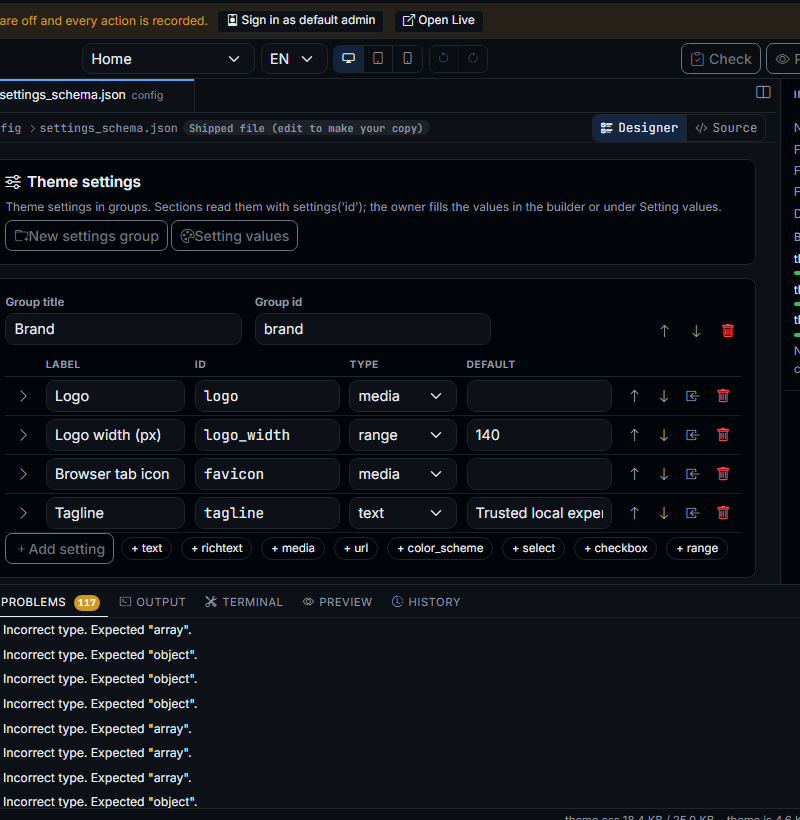 Theme Studio settings schema designer
- Add group — Creates a new top-level category block in the schema to group related merchant options together.
- Setting values — Opens the values this business uses for the theme settings, so you can check or change them. Translatable values follow the language chosen in the title bar.
- Group header — Configures category attributes including Group title, Group ID, reordering arrows (Move group up and Move group down), and Remove group.
- Settings definition table — Structured grid displaying all input fields configured for the active category:
- Setting label — Merchant-facing name displayed in the theme customization sidebar.
- Setting ID — Code identifier used to query the setting value in Twig templates.
- Setting type — Input control kind (such as
text,textarea,color,range,select,checkbox, ormedia). - Default value — Initial fallback value applied before merchant customization.
- Insert template snippet — Copies the exact Twig function call to reference this setting in templates.
- Add setting — Adds a new blank setting row to the group with selectable input types and quick-add chips.
Expanded setting details and options
Expanding any setting row reveals advanced configuration properties:
- Help text — Explanatory tip displayed beneath the field in the merchant customizer.
- Placeholder — Example value displayed inside text inputs when empty.
- Translatable — Checkbox marking the setting as multi-language, allowing merchants to configure different values per storefront locale.
- Numeric bounds — For
rangeandnumbertypes, defines minimum, maximum, and step increments. - Options list — For
selectandradiotypes, specifies selectable choices using onevalue: Labelpair per line.
Complete example: Adding a promotional banner background setting
Suppose you want to let merchants configure the background color of a top announcement banner:
- Open
config/settings_schema.jsonin Theme Studio. - Ensure Designer view is selected in the breadcrumbs bar.
- In the "Colors" group, click Add setting (or click
+ color). - Set Setting label to
Announcement background. - Set Setting ID to
announcement_bg. - Select
coloras the Setting type. - Set Default value to
#1a202c. - Click Insert template snippet to copy
{{ settings('announcement_bg') }}. - Open
sections/announcement.htmland apply the copied snippet to the banner element'sstyleattribute. - Press
Ctrl+Sto save both files.
Result: The new background color setting is registered in the schema and rendered dynamically on the storefront.
How to extend
- Toggle to Source view in the breadcrumb bar to view or edit the underlying JSON schema directly.
- Use a
color_schemessetting in the theme settings to define the colour palettes, and acolor_schemesetting in each section to let the business pick one of them.
Rules and pitfalls
- Every setting ID within a theme must be unique; duplicate IDs overwrite values in the settings store.
- Avoid deleting settings actively referenced in published templates, as templates will fall back to empty strings.
- Group IDs should use alphanumeric characters and underscores only (such as
typographyorheader_settings).
Common questions
Can merchants configure settings in multiple languages? Yes. Check the Translatable box in the expanded details for text or textarea settings to allow separate locale values.
How do I test my new settings? Click Setting values to check the values this business uses, or preview your theme in Theme Studio to see the result.