
Changes
Track unsaved files, review working draft file modifications, compare diffs, revert edits, publish, or discard draft changes.
Changes
The Changes view provides source control and staging management in Theme Studio. It displays open files with unsaved memory changes and tracks all modified, newly added, and deleted files in your active working draft compared to the live storefront theme.
All file edits remain isolated in your working draft until you publish. Customers only see the published version of your theme.
When you use this
- Reviewing modified theme files before publishing them to the live storefront.
- Comparing a modified template against the published version with side-by-side diff.
- Saving individual dirty files or saving all open files simultaneously.
- Reverting accidental changes on a specific file back to its original state.
Before you start
- Open Website Manage → Theme Studio from the Developer Console.
- Ensure you have opened the target theme and made file edits or customizations.
How to use the changes view
- In the left activity bar, click the Changes icon or press
Ctrl+Shift+G. - Review the Unsaved files list at the top to see files modified in the editor that need saving.
- Click Save all or click the checkmark icon next to a specific file to save it.
- Review the In working draft section to inspect all pending file additions, modifications, and deletions.
- Click any changed file to view its side-by-side comparison using Show diff.
- If an edit is unwanted, click Revert next to that file to restore it.
- Click Publish Now to deploy all pending working draft changes to the live theme, or click Discard Working Draft to wipe all draft changes.
Every field and control in Changes
The Changes sidebar includes controls for saving, staging inspection, comparison, and draft lifecycle actions:
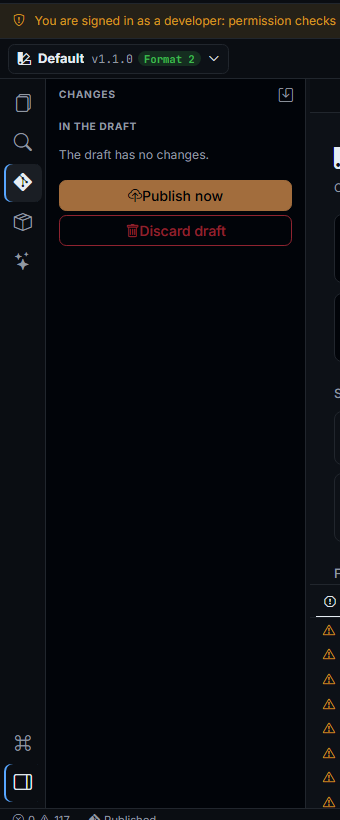 Theme Studio changes and staging sidebar
- Save all — Top action button in the view header that writes all unsaved editor buffers in memory back to draft files.
- Unsaved files — Section header listing all files currently open in the editor with unsaved modifications.
- In working draft — Section listing every file altered in your draft workspace compared to the published theme version.
- Publish Now — Primary action button that validates and publishes all working draft changes to make them live on the storefront.
- Discard Working Draft — Danger action button that deletes the current working draft and reverts all theme files to the published baseline.
Working with individual changed files
Each file row provides status badges and quick action triggers:
- Unsaved file row — Shows the file type icon and relative theme path (such as
templates/home.json). - Show diff — Compares the current file content against the published version in a split diff viewer.
- Save file — Saves the single dirty file buffer back to the working draft without saving other open tabs.
- Changed file — Displays a color-coded status badge and relative path indicating the modification kind:
- A (Green) — Added: New file created in this working draft session.
- M (Orange) — Modified: Existing theme file edited and changed.
- D (Red) — Deleted: File removed from the working draft.
- R (Blue) — Reset: Restored to original starter state.
- Revert — Reverts all working draft changes for that single file, restoring it to the published version.
- Empty state — When no files have draft changes, the section displays "Working draft is clean".
Complete example: Comparing and publishing a template change
Suppose you modified sections/hero.html to add a new seasonal banner, and you want to inspect your changes before publishing:
- Click the Changes icon in the activity bar.
- In the Unsaved files section, click Save file next to
sections/hero.html(or click Save all). - Under In working draft, locate
sections/hero.htmlwith its M (Modified) badge. - Click the Show diff icon next to the file name. The editor displays the published template on the left and your modified draft on the right with color-coded additions and removals.
- Verify that your changes look correct and do not introduce errors.
- Click Publish Now at the bottom of the Changes panel.
- Confirm the publication prompt in the modal.
Result:
The updated sections/hero.html publishes immediately, and the Changes view displays "Working draft is clean".
How to extend
- Combine diff inspection with Theme Studio's real-time live preview to verify template output before deploying.
- Use Discard Working Draft during development to reset experiments without leaving residual file changes on your storefront.
Rules and pitfalls
- Clicking Discard Working Draft deletes all unpublished edits across all files in the current working draft; this action cannot be undone once confirmed.
- Unsaved editor buffers must be saved before they can be included in a publish action.
- When working with team members, check diffs carefully to avoid overwriting recent updates published by others.
Common questions
Does publishing a draft affect customers currently browsing the storefront? No. Publishing updates the active theme templates seamlessly without causing downtime or session loss for active shoppers.
Can I restore a file after clicking Revert? No. Reverting a file immediately discards your draft changes for that file and restores the published version from the server.