
Payment Setting
View and manage payment voucher types, outgoing disbursement categories, and prefix numbering.
Payment Setting
Payment Setting enables developers to view, search, and manage outgoing payment voucher types, money disbursements, supplier settlements, and expense payment channels.
Payment types govern how financial disbursements, supplier account settlements, and expense payments are formatted, numbered, and recorded across the system.
When you use this
- Reviewing all configured disbursement and payment voucher classifications.
- Searching for specific payment types by title or technical identifier.
- Exporting payment voucher configurations to Excel or CSV for financial audits.
- Opening the editor to configure new or existing payment classifications.
Before you start
- Sign in to the Developer Console with your developer credentials and two-factor code.
- Ensure prerequisite payment receipt layouts are configured in Invoice Templates.
- Verify payment methods (Cash, Bank, Mobile Money) are set up in accounting settings.
Open the payment settings screen
In the Developer Console left navigation explorer, under the General section, click Payment Setting.
Search or filter payment types
Use the live Search bar above the datatable to find payment types by title or identifier. Adjust visible records with the Show dropdown.
Manage columns or export
Click Columns to toggle visible table columns, or click Export to download the records as Excel or CSV.
Open the creation window
Click Payment Type Add in the top right corner above the datatable to open Payment Setting Edit.
Every field on this screen
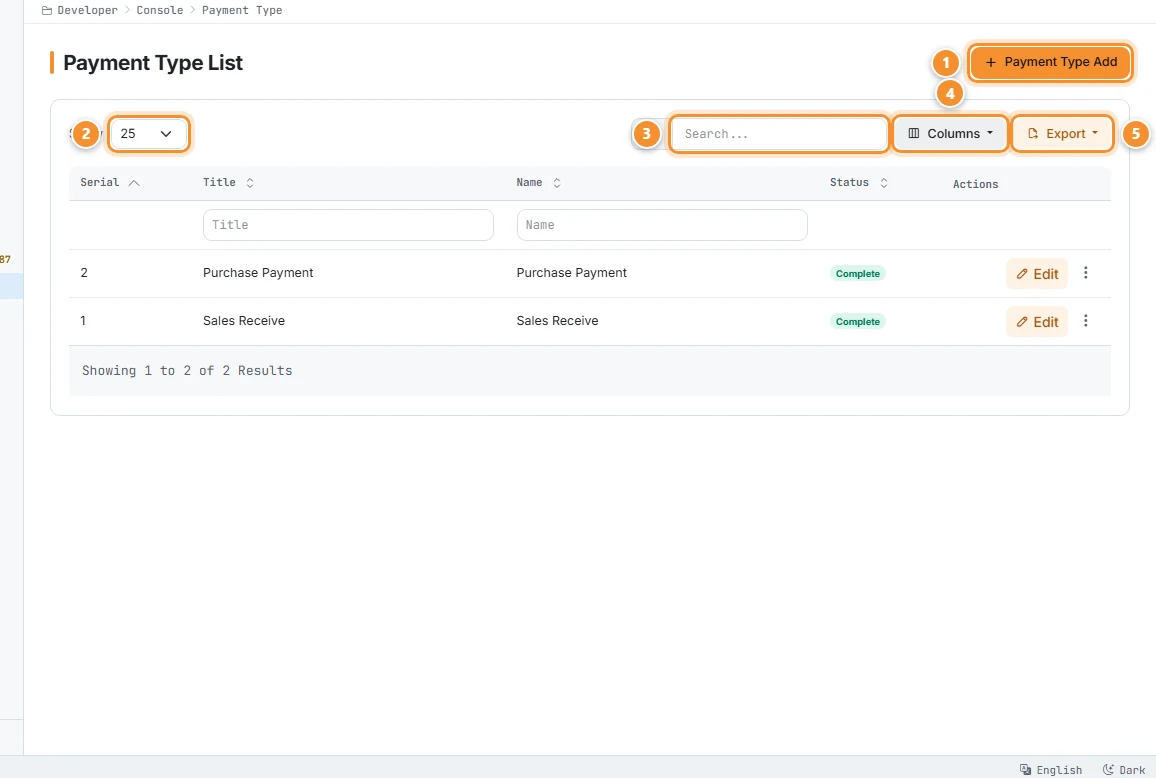 The payment type list and settings screen
- Payment Type Add — opens the modal window to create a new payment type.
- Show — controls how many payment type records to display per table page (10, 25, 50, 100, or 250).
- Search — real-time filter searching payment types by title, name, or serial number.
- Columns — dropdown menu toggling visibility of table columns (Serial, Title, Name, Prefix, Suffix, Status, and Actions).
- Export — exports the visible payment types table to Excel or CSV format.
In the table, each row displays Serial, Title, Name, Prefix, Suffix, Status, and action buttons to modify or Delete records.
Complete example: Auditing supplier payment vouchers
Suppose an accounts officer needs to check which vouchers are used for settling vendor invoices:
- Navigate to Payment Setting in the Developer Console navigation.
- In the Search input, type
Supplier. - The table displays all matching payment classifications with their prefix formatting (such as
SPAY-) and status. - Click Export to save the verified configurations to an Excel spreadsheet for the finance audit team.
How to extend
- Define custom numbering prefixes for supplier settlements or expense vouchers in Payment Setting Edit.
- Assign dedicated receipt print layouts using Order Setting.
- Pair with Account Receipt Setting to complete incoming and outgoing payment tracking.
Rules and pitfalls
- Deleting an active payment type prevents accounts staff from selecting it during voucher creation.
- Ensure voucher prefixes are unique across all disbursement types.
- Technical names must remain unique across all payment classifications.
Common questions
What is the difference between Payment Setting and Account Receipt Setting? Payment Setting configures outgoing disbursements and money paid out to suppliers or service providers. Account Receipt Setting configures incoming money collections from customers.
Where do accounts staff use these payment types? Staff select configured payment types when recording payments in the Account module.